DCHost saved payment methods and automatic payments
Paying one invoice by card, saving a card in your portal account and enabling future automatic charges are separate actions. This guide covers saved methods and Auto-Pay Setup. For a single payment, follow the invoice payment guide.
Open saved payment methods
Open the Payment Methods page. Another route is Billing → Auto-Pay Setup → Add Payment Method in the card section.
Payment Methods is a separate page for saved payment methods.
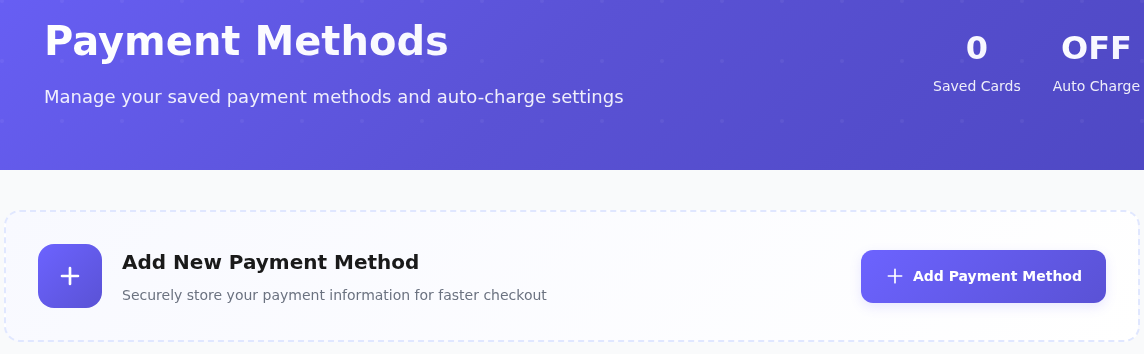
Step 1: Read Saved Cards and Auto Charge
- Read Saved Cards and Auto Charge
Saved Cards is the number of stored cards. Auto Charge shows the automatic-charge state. They are 0 and OFF in this screenshot.
- Open the form to add a card
Select Add Payment Method. Entering and saving the details is a separate next step; opening the form does not save a card.
This example has no saved cards and shows Auto Charge OFF. Opening a payment page or seeing a Stripe Link preference does not establish that this state changed.
- Saved Cards: The number of cards stored in the portal.
- Auto Charge: The displayed automatic-charge status.
- Add Payment Method: Opens the new-method form.
The example shows 0 Saved Cards and OFF. Using a card on an external checkout does not necessarily add it to this list.
Add a card
Select Add Payment Method to open Add New Payment Method.
Add New Payment Method asks for the card number, expiry month/year and cardholder name.
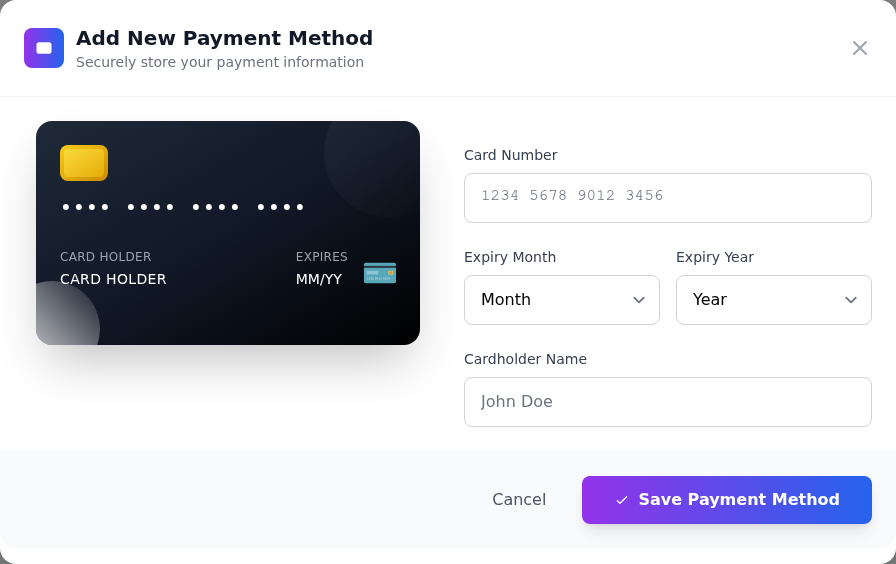
Step 1: Enter your own card number in Card Number
- Enter your own card number in Card Number
Card Number is for the number on your card. Do not use the grey example number; enter the details only into your own open payment form.
- Complete the expiry and cardholder name
Choose the month in Expiry Month and the year in Expiry Year. Enter the name printed on the card in Cardholder Name.
- Check the list after Save Payment Method
When the details are correct, select Save Payment Method. Read the result and confirm that the card appears in the list; verify automatic-charge preferences separately from saving the card.
No card details were entered and Save Payment Method was not selected. The 1234… and John Doe text are placeholders. No CVV field is shown; the card illustration is not a separate input.
- Card Number: Enter your own card number.
- Expiry Month / Expiry Year: Select its expiration month and year.
- Cardholder Name: Enter the name on the card.
- Select Save Payment Method to submit, or Cancel to leave the form.
- Read the result message and check the saved-method list again.
The screenshot contains a blank form; no card was added. Do not copy the placeholder number or John Doe as your details. The card illustration is not a saved card. No separate CVV input was present in the observed form; the illustration's CVV label is not an extra field to fill in.
If your card changes or expires, check the stored method too. If your account does not show a removal or update action, ask support for help without sending card details. Removal and update results cannot be shown from this account because it has no saved card.
Open automatic payment settings
In Billing Center, select Auto-Pay Setup and allow the contents to load. Auto-Pay Settings separates three subjects.
Apply existing account credit
Auto-apply Credit controls the use of account credit for new orders and recurring invoices. No - Do not apply credit disables the preference; Yes - Apply credit automatically enables it. This does not charge new money to a card.
Auto-apply Credit concerns using existing account credit for new orders and recurring invoices.
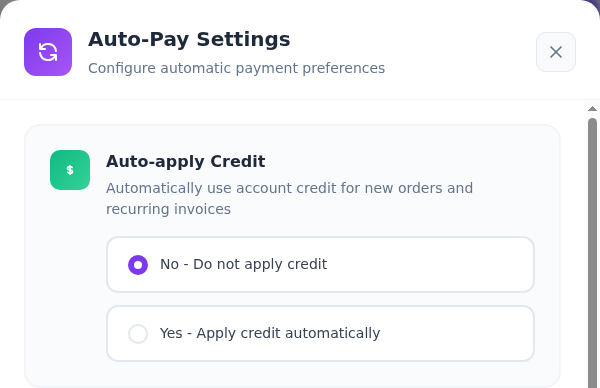
Step 1: Check that the setting concerns existing credit
- Check that the setting concerns existing credit
Read the Auto-apply Credit description. This option does not add money or by itself instruct a card payment.
- Choose the option that fits your needs
No disables automatic use of credit; Yes selects automatic application. These are alternatives. Verify the result after the final save action at the bottom of the dialog.
This dialog shows No, while the separate billing-settings example shows Yes. The screenshots do not establish synchronized settings. Reopen the setting after a change and verify the result; contact support if it is inconsistent.
This preference also appears in billing settings. Reopen the page after saving to verify it. If the two screens show different values, do not consider automatic payment verified; track the invoice deadline and contact support.
Charge a saved card
Review Auto-charge Credit Cards. The example says No Payment Methods Found, with no saved card available for automatic charging. Add Payment Method opens the saved-method page.
Auto-charge Credit Cards shows whether the payment-method requirement for automatic card charges is met.
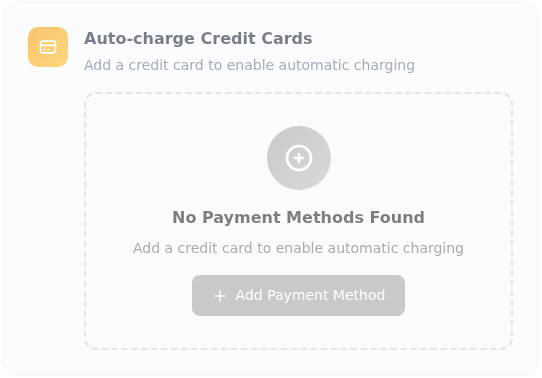
Step 1: Read No Payment Methods Found
- Read No Payment Methods Found
This message reports that no saved payment method is available to this section. Opening Auto-Pay alone does not enable automatic charges.
- Locate the payment-method entry point
Add Payment Method links to the payment-method area. If the link is unavailable or this message remains after adding a method, do not assume automatic payment is working; ask support to check.
This example does not show a saved card or an active automatic card charge. Optional Link saving on the Stripe form does not establish that this portal setting is enabled.
Saving a card alone does not establish that automatic charging is active. Check Auto Charge and the preferences actually offered for your account afterward. Options for an account with a saved card cannot be confirmed from this empty-state screen.
Charge a stored bank account
Auto-charge Bank Accounts is separate. Consider it only with a supported stored bank account and the required authorization. The bank-charge explanation shows the available choices.
Scroll inside the window if its content extends below the screen. Use Save Changes to submit your changes or Cancel to leave them. Reopen the screen and check both the preference and the relevant invoice payment status.
Distinguish the actions
| Action or field | Meaning |
|---|---|
| Pay Now | Opens payment for a particular invoice |
| Saved Cards | Shows methods stored in the portal |
| Auto-apply Credit | Controls automatic use of existing account credit |
| Auto Charge | Displays automatic charging for supported saved methods |
Service renewal is another distinct concern. A charge attempt may fail; verify that the invoice is Paid and that the service expiry date has advanced, following the renewal guide.
External checkout may offer to save details with Link. That does not enable automatic charging in the DCHost portal. Read the payment provider's explanation before selecting its save-information option.