How to change your DCHost customer portal password
Change your DCHost customer account password under Settings → Change Password. This is the password for signing in to the customer portal. It does not change your server, hosting-panel or mailbox password.
Before you start: You must be signed in and know your current customer account password. If you cannot remember it, use Forgot password? on the sign-in screen. The sign-in guide shows where to find it.
1. Enter the current and new passwords
Choose Settings in the top navigation, then Change Password. Find Password Security.
Start in Password Security on the Change Password page.
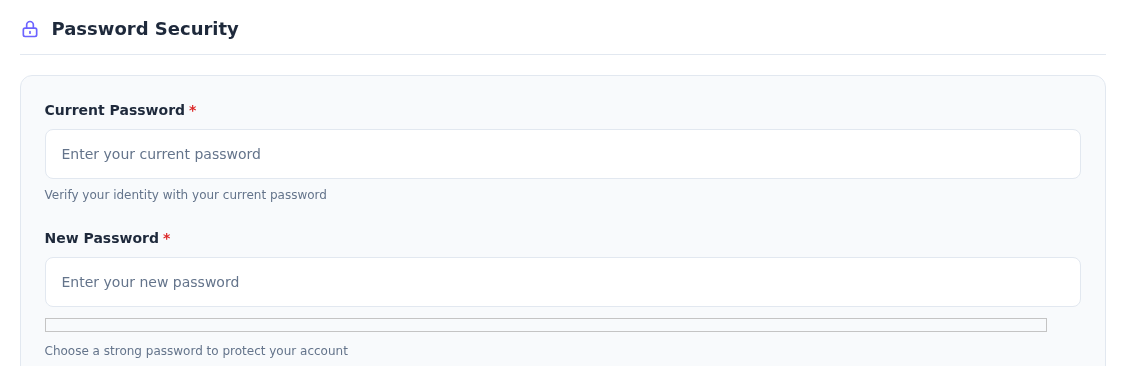
Step 1: Use the current password in Current Password
- Use the current password in Current Password
Enter the password you currently use to sign in. If you cannot remember it, use Forgot password? on the sign-in screen.
- Choose a new password in New Password
Enter a new password used only for this DCHost account in New Password. Check Password Requirements below as well.
This form changes the DCHost customer portal password. Use the relevant service tools for server, mailbox or hosting-panel passwords.
- In Current Password, enter the password you currently use to sign in.
- In New Password, enter the new password chosen for this account.
- Check the Password Requirements list below.
Choose a password that is difficult to guess and is not used on other sites. A password manager can generate and store a long, unique value. Do not include passwords in support requests or screenshots.
2. Check the requirements and confirm the password
This change-password form lists four minimum requirements:
| Requirement shown | What it means |
|---|---|
| At least 8 characters long | Use 8 or more characters. |
| Contains uppercase letter | Include an uppercase letter. |
| Contains lowercase letter | Include a lowercase letter. |
| Contains number | Include a number. |
The two new-password fields must match.
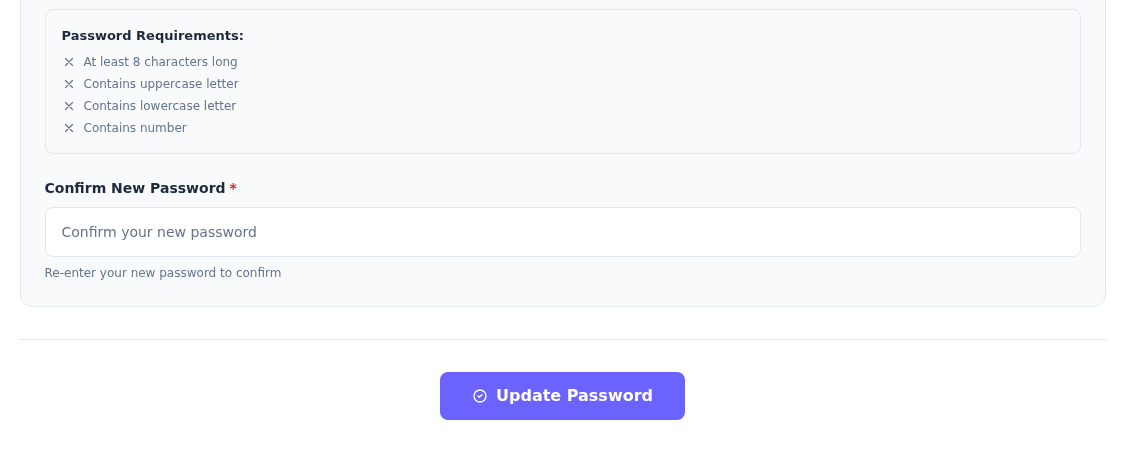
Step 1: Meet all four requirements
- Meet all four requirements
Use at least 8 characters, an uppercase letter, a lowercase letter and a number. These are the minimum requirements listed on this change-password screen.
- Re-enter the new password
Enter exactly the same new password in Confirm New Password as in New Password. Do not enter the old password here.
- Submit with Update Password
Review the fields, then select Update Password. Read the result displayed by the portal; use the new password if asked to sign in again.
The fields were left empty and no password was changed. Keep the new password in a secure password manager so you can sign in again.
Enter the same new password in Confirm New Password. This must match New Password, not the old password. Then select Update Password and read the result displayed by the portal.
Final check: Once the update is accepted, save the new password in your password manager. Use it if the portal asks you to sign in again. See the account security guide for separate session controls; do not assume a password change closes every existing session automatically.
The fields were left empty for this guide and the demo account password was not changed. The screenshots show the actual form before submission.
If the password does not change
| Issue | What to check |
|---|---|
| Current password error | Make sure Current Password contains the customer portal password. Check Caps Lock and keyboard layout. |
| New password does not meet requirements | Meet all four conditions. Check that autofill used the intended field. |
| New passwords do not match | Enter the same value in New Password and Confirm New Password. |
| Sign-in fails after the change | The browser may be filling the old password. Check the account email and your updated password-manager entry. |
| You do not know the current password | Use Forgot password? on the sign-in screen. Do not create another account to access the same services. |
If you change your mind: Leave the page before selecting Update Password. After a completed change, keep the new password securely rather than reusing an old password.
Review two-factor authentication and access settings to strengthen the account. To change the login email instead, use the Change Email guide.