How to manage hosting: cPanel login and tools guide
Your hosting control panel manages website files, mailboxes and databases. The DCHost customer portal is where you find the hosting service, view its access details and open that panel. This guide takes you from the correct service to the tool you need in cPanel.
Starting path: Sign in to the customer portal → open your project → select your hosting from Websites. See finding your services if it is missing, or ordering hosting if you have not purchased it yet.
1. Open the correct hosting service
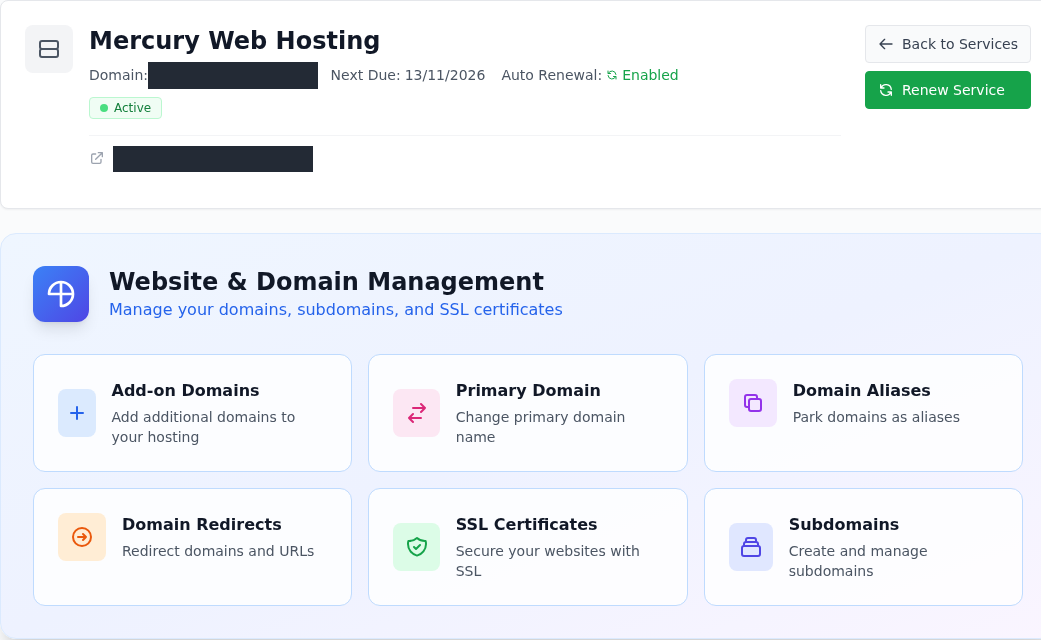
Service Overview shows the plan, domain, Active status and Next Due date. If you have several hosting services, check the domain before continuing. Account-specific details are redacted in the screenshots.
Service Overview groups service status and domain tools.
Step 1: Check the Active status
- Check the Active status
Check the plan, Active status and Next Due date. Active hosting does not prove that your domain DNS is already pointing to it.
- Choose the relevant domain tool
Subdomains is for subdomains, Domain Aliases for additional names displaying the same site, and Domain Redirects for URL redirects.
A visible tool does not by itself confirm that the feature is included in your plan.
Active means the hosting service is active. DNS pointing to the correct server, a valid SSL certificate and a working website require separate checks. Next Due is the next payment date; see renewing a service.
2. Open cPanel from the customer portal
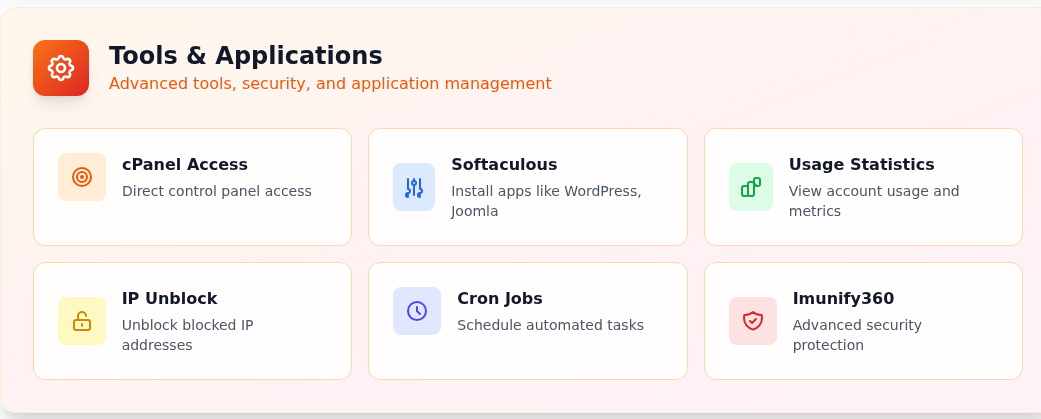
- Find Tools & Applications on the hosting service page.
- Select cPanel Access.
- On the access page, select Click here to open cPanel. If your browser blocks the new tab, allow it for this site.
- If cPanel's Tools page opens, continue to finding your tools. If you see cPanel Login, sign in with the hosting credentials described below.
Tools & Applications contains panel, app and usage links.
Step 1: Open the panel link with cPanel Access
- Open the panel link with cPanel Access
The card first opens an access page within the portal. Its Click here to open cPanel link leads to the control panel.
- Locate Softaculous for application installation
The Softaculous card opens the installer access page. Continue with Click here to Access Softaculous and check the target site before starting an installation.
- Check usage separately
Usage Statistics opens the page showing resource use and limits reported by the portal.
If the cPanel login form opens, use the hosting details under Access / Login Details. Before installing an application, check the domain, directory and HTTPS status.
Where are the cPanel username and password?
Return to this hosting service in the customer portal and open Access / Login Details. Its Username and Password belong to that hosting account.
| Login field | Details to use |
|---|---|
| cPanel Username | The username under Login Details for the hosting service. |
| cPanel Password | The current password for that hosting service. |
| DCHost customer portal | Your customer account email and portal password. These are not the credentials requested by the cPanel form. |
Return to the cPanel tab, complete Username and Password, then select Log in once. Check that copying has not added spaces before or after either value. Do not include the password in a support ticket, screenshot or guide comment.
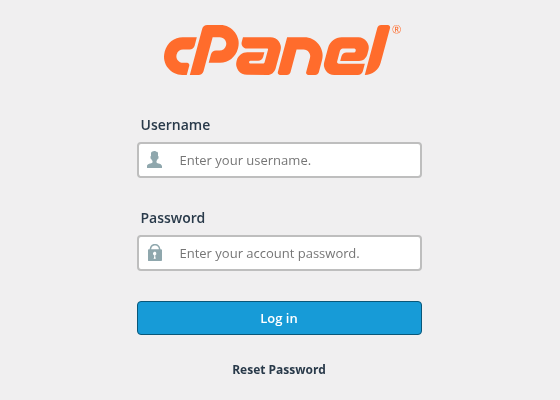
This form signs in to the hosting control panel, rather than the customer portal.
Step 1: Enter the hosting username
- Enter the hosting username
Use the username shown for this hosting service in Username, rather than your customer account email.
- Enter the hosting password
Use the current password for the same service in Password. Keep it distinct from portal and WordPress credentials.
- Continue with Log in
Review the details and select the button once. After signing in, open the Tools page.
The screenshot fields are empty. Use the current details under Access / Login Details for your hosting service.
After signing in, you should see Tools. A cPanel introduction may appear on the first login; use Skip to continue to the tools. If the hosting credentials are rejected, avoid repeatedly retrying the same password. Open a support ticket with the service name and visible message.
3. Find the cPanel tool you need
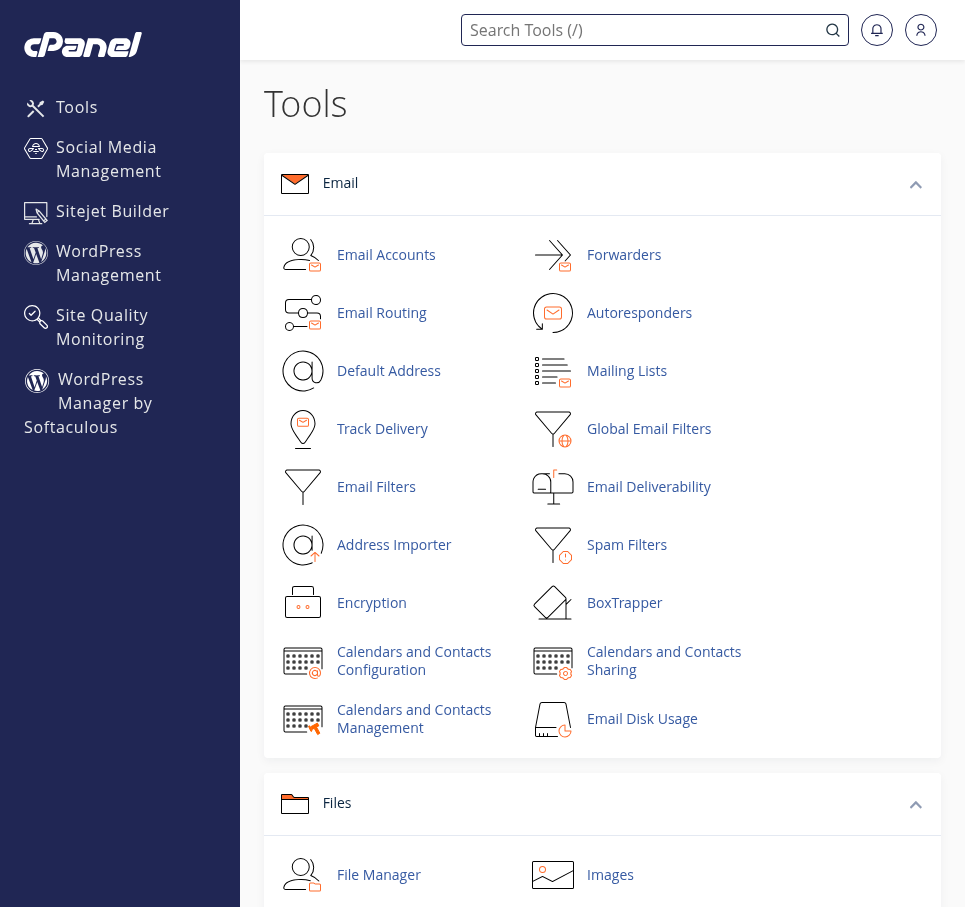
The Tools page groups tools by task. Type a tool's name into Search Tools (/) at the top or open it from the relevant group. Check General Information → Primary Domain to confirm you are in the correct hosting account. Depending on window width, this section may appear on the right or below the tools.
Search for a tool by name or use groups such as Files and Email.
Step 1: Search for a tool
- Search for a tool
Enter a tool name such as File Manager or Email Accounts in Search Tools at the top.
- Open File Manager for files
File Manager in the Files group opens website files and folders. Check the correct site directory before changing a file.
- Open Email Accounts for mailboxes
Email Accounts creates and manages mailboxes. Forwarders is the separate email forwarding tool.
The layout changes with browser width. General Information may appear below the tools in a narrower window.
| Task | cPanel tool to find |
|---|---|
| View or upload website files | Files → File Manager |
| Create an email address on your domain | Email → Email Accounts |
| Forward email to another address | Email → Forwarders |
| Manage databases and their users | Databases → Manage My Databases |
| View an existing database | Databases → phpMyAdmin |
| Check a domain and its website directory | Domains → Domains |
| Inspect DNS records | Domains → Zone Editor; check your authoritative DNS provider before changing records. |
| Review the PHP version | Software → MultiPHP Manager or Select PHP Version; check your application's requirements before changing it. |
| Manage scheduled tasks | Advanced → Cron Jobs |
Visible tools do not change your plan's capacity or permissions. If another provider manages authoritative DNS, edits in cPanel's Zone Editor may not affect the records used on the internet. Follow the nameserver check in the DNS records guide.
Open the WordPress installer
Software → Softaculous Apps Installer is the installation tool for applications such as WordPress. The same group also includes WordPress Manager by Softaculous. To open it from the portal, use the hosting service's Softaculous card, then Click here to Access Softaculous.
The installer and PHP settings are separate links in the same group.
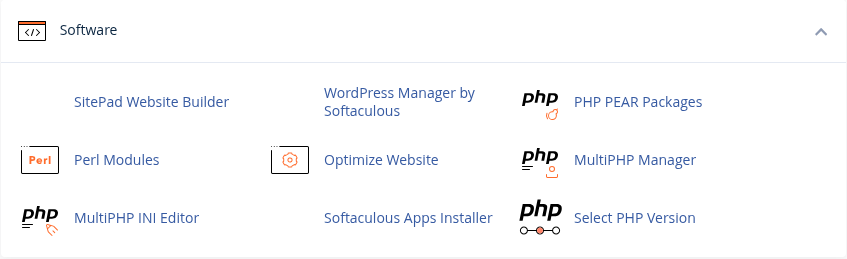
Step 1: Locate the application installer
- Locate the application installer
Softaculous Apps Installer opens the installation tool for applications such as WordPress.
- Identify the WordPress management link
WordPress Manager by Softaculous opens the WordPress management tool. The WordPress administrator account used to manage site content is separate.
Before a new installation, check the domain, directory and HTTPS status. Change PHP only after checking application compatibility.
Before starting an installation, check the domain, website directory and HTTPS status. Do not start a new installation over an existing site's directory. For preparation, see the control panel guide's WordPress section. If you are moving a working site, follow WordPress migration.
4. Use the right tools for files and databases
Use Files → File Manager in cPanel to manage files. From the customer portal, you can also follow File Manager → Click here to open FileManager.
Confirm the open folder before choosing a file operation.
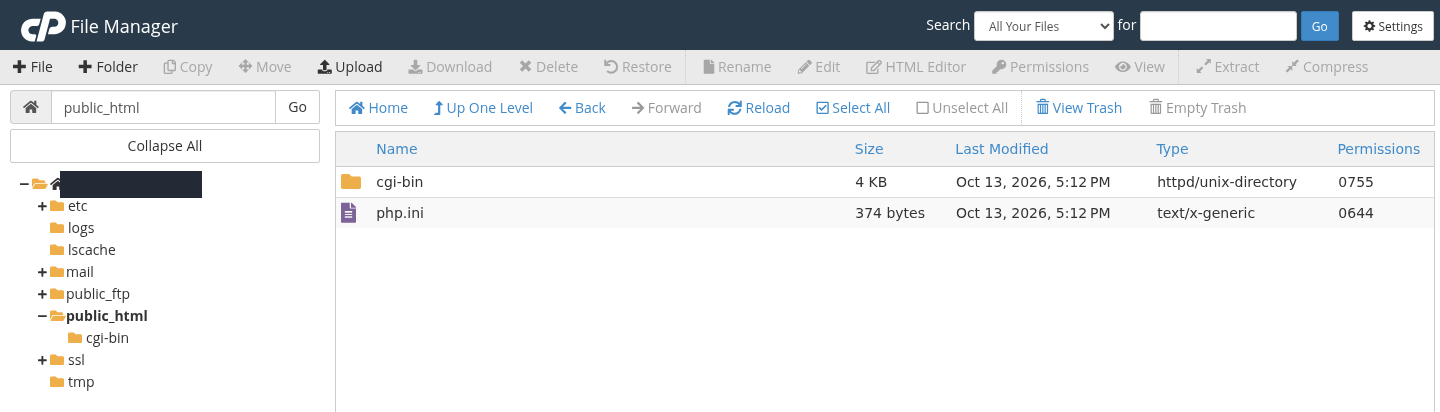
Step 1: Read the open directory
- Read the open directory
The path field and selected folder show public_html. Other domains may use a different document root.
- Inspect existing entries
The right-hand list shows files and folders. This example contains cgi-bin and php.ini; do not assume the directory is empty.
- Use Upload to add a file
To add a file, open the correct directory and select Upload. Back up an existing file before overwriting it.
Upload new files to the correct directory. Do not delete the existing public_html entries just to prepare a new installation.
Before uploading or deleting files, check the correct domain's document root, the folder that contains its website files. public_html is a common root directory; additional domains may use another folder. A folder's name alone does not tell you whether its existing files are safe to remove.
Files and databases are separate parts of a site. Uploading files alone is not a complete WordPress migration. Review the migration plan and the database and FTP guide before transferring data. For mailboxes, see hosting email management.
5. Choose the appropriate domain tool
| Customer portal tool | Purpose |
|---|---|
| Subdomains | Subdomains such as blog.example.com and their file directories. |
| Domain Aliases | Showing the same website under additional domain names. |
| Domain Redirects | Sending a URL to another URL; the form offers permanent 301 and temporary 302 redirects. |
| Add-on Domains | Hosting another website under a different domain, if the plan allows it. |
| Primary Domain | Changing the hosting account's main domain. Plan the transition first because it can affect the website and email configuration. |
Adding a domain here does not register it. DNS also requires a separate check; see changing nameservers and DNS records. A visible card does not guarantee plan availability; if usage shows Not Available, check your plan's scope.
6. Understand the SSL section
The customer portal's SSL Certificates → SSL/TLS page contains private keys (KEY), certificate requests (CSR), certificates (CRT) and Install and Manage SSL for your site (HTTPS).
The SSL Certificates card opens SSL/TLS management.
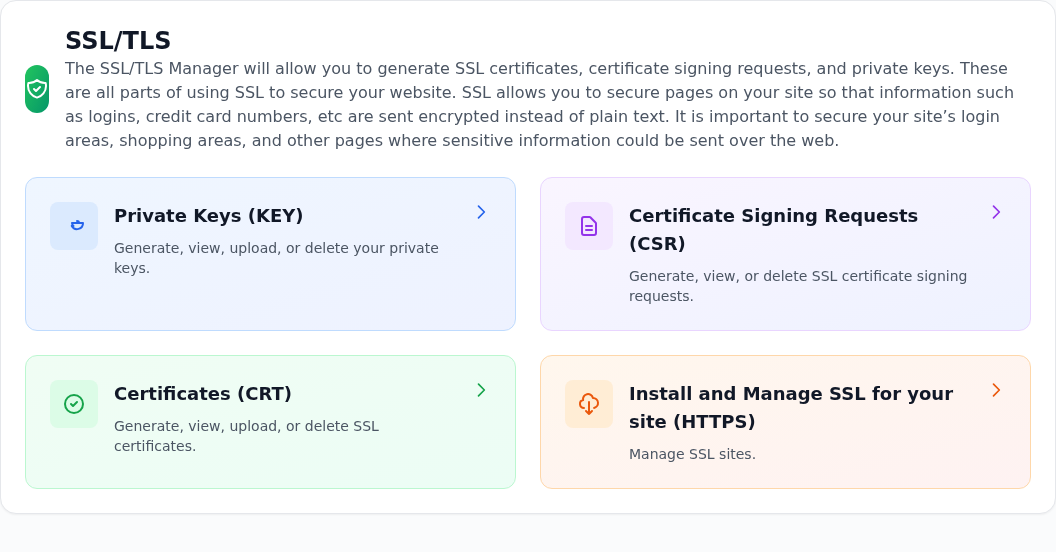
Step 1: Distinguish keys, requests and certificates
- Distinguish keys, requests and certificates
KEY contains private keys, CSR certificate signing requests, and CRT certificates. Keep private keys private, including in support screenshots.
- Locate SSL installation management
Install and Manage SSL for your site (HTTPS) opens certificate assignment management. Check the intended domain and certificate before proceeding.
After installation, check that the certificate covers the correct domain and the website opens over HTTPS without a browser warning.
Check DNS, certificate coverage for your domain and whether the website opens at its https:// address. Reaching certificate management does not mean a certificate has been installed. Use SSL troubleshooting for browser certificate errors.
7. Review usage, backups and scheduled tasks
In the customer portal's Usage Statistics, Monthly Bandwidth Transfer means traffic and Disk Space Usage means storage use. The same page includes email, subdomain and FTP counts.
Account statistics shows usage alongside reported limits.
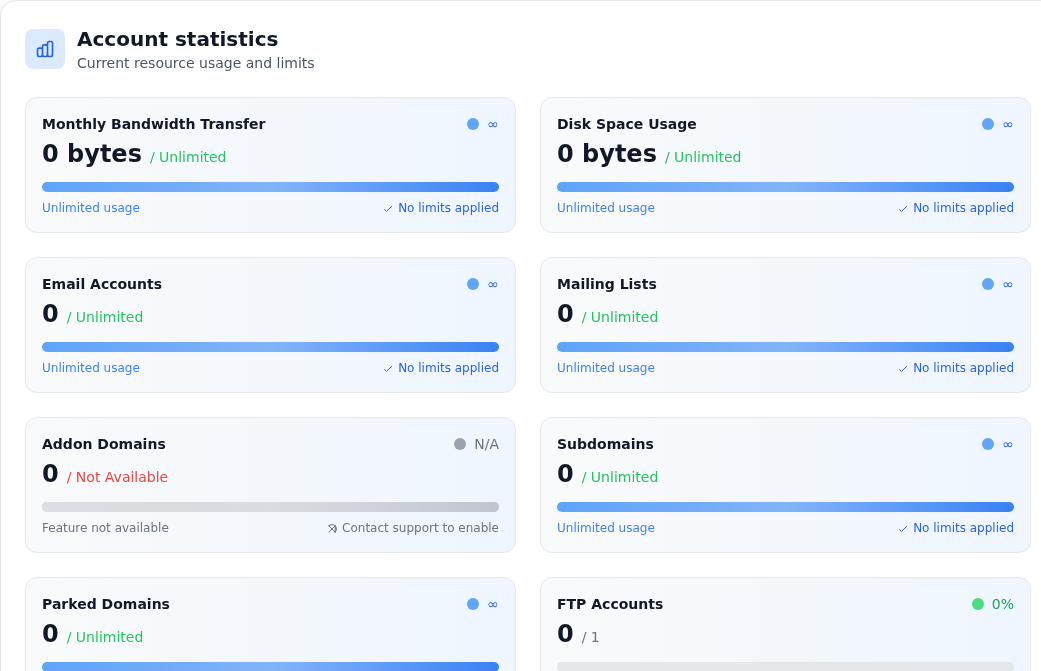
Step 1: Read values and units
- Read values and units
Monthly Bandwidth Transfer is monthly traffic; Disk Space Usage is storage use. A zero value alone does not establish that metering is up to date.
- Recognize a feature marked Not Available
Addon Domains is Not Available for this demo plan. Check the plan scope before adding another domain.
The original Unlimited label is preserved. Traffic is subject to Unmetered (Fair Usage) terms; the purchased plan and agreement apply.
The screenshot preserves the portal's original Unlimited label. Traffic is subject to Unmetered (Fair Usage) terms; your purchased plan and agreement apply. Empty or conflicting counters do not establish that plan limits have been removed.
Backup Manager → Backup Management contains a backup list and Create new backup. Before relying on a backup, check its completion status, date, file and scope. Processing / Creating backup alone does not prove that a usable backup exists. Continue with the backup guide and backup verification.
Cron Jobs schedules commands. Common Settings offers preset frequencies and Command specifies what runs. Confirm the command recommended by your application and the server timezone before saving. Running the same job too frequently can consume hosting resources.
Frequently asked questions
Can I use my customer portal password to sign in to cPanel?
Use the details under Access / Login Details for your hosting service. Do not assume that your customer account email and portal password are also your hosting credentials.
Why is my website unavailable if cPanel works?
Panel access and website availability are separate checks. Review the domain's nameservers and DNS records, the site files' directory and the SSL status. Start with the hosting first checks.
Is the WordPress dashboard the same as cPanel?
No. cPanel manages hosting tools such as files, email and databases. The WordPress dashboard manages your site's pages, posts, themes and plugins. WordPress uses its own administrator account.