How to pay a DCHost invoice with account credit
If your account has available credit, you can pay an invoice through Pay Now → Credit Balance. This guide follows a real payment using existing credit and shows what to check afterwards.
Before you start: Sign in to the customer portal and check that you are using the correct account. To add credit, start with the account top-up guide. The demo account was given 100 USD of credit for this example; that opening balance does not show a card or crypto top-up.
1. Check your available credit
Open Billing → Account Balance Overview. Available Credit is the credit you can use towards an invoice. Outstanding Balance is the amount due at account level; it does not have to match the total of the individual invoice you intend to pay.
Account Balance Overview separates the account balance due from available credit.

Step 1: Read Available Credit
- Read Available Credit
100.00 USD is the available credit at this stage. Check that your own credit covers the current invoice total.
- Read the account balance due separately
Outstanding Balance is an account-level summary. Open the invoice you intend to pay and check its own total.
This account was given 100 USD of demo credit for the example. This is not a card or crypto top-up result. Read the account summary separately from an individual invoice total.
The example had 100.00 USD of available credit before payment. Check that your balance covers your invoice. If it does not, avoid repeatedly selecting the payment button.
2. Review the invoice and payment-method fee
In Invoice Management, select View for the invoice you intend to pay. Check its number, service, items and currency. If earlier invoices are marked Merged, use the current total of the combined invoice.
With Crypto selected, the combined invoice included a payment-method fee.
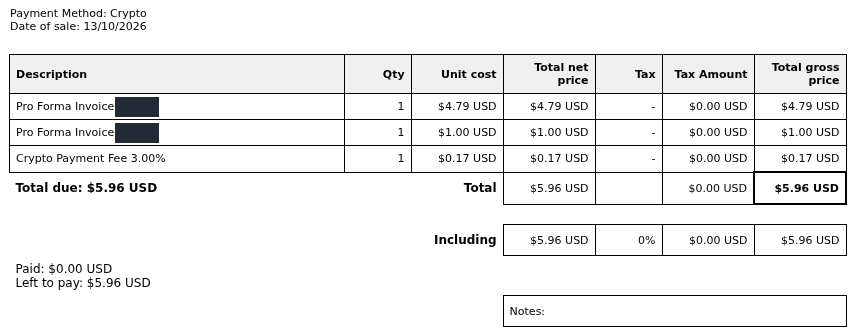
Step 1: Locate the payment-method fee
- Locate the payment-method fee
The Crypto Payment Fee at 3.00% was 0.17 USD in this example. After changing the method, check whether this line changes.
- Check the invoice total
Total due is 5.96 USD at this stage with Crypto selected. Recheck the final amount after changing the payment method.
This combined invoice included an earlier service invoice and a 1 USD Add Funds item. Other invoices may have different items; check your own descriptions and amounts.
This combined invoice included 4.79 USD from an earlier VPS/VDS order and a previously created 1 USD Add Funds item. With Crypto selected, a 0.17 USD method fee brought the total to 5.96 USD. These amounts belong to this example; use your own invoice items and current price.
3. Select Credit Balance and confirm the updated total
- Open Pay Now on the invoice page.
- Select Credit Balance in the method field.
- Wait for the invoice total to update. If the fee or amount changes, read the final total again; close the dialog and review the invoice details if needed.
- When the method and amount are correct, select Pay Now in the payment dialog once. Wait for the result while the payment is processing.
Pay Now on the invoice opens the window where you select the payment method.
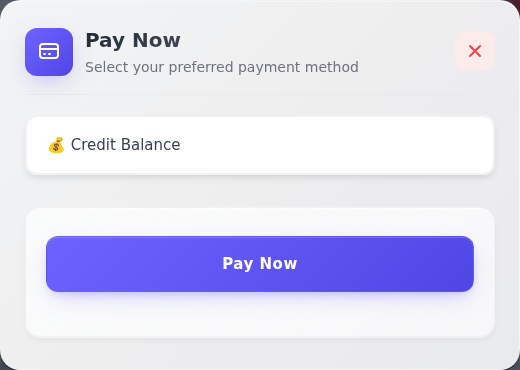
Step 1: Confirm Credit Balance is selected
- Confirm Credit Balance is selected
Check that the field says Credit Balance. This method uses existing account credit and does not require a card form.
- Check the current amount and submit
Check the updated invoice total after changing the method. If it is correct, select Pay Now in this dialog once and wait for the result.
This is the dialog before confirmation. The example total changed to 5.79 USD after selecting the method; after checking it, Pay Now in the dialog was submitted once.
In this example, selecting Credit Balance removed the Crypto fee and changed the total to 5.79 USD. The effect of changing a method can differ between invoices, so check the amount on your own screen before confirming.
4. Verify Paid status and the amount left to pay
After payment, return to the same invoice. Check that the status and payment date have updated. The example changed to Paid: 13/10/2026.
After payment with credit, the status and date at the top of the same invoice changed.
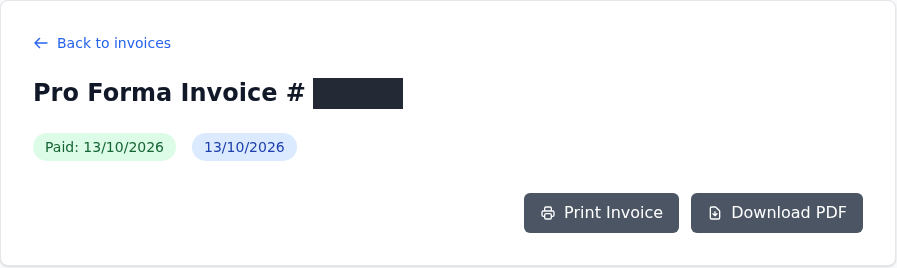
Step 1: Read the status and payment date
- Read the status and payment date
The example shows Paid: 13/10/2026. After your payment, confirm the invoice identity, status and date.
Paid is the invoice result. Check service provisioning separately in the project or service view.
Next, compare Payment Method, the total and Left to pay in the document.
After payment, the document shows Credit Balance, a 5.79 USD total and no amount left to pay.
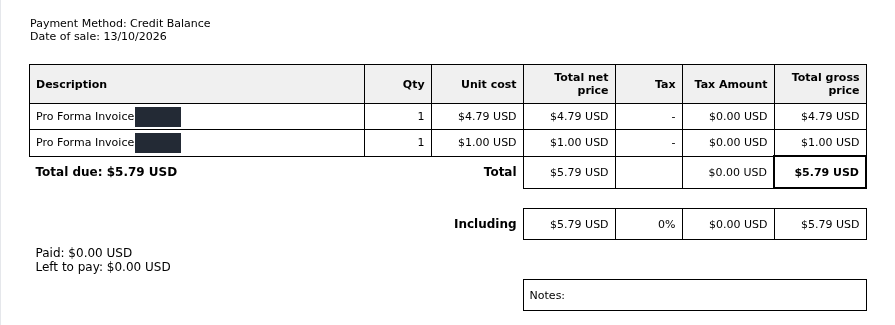
Step 1: Compare the method and final total
- Compare the method and final total
Payment Method is now Credit Balance and Total due is 5.79 USD. The earlier 0.17 USD Crypto fee is no longer present.
- Read Left to pay
Both Paid and Left to pay show 0.00 USD here. Check the remaining balance together with the Paid status and the account summary that follows.
The document shows Paid: 0.00 USD alongside Left to pay: 0.00 USD. Do not rely on the Paid amount alone; also check the invoice status above and the account balance.
This document shows Credit Balance, a 5.79 USD total and Left to pay: 0.00 USD. It also shows Paid: 0.00 USD. Do not infer the result from that amount alone: check the invoice's Paid status above, the remaining amount due and the account summary that follows.
Use Download PDF to save the document or Print Invoice to print it. Check that the downloaded document has the correct invoice and current status; see the invoice download guide.
5. Compare the account balance due and remaining credit
Use Back to invoices to return to the invoice list. Recheck Account Balance Overview and the row for the same invoice.
After payment, Billing Center shows the current balance due, available credit and invoice status together.
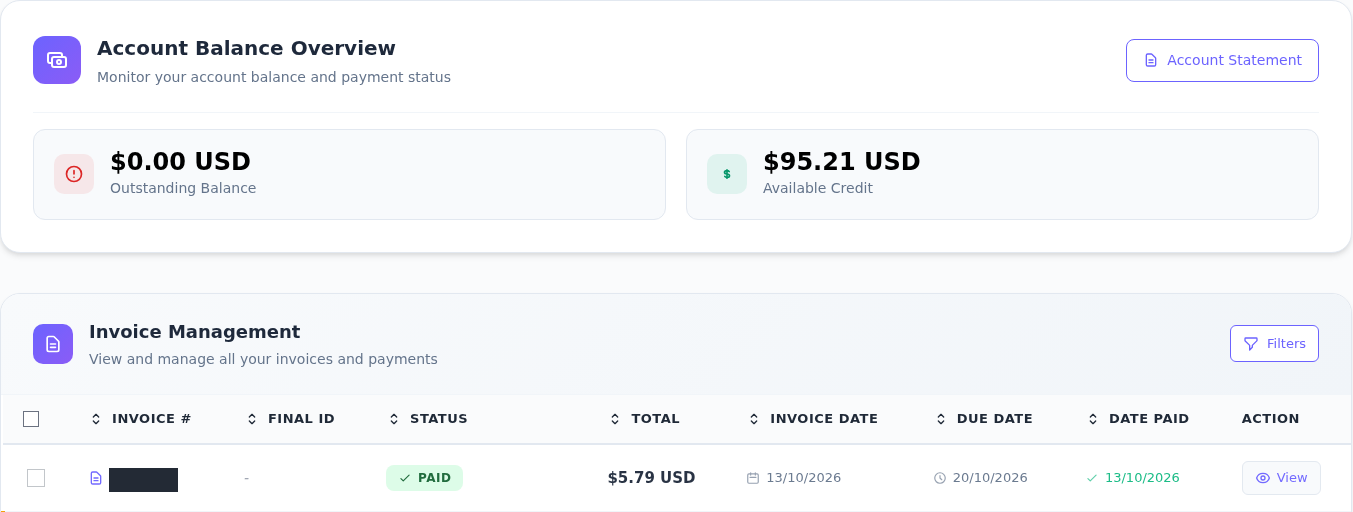
Step 1: Check the account balance due
- Check the account balance due
Outstanding Balance became 0.00 USD in this example. Your account summary may differ if you have other outstanding invoices.
- Read the remaining available credit
Available Credit is 95.21 USD. Read it alongside the invoice items; this figure alone is not a breakdown of every payment movement.
- Confirm the row for the same invoice
The relevant row shows Paid and 5.79 USD. For your payment, also compare the invoice number and Date Paid.
The difference from the initial 100 USD credit is 4.79 USD. This combined invoice also contains a 1 USD Add Funds item. Individual Credit Logs entries were not visible, so separate increases and decreases cannot be established from this screen.
The example showed these results:
| Check | Result shown |
|---|---|
| Relevant invoice | Paid, 5.79 USD |
| Amount left to pay on the invoice | 0.00 USD |
| Outstanding Balance | 0.00 USD |
| Available Credit | 95.21 USD |
The difference from the opening 100 USD balance is 4.79 USD. This combined invoice also contained a 1 USD Add Funds item, so that item matters when checking the balance alongside the invoice total. The Credit Logs list was empty during this capture, so separate credit increases and decreases could not be verified there.
Use the credit history guide to inspect movements. If the list is empty, clear its filters and check the date range. If you cannot reconcile the invoice and balance records, ask support to confirm them using the invoice number, date and amount before making another payment.
6. Check the service status separately
A Paid invoice does not, by itself, confirm that service provisioning is complete. Find the service in its project and check its status. For VPS/VDS, continue with the first connection guide once the service is ready.
Making this payment with account credit does not enable automatic payment or establish that a service was renewed. See billing preferences and the renewal guide for those tasks.