Linux server has no internet: troubleshoot DNS and connection errors
Your Linux server appears to have no internet: a package update fails, an API cannot be reached or a hostname does not open. Start by finding where the connection stops. Temporary failure in name resolution, Could not resolve host and Network is unreachable describe different failures.
This guide explains how to check DNS and internet connectivity on an Ubuntu server, interpret the result and repeat the original request after the appropriate fix. Removing one error message is useful only if the connection you need now works.
Required access: an SSH connection and sudo privileges if a configuration change is needed. If you are logged in as root, omit the sudo prefix. If SSH is unavailable, start with SSH connection errors and the server console in the DCHost customer portal. Keep an existing SSH session open and verify console access before changing network settings.
The screenshots were captured on a real demo VPS running Ubuntu 24.04 LTS, curl 8.5.0 and iproute2 6.1.0. The first screens read the server's working network state. Deliberate failures are then created in a temporary test network with connected client and server environments, isolated from the host's main network. The real host's DNS, main interface and default routes are not broken. You do not need to interrupt your own connection to diagnose it.
1. Is this a DNS problem or a connection problem?
Think of an HTTPS request in five stages:
- Suitable IP addressing and a route determine the outgoing interface and path.
- Name resolution translates a hostname such as
www.example.cominto an IP address. - A TCP connection reaches the requested port on that address.
- TLS establishes HTTPS and verifies the site's certificate.
- HTTP returns the page or API response.
A DNS query also needs a working network path. A name-resolution error therefore does not always mean that someone entered the wrong DNS server address.
| Result | What to inspect first |
|---|---|
Temporary failure in name resolution | The system could not resolve the name at that time. Check the resolver, the path to its DNS server and whether only one name is affected. |
curl: (6) Could not resolve host | The request's destination name was not resolved. Check spelling, DNS/NSS results and the exact hostname. |
Network is unreachable | Check the interface and route for the address family in use. Record which command produced the message. |
curl: (7) Failed to connect / Connection refused | Check the destination IP, port, listening service and access rules. Code 7 alone does not identify the responsible side. |
curl: (28) ... timed out | Determine whether the time limit was reached during DNS, connection establishment, TLS or response waiting. |
A certificate error, such as curl 60 | Check the certificate name, validity, trust chain and system clock. Continue with SSL troubleshooting. |
HTTP 403, 404 or 503 | An HTTP response arrived. Inspect the application, access rule or intermediary that returned it. |
Failure to reach one website does not prove the entire server has lost internet access. Your own website, an external API and a package repository are different destinations. Identify the hostname, port and operation that actually fails.
2. Check the IP address, interface and route
These commands do not change network settings:
date -Is
ip -br link
ip -br address
ip -4 route show
ip -6 route show
ip -4 route get 1.1.1.1
The last command asks the kernel which route it would select for an example IPv4 destination. It sends no connectivity probe and does not prove internet access. If you already know your target's correct IP address, inspect the route to that address as well.
| Field | How to read it |
|---|---|
A name such as eth0 or ens3 | The network interface. Do not copy another server's interface name. |
UP | The interface is enabled; this does not validate the entire external path. |
An IP address followed by /24, for example | The address and network prefix. Compare them with the values assigned to your service. |
default via ... dev ... | The gateway and interface used when no more specific route applies. |
src ... | The source address selected for this route. |
127.0.0.1 / ::1 | The machine's own loopback address. It does not provide external connectivity by itself. |
An initial read-only check on the actual VPS. Addresses and the gateway are masked for publication.
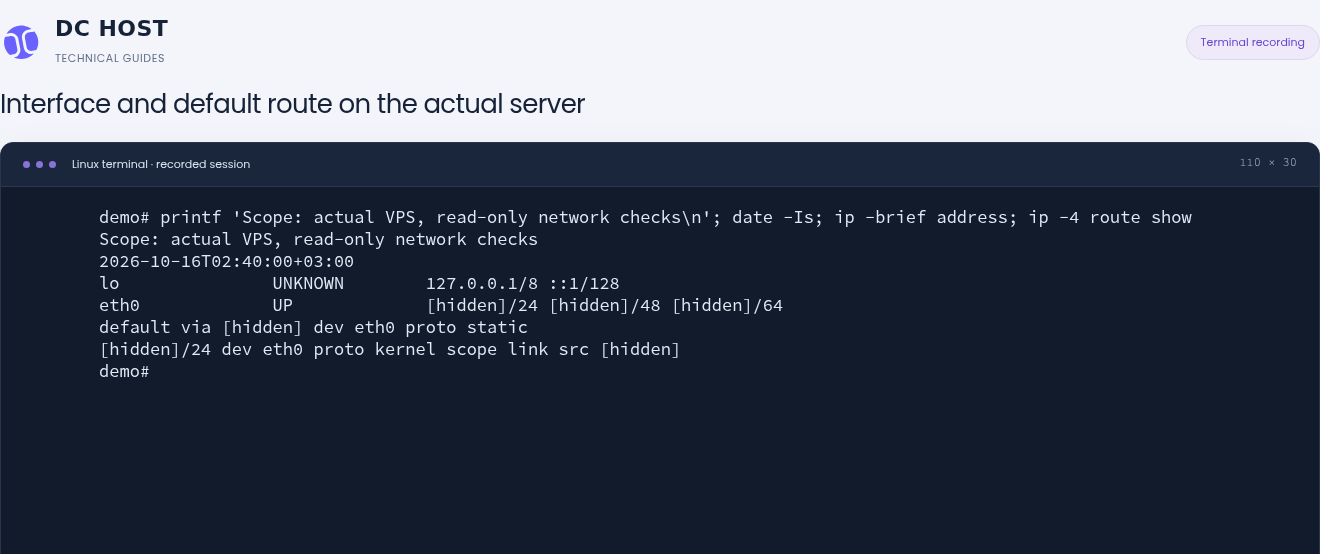
Step 1: Read the interface state
- Read the interface state
The eth0 row shows UP. The interface is active; this does not mean a remote endpoint has responded.
- Find the default route
The default via … dev eth0 row identifies the IPv4 exit path used when no more specific route matches.
An UP interface and a default route alone do not prove internet access. Verify DNS, connectivity and the application response separately.
This first screenshot shows the real host's working network. IPv4 and IPv6 addresses and IPv4 routing information are displayed; private service details are masked. Example addresses in the later failure screenshots are not replacement settings for this host.
If no default route is displayed, do not immediately add one. A destination-specific route or policy rule may apply. Compare the gateway, prefix and configuration assigned to your service. Read ip rule show if policy routing needs investigation; another customer's gateway is not a suitable example to copy.
Can IPv4 work while IPv6 fails?
Yes. Replace the example hostname with your own destination:
CHECK_NAME=www.example.com
curl -q -4 --silent --show-error --output /dev/null \
  --connect-timeout 5 --max-time 15 "https://${CHECK_NAME}/"
printf 'IPv4 curl exit=%s\n' "$?"
curl -q -6 --silent --show-error --output /dev/null \
  --connect-timeout 5 --max-time 15 "https://${CHECK_NAME}/"
printf 'IPv6 curl exit=%s\n' "$?"
The IPv6 attempt requires a suitable IPv6 record at the destination and a working IPv6 path from the server. If IPv4 succeeds while IPv6 fails, inspect the IPv6 address, route and AAAA record. That result does not mean all internet access is down. -4 is a test scoped to this command; disabling IPv6 across the system is not the first corrective step.
-q skips the personal .curlrc configuration file for this call, so settings such as --fail or --insecure in that file do not change the test. Proxy environment settings can still affect these commands. A proxy changes where connections and name resolution occur. curl: (5) means the proxy's name, rather than the destination website's name, could not be resolved. Mask usernames and passwords before sharing a proxy address.
3. Which DNS server is Ubuntu using?
readlink -f /etc/resolv.conf
sed -n '1,25p' /etc/resolv.conf
resolvectl status --no-pager
getent ahostsv4 www.example.com
printf 'getent exit=%s\n' "$?"
Replace www.example.com with the name you are checking. getent ahostsv4 asks for IPv4 addresses through the system's name-service rules. Seeing the same IP in STREAM, DGRAM and RAW rows does not mean there are three different DNS records; those rows describe different socket types.
getent does not exclusively query an external DNS server. The order in /etc/nsswitch.conf and sources such as /etc/hosts can also affect the answer. No output together with exit code 2 means the requested key was not found; it does not identify the underlying cause.
On Ubuntu, /etc/resolv.conf may be a symlink to /run/systemd/resolve/stub-resolv.conf containing nameserver 127.0.0.53. This is the local systemd-resolved stub and can be entirely normal. Do not overwrite the file because you expected an external IP there. Read resolvectl status to find the active DNS servers and associated interface.
First inspect the resolver configuration, then test the system name lookup path.
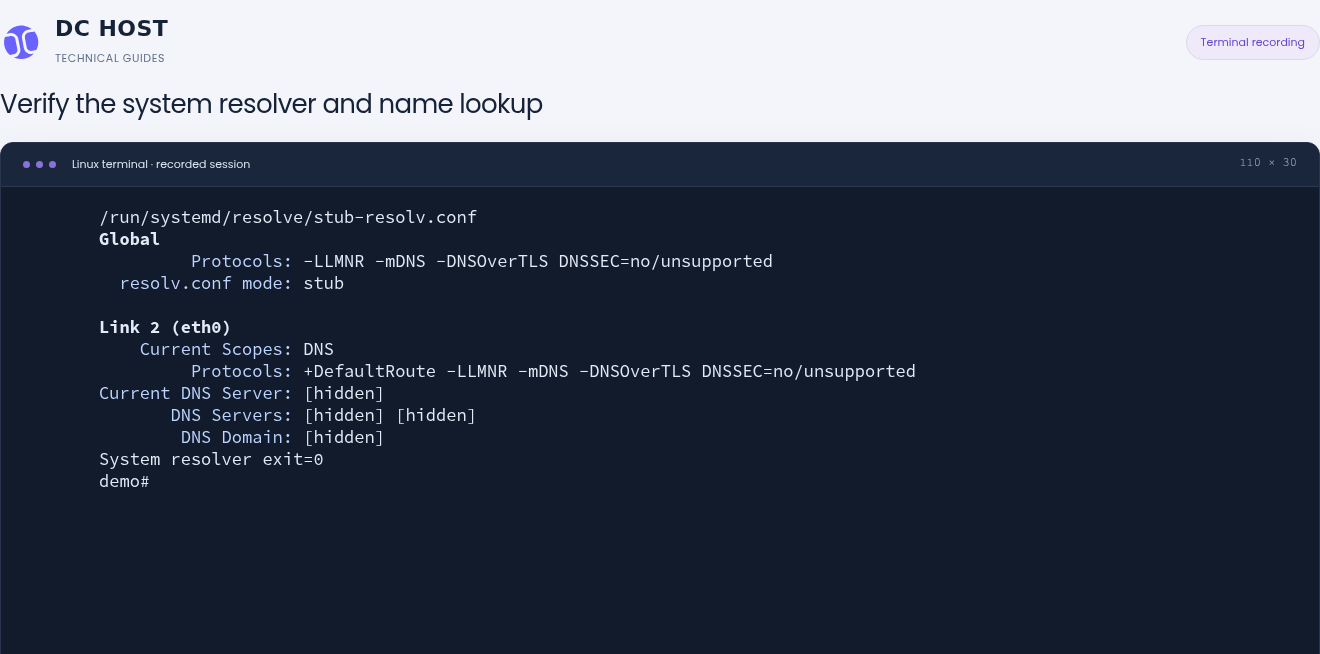
Step 1: Identify what manages the resolver file
- Identify what manages the resolver file
resolv.conf points to /run/systemd/resolve/stub-resolv.conf and the mode is stub. Identify the active manager before considering a persistent change.
- Read the system lookup result
System resolver exit=0 shows that getent ahostsv4 succeeded for example.com. Address output was suppressed in this check.
In this check, getent ahostsv4 succeeded for example.com. Successful DNS alone does not establish that the application port or HTTPS response works.
This is another read-only check of the real host. The resolver-file symlink, resolvectl status information and successful getent lookup are shown. If resolvectl is unavailable or its service is inactive, the machine may use another resolver. Do not replace its DNS setup merely to make this command work.
Does dig test the same path as system name resolution?
Not always. If dig is already installed, inspect the DNS reply separately:
dig +time=2 +tries=1 www.example.com A
dig +time=2 +tries=1 www.example.com AAAA
Read the address in ANSWER, the reply's status and the queried SERVER together. NXDOMAIN means the name was not found; SERVFAIL means the server could not successfully process the query. Neither is a diagnosis of a disconnected network cable. dig +short alone hides useful reply details.
dig @DNS_IP ... queries the specified DNS server directly. Its answer may differ from /etc/hosts, VPN-specific resolution or the system's ordinary query path. Do not make installing a new package your first requirement when internet access is failing; begin with existing getent and resolver tools.
4. Understand the controlled test environment
Two temporary network namespaces demonstrate failures without interrupting a real customer connection. Each has its own network interfaces, routes and loopback environment. The real server's main connection remains working.
| Lab item | Value in this guide |
|---|---|
| Test client | 192.0.2.10 |
| Test gateway | 192.0.2.20 |
| DNS server inside the lab | 192.0.2.53 |
| Test web service | 203.0.113.20 |
| Test hostname | web.demo.test |
| HTTPS port | 8443 |
These IP ranges and the .test name are for documentation and testing. They are not public DCHost service endpoints. You do not need to copy the lab helpers onto your server. The isolated failure and recovery examples use IPv4; reading the real host's IPv6 information is not a demonstration of an IPv6 repair in the lab.
The failure experiments run in a separate network namespace. The demo name and TEST-NET addresses belong only to that environment.
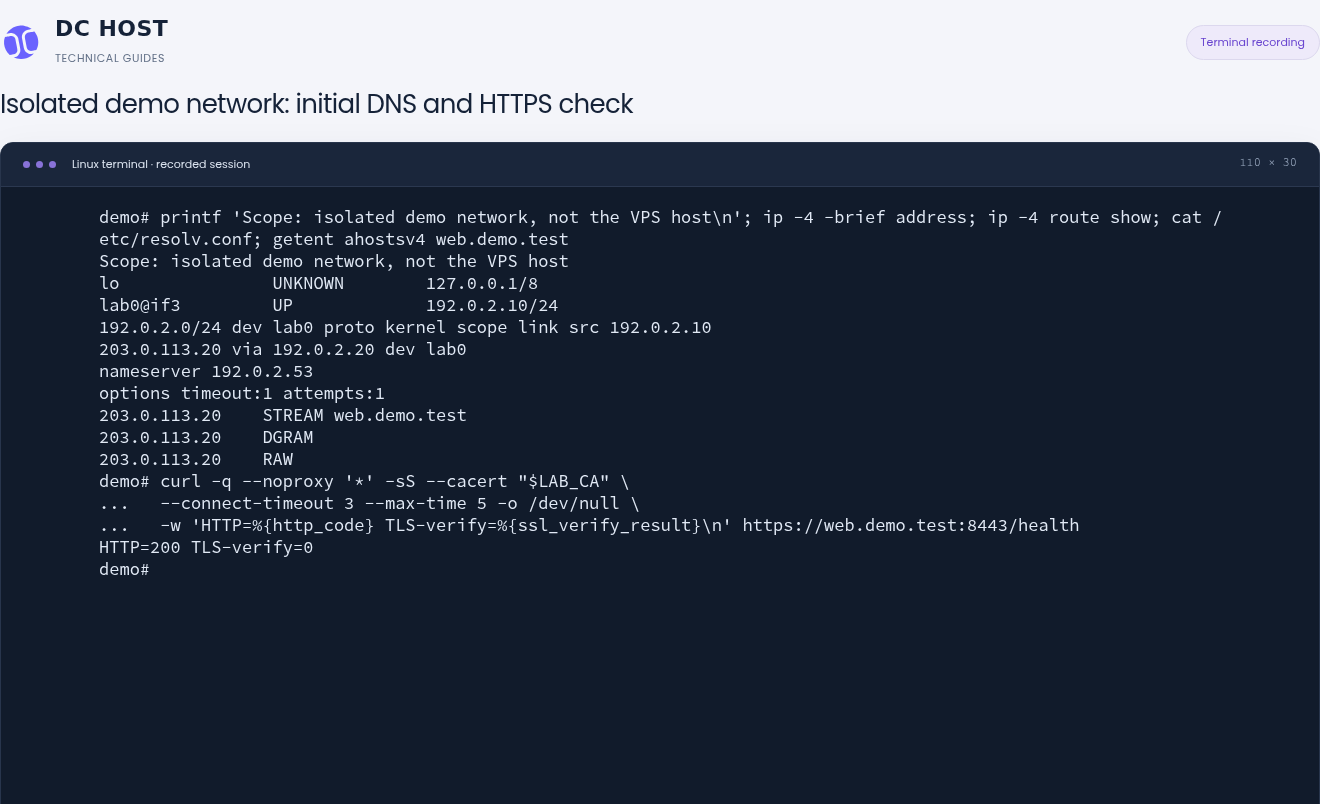
Step 1: Confirm that the demo name resolves
- Confirm that the demo name resolves
The demo resolver is 192.0.2.53. getent resolves web.demo.test to 203.0.113.20.
- Read the application and TLS results together
HTTP=200 is the successful response to this /health request. TLS-verify=0 indicates successful verification using the supplied demo certificate.
curl trusts the demo certificate explicitly with --cacert. TLS-verify=0 describes certificate verification for this request; it does not mean the demo certificate is publicly trusted.
In the healthy baseline, the lab hostname resolves, a route exists and the HTTPS request returns the expected response. The lab certificate is verified with --cacert for that command only; the operating system's trust store is not changed. Ordinary public websites use normal certificate verification. --insecure / -k is not a troubleshooting fix in this guide.
5. Diagnose name-resolution failure and curl 6
The lab client's resolver is temporarily pointed at its own 127.0.0.1, where no DNS service is listening. This change affects only the isolated environment and demonstrates what a DNS failure looks like. The real host's /etc/resolv.conf is unchanged.
Only the isolated demo resolver was pointed at 127.0.0.1, where no DNS listener was running. The failure was recorded in this controlled state.
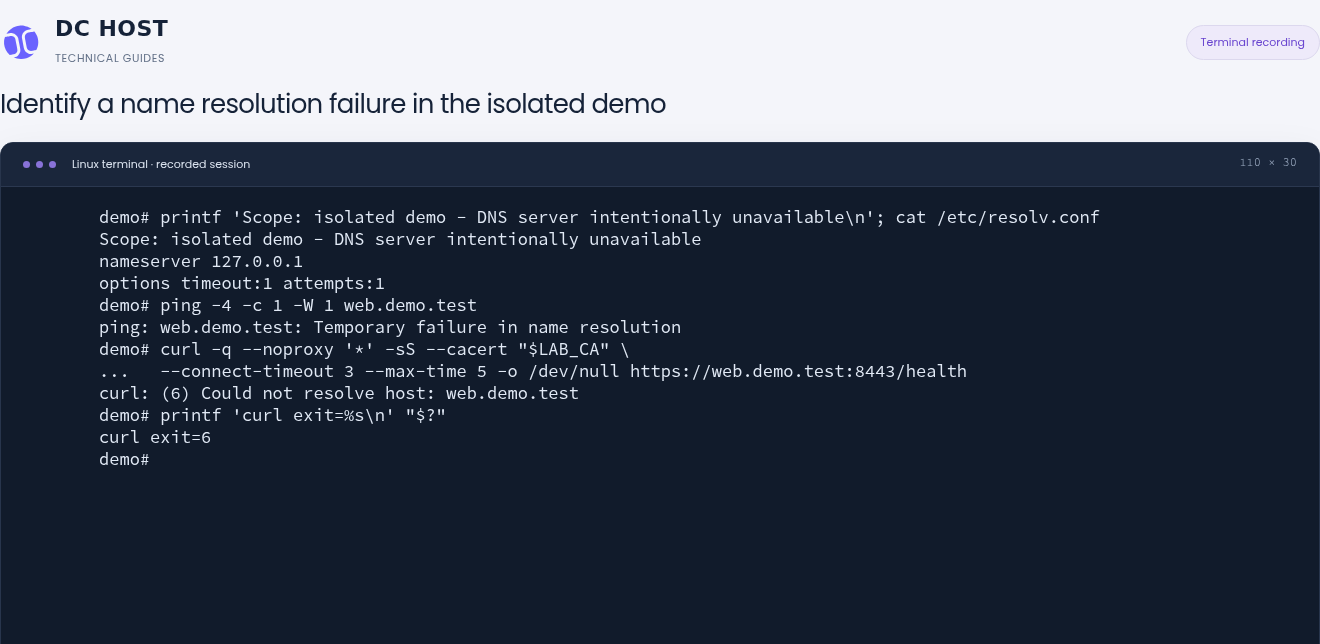
Step 1: Identify the stage named by ping
- Identify the stage named by ping
Temporary failure in name resolution means the name could not be resolved. It does not mean the destination merely failed to answer ICMP.
- Match the curl code to the same stage
curl reports (6) Could not resolve host, followed by curl exit=6. Continue by investigating name resolution.
This request failed during name resolution, before connecting to the target application. The 127.0.0.1 setting is an intentional demo fault, not a production recommendation.
In the real lab recording, ping web.demo.test returned Temporary failure in name resolution with exit code 2. curl returned Could not resolve host: web.demo.test with exit code 6. These codes belong to different programs and are not interchangeable. getent can also fail without printing an address, but empty output alone does not identify the cause.
Capture the exit code on the immediately following line: after another command, $? refers to that newer command.
Test the same HTTPS destination with DNS bypassed
If the destination's correct IP address has already been verified, curl can use that address for a single request. This example is for networks that allow a direct connection to the destination; --noproxy bypasses proxy use for the specified hostname only. Replace the values with your own hostname and correct server IP:
CHECK_NAME=www.example.com
CHECK_IP=203.0.113.20
curl -q --noproxy "$CHECK_NAME" --resolve "${CHECK_NAME}:443:${CHECK_IP}" \
  --silent --show-error --output /dev/null \
  --connect-timeout 5 --max-time 15 \
  --write-out 'HTTP=%{http_code}\n' "https://${CHECK_NAME}/"
printf 'curl exit=%s\n' "$?"
203.0.113.20 is a documentation address; a real test requires the verified address for your service. The hostname and port must exactly match the URL. --resolve does not repair DNS. It supplies an address to this curl request.
Keep the hostname in the URL. This preserves the HTTP hostname, TLS SNI and certificate-name verification. Opening https://IP_ADDRESS, or adding only a Host: header, is not an equivalent HTTPS test: it may reach a different virtual host or certificate.
While the demo DNS setting was still faulty, the same HTTPS target was tested with --resolve. It supplies a name, port and address mapping for this curl call only.
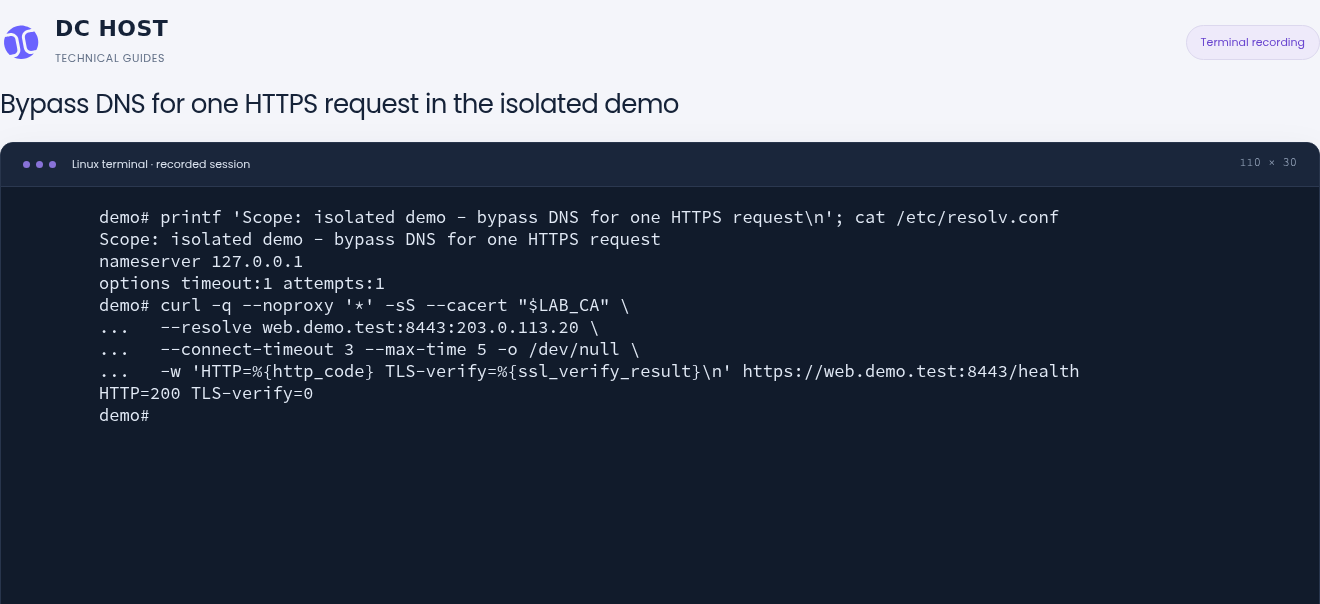
Step 1: Read the name, port and address mapping
- Read the name, port and address mapping
--resolve uses 203.0.113.20 for web.demo.test:8443 only. It does not change another port or the system DNS configuration.
- Compare the response when DNS is bypassed
The same target returns HTTP=200 and TLS-verify=0. This comparison separates the earlier lookup failure from this request’s connection and TLS stages.
--resolve is not a permanent DNS repair. Keeping the hostname in the URL preserves the HTTPS name and certificate check; this demo supplies trust through --cacert.
The lab used the verified destination for web.demo.test:8443 and checked its certificate with --cacert. The result was HTTP 200 and certificate-verification result 0, while the lab's incorrect nameserver 127.0.0.1 setting remained in place. This demonstrates that the path, TCP connection and HTTPS request can work through --resolve while ordinary resolution is still broken. It does not establish that all DNS services or other websites are healthy.
A proxy or a redirect to another hostname can change the path being tested. Lab requests connect directly to the destination. If your network requires a proxy, do not use this direct-connection example; investigate the proxy's resolution and access path separately. This example does not automatically follow redirects.
After correcting the isolated demo DNS setting, getent, route selection and an HTTPS request without --resolve were repeated.
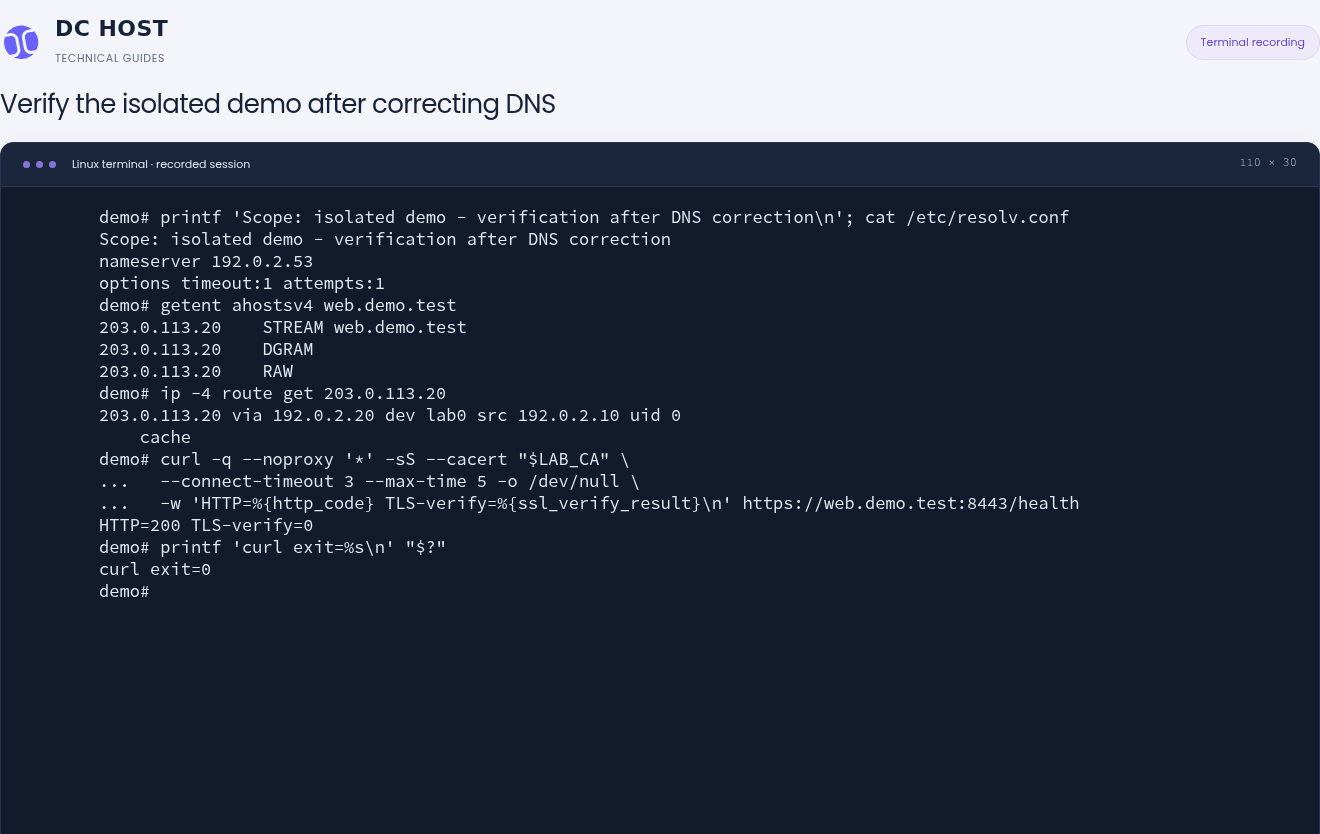
Step 1: Use the system lookup path again
- Use the system lookup path again
getent now returns 203.0.113.20 for web.demo.test. This HTTPS test does not use --resolve.
- Verify HTTP, TLS and the exit code together
HTTP=200, TLS-verify=0 and curl exit=0 appear in the same verification. Complete the DNS check with an actual application response.
This recording shows verification after the correction. The operation that changed the DNS setting is not shown in the screenshot or short video.
Only the lab's DNS setting was restored to 192.0.2.53. getent returned 203.0.113.20, and the route was found via 192.0.2.20. The same HTTPS request without --resolve completed with HTTP 200, certificate-verification result 0 and curl exit code 0. That is the DNS recovery check: ordinary resolution and the expected response work without a temporary address override.
6. Investigate the route when the network is unreachable
In this second example, DNS is configured correctly. Only the lab client's route to 203.0.113.20 is temporarily removed. This separates successful name resolution from the ability to reach the resolved destination.
Only the isolated demo route to 203.0.113.20 was removed. The directly connected 192.0.2.0/24 network remains listed.
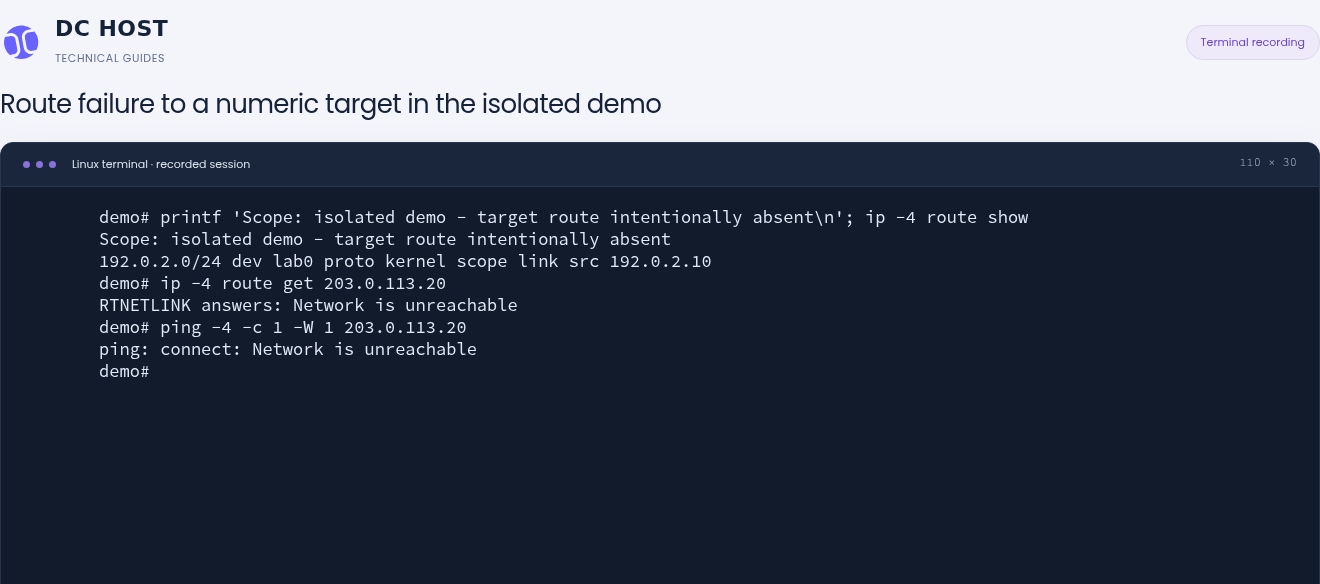
Step 1: Query the route that would be selected
- Query the route that would be selected
ip -4 route get 203.0.113.20 returns Network is unreachable. No usable IPv4 path is found for this target.
- Compare the numeric ping failure
Ping to the numeric target also says connect: Network is unreachable. This check removes name resolution from the comparison.
Because the target is a numeric IP address, these checks do not perform DNS lookups. Do not treat this routing failure as a name resolution failure.
After the lab's destination route was removed, ip route get 203.0.113.20 and a ping to that numeric address returned Network is unreachable with exit code 2. This ping uses no hostname and does not consult DNS. If a name resolves but the route lookup fails for its numeric destination, inspect routing and interfaces first. Changing DNS does not create the missing path.
Check the address family as well; an absent IPv6 path does not prove that IPv4 is unavailable.
After restoring the isolated demo target route, route selection, numeric ping and HTTPS were tested again.
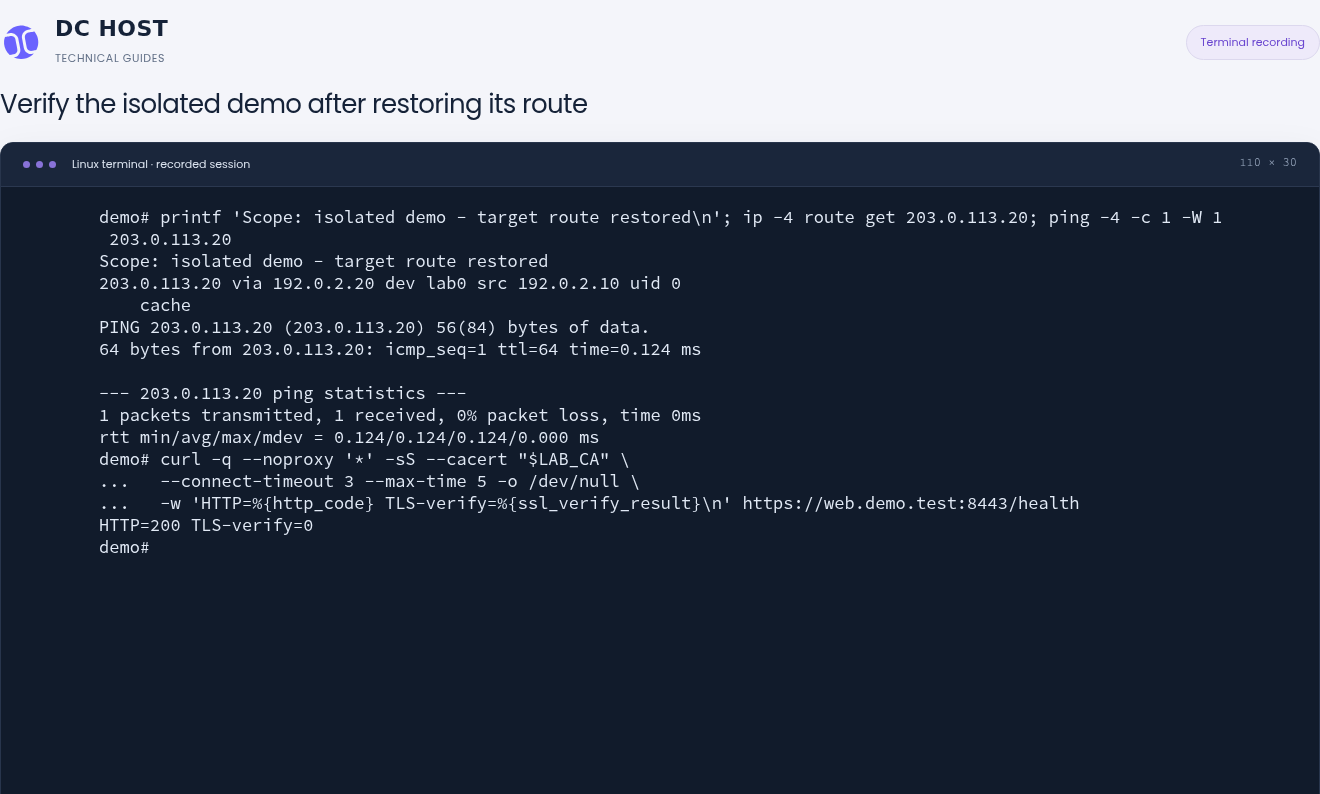
Step 1: Verify the selected path to the target
- Verify the selected path to the target
203.0.113.20 is again routed through 192.0.2.20 on lab0. The numeric ping also received one reply.
- Follow the ping result with HTTPS
The HTTPS check reports HTTP=200 and TLS-verify=0. An ICMP reply alone does not establish that the application works.
The 0.124 ms value is one ping measurement inside this demo. It is not an internet latency or service performance promise.
Only the lab's known route was restored. The route lookup showed the correct /32 destination path, the numeric ping received 1/1 replies, and ordinary HTTPS returned HTTP 200 with certificate-verification result 0. The short ping time in the screenshot measures this local lab only; it is not an internet-latency benchmark or service commitment.
Do not use this example gateway on your own VPS. Use the address, gateway, prefix and network manager appropriate to your service.
ping is a supporting check. Some networks restrict ICMP replies, so TCP/443 may work while ping fails. The reverse is possible too: a ping reply does not verify an HTTPS listener, certificate or application.
7. DNS resolves, but the connection still fails
Connection refused / curl 7
The demo port 8444, which has no listener, was tested instead of the working 8443 port. Name resolution alone did not make that port reachable.
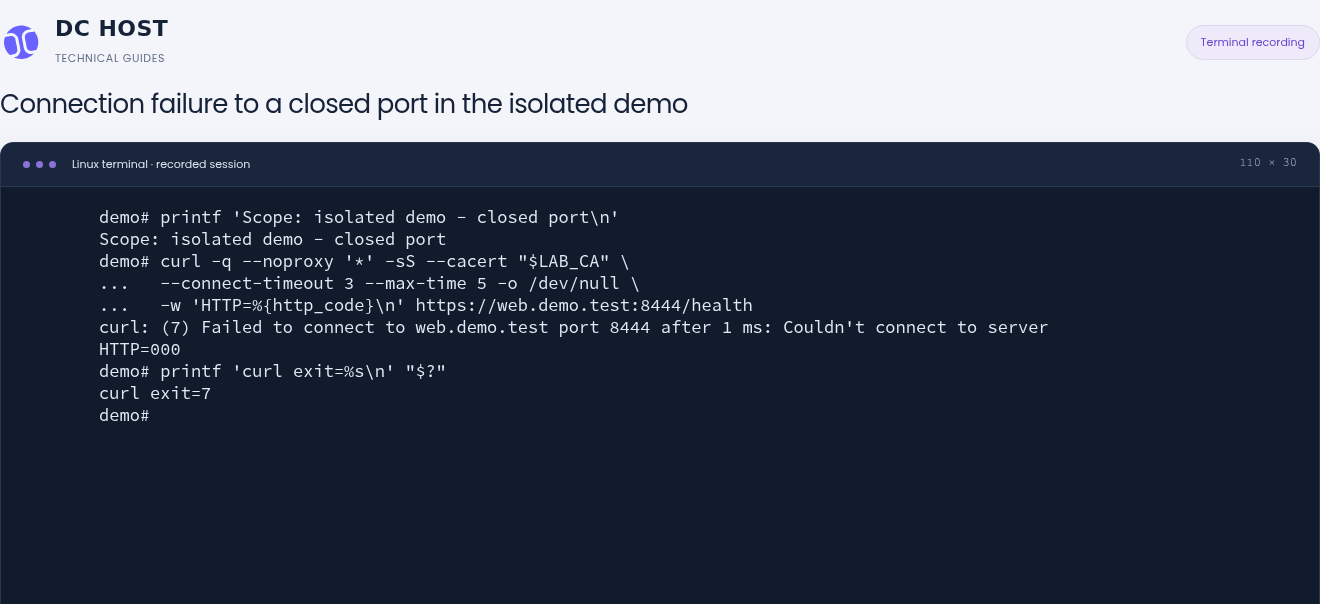
Step 1: Check the target port in the request
- Check the target port in the request
This request uses web.demo.test:8444/health. The earlier working /health check used port 8443.
- Separate connection failure from an HTTP response
curl reports (7) Failed to connect. HTTP=000 below it means no HTTP response status was received.
curl 7 is a general connection error; it does not prove the cause by itself. This controlled experiment uses a known closed port. HTTP=000 is not an HTTP response status.
The lab kept DNS and routing working while requesting port 8444, which had no listening service. The result was curl 7 and HTTP 000. Check that the port is correct, where the intended service listens and which access rules apply. A successful request to 8443 and a failed request to 8444 test different ports.
If you administer the destination server, run sudo ss -ltnp there to inspect listening TCP sockets. A service bound only to 127.0.0.1 is not automatically available externally. When the destination is someone else's server or an external API, changing listeners on your own server does not repair the remote endpoint.
Connection refused means a refusal was received. A missing listener is common, but an access rule can also reject traffic. Do not translate every curl 7 result into “the service is stopped”. Inspect the relevant direction, source, destination and port rule instead of disabling the entire firewall.
Timeout / curl 28
The demo /slow endpoint delayed its response while --max-time 1 limited the total request. Additional timing fields show which stages completed before the failure.
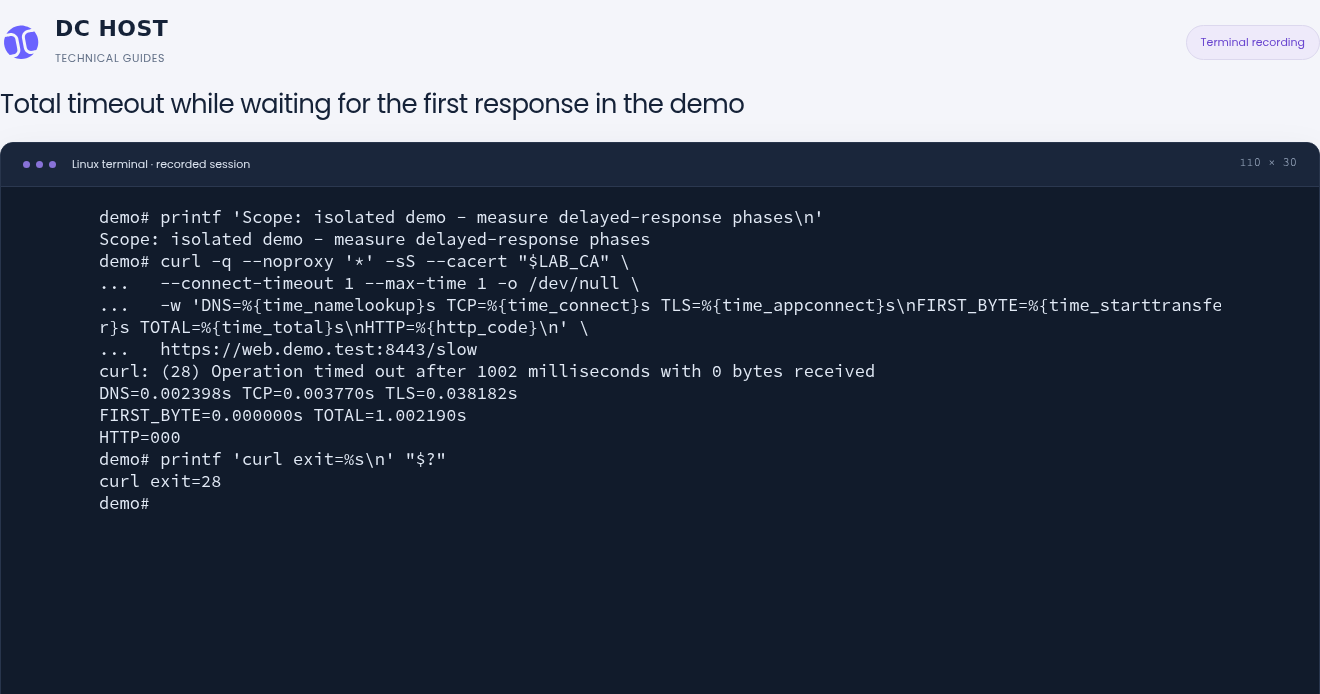
Step 1: Read the completed milestones
- Read the completed milestones
DNS is 0.002398 s, TCP is 0.003770 s and TLS is 0.038182 s. The connection and TLS milestones completed in this request.
- Identify the timeout before the first response byte
FIRST_BYTE remains zero and total time reaches 1.002190 s. HTTP=000 is not an HTTP status; curl ends this request with timeout code 28.
DNS, TCP and TLS are elapsed times from the start to each milestone, not independent stage durations. These values belong only to this controlled demo request.
The lab's /slow path is configured to wait 3 seconds before responding. With a client limit of --max-time 1, the request ended after 1002 milliseconds, with 0 bytes received, curl 28 and HTTP 000. Timings were recorded for that same request instead of inferring its phase from the error code alone:
| Measurement | Result for this request |
|---|---|
DNS / TCP / TLS | 0.002398 / 0.003770 / 0.038182 seconds. Name resolution and TCP/TLS establishment had completed. |
FIRST_BYTE | 0.000000. No first response byte was received in this measurement; it does not mean a zero-latency response. |
TOTAL | 1.002190 seconds. The total time limit expired before the first response byte arrived. |
These values describe the controlled lab request, not a server-performance benchmark. Distinguish DNS, connection establishment and response waiting separately for your own failure.
Record timings for your actual destination:
CHECK_NAME=www.example.com
curl -q --silent --show-error --output /dev/null \
  --connect-timeout 5 --max-time 15 \
  --write-out 'HTTP=%{http_code}\nDNS=%{time_namelookup}\nTCP=%{time_connect}\nTLS=%{time_appconnect}\nFIRST_BYTE=%{time_starttransfer}\nTOTAL=%{time_total}\n' \
  "https://${CHECK_NAME}/"
printf 'curl exit=%s\n' "$?"
These are cumulative timings from the request's start, not independent durations for each phase. --connect-timeout limits the DNS and TCP/TLS connection phase; --max-time limits the overall operation. HTTP=000 means no HTTP status was received. It is not a “000 error” sent by the server.
Raising a timeout can give a slow operation more time, but it does not demonstrate that the cause has been fixed. Compare the destination's normal response time, application logs and resource use. If appropriate, continue with high CPU troubleshooting.
8. HTTP 503 is different from a connection failure
The same controlled /unavailable endpoint returns HTTP 503 to both requests. The second request adds --fail.
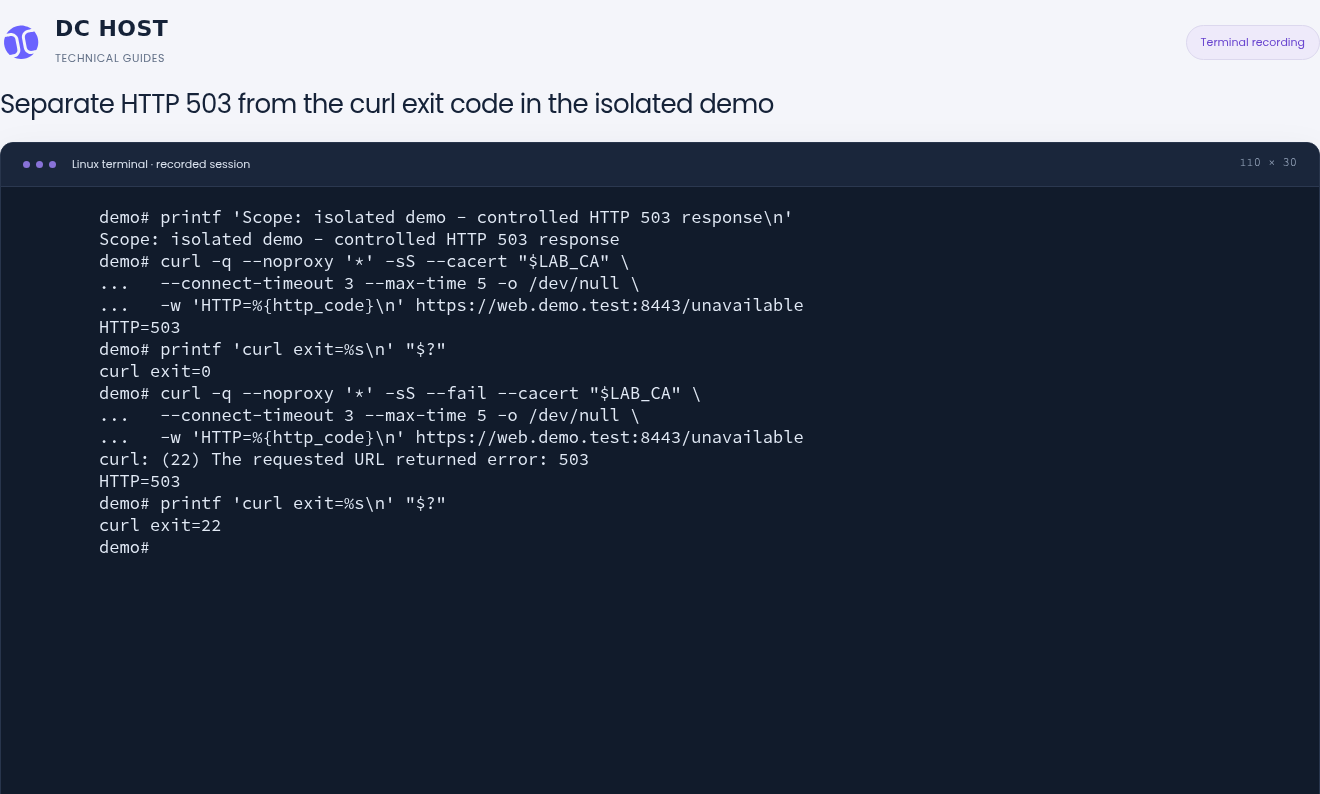
Step 1: HTTP 503 can accompany exit 0 by default
- HTTP 503 can accompany exit 0 by default
The first request shows HTTP=503 but curl exit=0. By default, curl does not treat an HTTP error status as a transfer failure.
- Check the exit code when using --fail
The second request uses --fail. The same HTTP=503 response now produces curl exit=22.
Receiving an HTTP response means DNS, connection and TLS were completed for this request. Investigate HTTP 503 at the application or intermediary service layer.
By default, curl can receive HTTP 503 and finish with exit code 0. The transfer completed, but the application did not return the success response you wanted. With --fail, this lab's 503 reply produces exit code 22. Read both the HTTP status and the command's exit code.
| Result | What it means |
|---|---|
curl 0, HTTP 200 | This request completed with HTTP 200. Still verify the response content. |
curl 0, HTTP 503 | An HTTP reply arrived; the application or intermediary reported that the service was unavailable. |
curl 22 with --fail, HTTP 503 | The HTTP error response was also made a curl failure. |
curl 6, HTTP 000 | The destination name was not resolved, so no HTTP reply was reached. |
curl 7 or 28, HTTP 000 | Connection establishment or a time limit failed. The detailed message and phase information are needed. |
If your own website returns 503, inspect its application and web-server logs. If an external API returns 503, inspect that service's status and response. Changing VPS DNS for every HTTP error is not an appropriate fix.
9. Apply the lasting fix in the right configuration
Once the evidence identifies the failure, change only the related setting. These steps help define the scope of a change on your own Ubuntu server; they are not instructions to copy the lab configuration.
- Confirm console access and save the current state. Keep the addresses, routes, interface DNS settings and a backup of the relevant configuration files. Configuration may contain private data; do not put backups in a web-accessible directory.
- Identify what manages the network. Netplan,
systemd-networkd, NetworkManager, DHCP and cloud-init can play different roles. Read warnings in/etc/netplan/files and the selectedrenderer. An active service alone does not prove that it owns this interface. - Compare against your service's assigned values. Do not guess a DNS server, gateway or prefix. VPN and internal names may depend on private resolvers and search domains; a random public resolver can break them.
- Respect managed files. Overwriting a symlinked
/etc/resolv.confcan break the configuration chain. A temporaryresolvectlsetting does not replace persistent Netplan or DHCP configuration. - On a Netplan-managed server, validate before applying. After editing the existing configuration with the correct values,
sudo netplan generategenerates and validates configuration but does not by itself apply it to the running network. Resolve any errors first. With console access ready,sudo netplan try --timeout 120can then perform a controlled trial. Confirm only after checking the connection.
If Netplan is confirmed to manage this interface, compare its nameservers → addresses field with the DNS values appropriate to your service. For a static default route, the via value in a routes entry with to: default identifies the gateway for that address family. Do not replace the whole file with another server's example; preserve existing addresses, prefixes, other routes and search domains. If DHCP/cloud-init supplies the gateway or DNS settings, address persistence at that source instead of adding an unnecessary second static route to the interface.
netplan try is intended to revert an unconfirmed change, but its documentation lists rollback limitations. It does not replace console access or a file backup. After a timeout, verify both the running network and the files on disk. For DHCP/cloud-init-generated settings, address persistence through the component that owns those settings.
Flushing DNS caches does not repair an unreachable DNS server or a missing route. If configuration is correct and a stale cached answer is the actual issue, sudo resolvectl flush-caches can be followed by a new query. It is not the first fix for every resolution error.
10. Verify by repeating the original connection
After the fix, test the same hostname, address family, port and path. If HTTPS was failing, a successful ping is not the final check.
- Does
getentor the configured resolver return the expected destination address? - Does a suitable route exist for that numeric destination?
- Does ordinary HTTPS work without a temporary
--resolveoverride? - Is certificate verification enabled, with the expected HTTP status and content?
- Does the original API call, update or application operation now complete?
- Do existing SSH access and other required services remain working?
After removing the temporary demo resources, the actual VPS route, system resolver, external HTTPS request and SSH state were checked again.
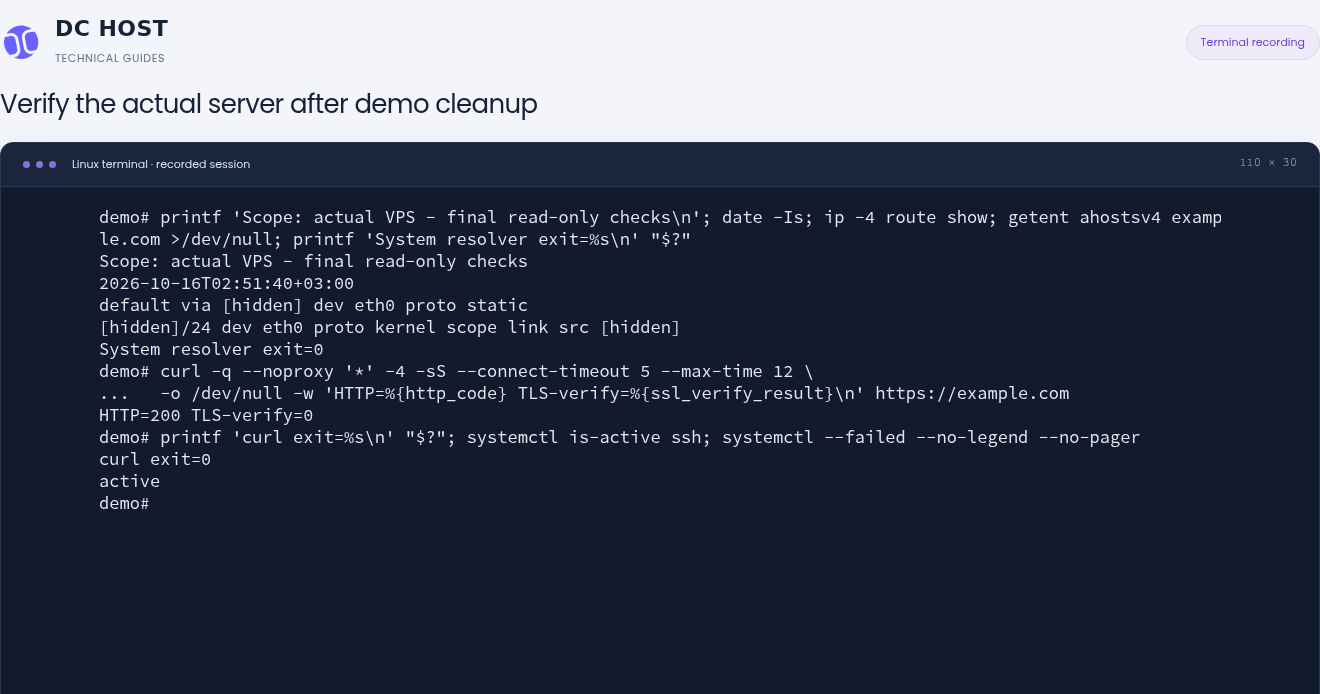
Step 1: Verify an actual external HTTPS response
- Verify an actual external HTTPS response
The request to example.com returned HTTP=200 and TLS-verify=0 with normal certificate verification. It used neither the demo certificate nor --resolve.
- Check the exit code and management access
curl exit=0 and the SSH state active are shown. The failed systemd unit query returned no rows in this check.
This is a point-in-time check after cleanup. Also test your application’s hostname and a real user request; one external target does not represent every internet path.
The final real-host screenshot shows IPv4 routing, successful system resolution and HTTP 200 / TLS verification 0 / curl exit code 0. SSH is active, and the failed-systemd-unit list is empty. Closing the lab removed only the two network environments, temporary service and files created for this demonstration; a separate comparison confirmed that the real host's routes and DNS settings remained identical to the baseline. This is the lab's closing check; verify your own application's original operation separately.
An actual verification recorded after correcting DNS, lasting about 18 seconds. It reads the demo DNS setting, lookup, route, HTTPS result and exit code. Playback is 1× with original event timing preserved.
Recording transcript
This recording shows verification after the isolated lab's DNS setting was corrected. It does not record the configuration change itself. $LAB_CA refers to the certificate file prepared for this demo; it is not a variable that should already exist on your own server.
- Read the lab client's corrected DNS setting:
nameserver 192.0.2.53. getent ahostsv4 web.demo.testreturns203.0.113.20for the test name.ip -4 route get 203.0.113.20shows the path via192.0.2.20.- An HTTPS request without
--resolvereturnsHTTP=200 TLS-verify=0, followed immediately by a curl exit-code check showing0.
If the issue continues, include the service number, time and time zone, affected hostname and port, exact command, full error message and exit/HTTP codes in a support request. Mention a successful comparison with another target if available. Do not share private keys, access tokens, proxy passwords or a complete environment-variable dump.
Frequently asked questions
My VPS cannot access the internet. Which command should I run first?
Read ip -br address and ip -4 route show to check addressing and routes. Then query the actual destination with getent and test HTTPS to that same destination. If SSH is also unavailable, begin with the console in the DCHost customer portal.
Does “Temporary failure in name resolution” prove the DNS setting is wrong?
No. It means the system could not resolve that name at that time. The path to the DNS server, local resolver, a temporary response problem or the name itself can be involved. Consider resolvectl status, routing and comparisons with other destinations together.
Should I replace 127.0.0.53 with a public DNS server?
That address is not an error by itself. It can be Ubuntu's local systemd-resolved stub. Check the /etc/resolv.conf symlink and the interface's actual DNS settings. If a change is required, use suitable DNS values through the configuration that manages the network.
I can ping an IP, but a hostname does not open. Is DNS broken?
DNS is one possibility, not a confirmed diagnosis. Ping only tests ICMP. Resolve the name, check the correct port and consider a curl --resolve test using a verified address. Opening an HTTPS IP directly may test a different certificate or website.
What is the difference between curl errors 6, 7 and 28?
6 means the destination name could not be resolved, 7 means a connection could not be established, and 28 means a time limit was reached. Read the complete message and identify the phase. A code alone is not a reason to restart a service or replace DNS settings.
Why does curl report success while HTTP 503 is returned?
By default, curl can treat a completed transfer as successful. HTTP 503 is an application-layer error reply. Check the HTTP status separately; --fail makes this type of response produce a curl error exit as well.
Will changing my domain's DNS records restore the server's internet access?
The DNS service a server uses to resolve other names is separate from A/AAAA records in your domain's authoritative zone. If your website points to the wrong IP, follow the DNS records guide. Adding an A record does not repair a missing route on the VPS.
Sources and related guides
- Ubuntu Server: network and DNS configuration
- Ubuntu 24.04: getent and system name-service rules
- iproute2: route lookups and network namespaces
- curl: command options and exit codes, correct HTTPS hostname/address overrides
- Netplan: configuration trials and rollback limitations
Choose the next guide based on the failure you found: SSH connection errors, SSL/HTTPS troubleshooting, Linux updates or server resource checks.