How to fix a 403 Forbidden error in cPanel
403 Forbidden means the server understood the request but refused access to the requested page. The message alone does not identify the cause. A missing homepage file, incorrect file permissions or an access rule can produce the same screen.
This guide covers 403 errors on a website in your cPanel hosting account. Start by opening cPanel from the DCHost customer portal. You will identify the affected URL, read its error log entry and correct only the file or rule responsible.
1. Identify the failing request
Record the full URL, time of the error and your most recent change. Did it start after a migration, ZIP extraction, permission change or new security rule?
- Open the affected page. In Chrome or Edge, use F12 → Network.
- Reload the page once and select the relevant request in the list.
- Check that Status Code is
403. A page displaying “Forbidden” does not by itself confirm the HTTP response code. - Distinguish the homepage from the affected URL. A working homepage does not prove that the administration page or an uploaded image also works.
This page reports that access to the requested resource is not allowed.

Step 1: Note the error message
- Note the error message
The Forbidden heading and permission message report denied access. Check the request time and corresponding error log to find the responsible file or rule.
The ErrorDocument message below does not by itself establish a second root cause. Verify the HTTP status separately in the browser Network panel.
| Response | Meaning | Where to start |
|---|---|---|
| 401 Unauthorized | Valid authentication credentials are missing or have not been accepted for the request. | Sign-in and any directory password protection |
| 403 Forbidden | The request was understood, but access was refused. | Correct directory, index file, permissions and access rules |
| 404 Not Found | The requested resource was not found, or its existence is not disclosed. | URL, filename and application routing |
| 500 Internal Server Error | An unexpected condition prevented the server from completing the request. | The logs and PHP checks in the 500 error guide |
Not every 403 needs to be removed. Access to a private backup directory or an administration area outside your permissions may be blocked intentionally. Your goal is to restore a page that should be accessible to its visitors.
2. Find the document root and keep a recovery copy
- In cPanel, open Domains → Domains.
- Find the affected domain's Document Root. This is the website's publishing directory.
- Open that directory through Files → File Manager. Compare the path at the top; do not assume every domain uses the root of
public_html. - Before editing a file, use Download to save a copy or Copy to place one in a private directory outside the web root. Before changing permissions, record the existing value too.
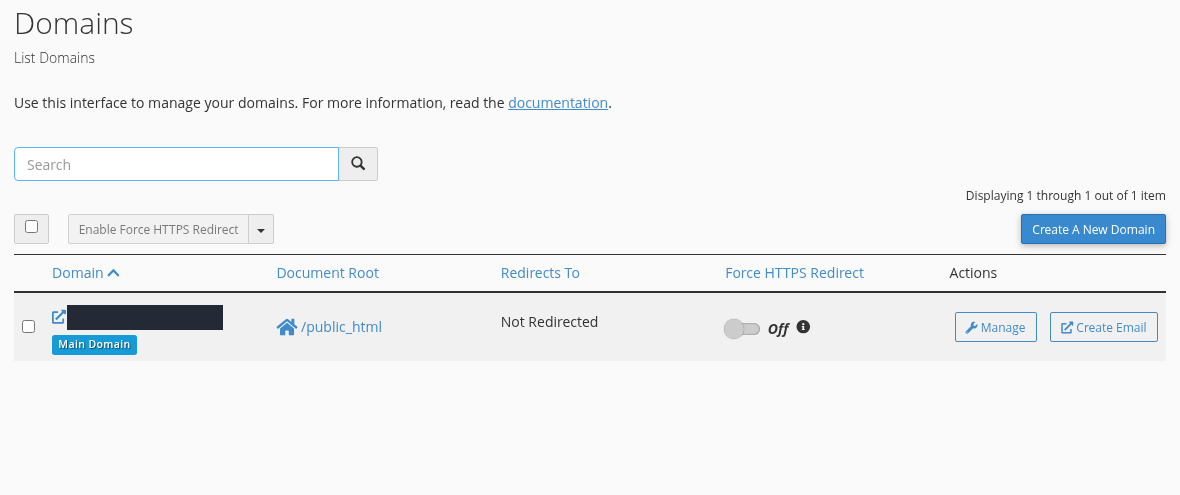
In this account, the primary domain's Document Root is /public_html. The error examples were prepared in a separate forbidden-guide directory below it, apart from the working main site files. In your own account, first identify the affected domain's actual publishing directory.
Check the relevant domain row in cPanel Domains.
Step 1: Use the Document Root path
- Use the Document Root path
The example domain has /public_html as its Document Root. Open that directory in File Manager and, if the failing URL is in a subdirectory, continue into that subdirectory. Avoid changing a file belonging to another domain.
This screen was used to inspect the current directory path; no domain, redirect or HTTPS setting was changed. Other domains may use different directories.
If you extracted a ZIP, the files may have ended up inside an extra parent folder. For example, the expected homepage could be at public_html/project/index.php instead of public_html/index.php. Identify the application's correct publishing directory before moving files or changing the document root.
Do not keep backups, database exports or .bak copies of files containing passwords in the web root. If a change does not help, restore the saved file and previous permissions. The File Manager guide explains copying, uploading and the permission controls in detail.
3. Read the log entry for the same request
Open Metrics → Errors. It shows up to the 300 most recent web-server error entries, newest first. Match the error time and file path together; the server's time zone may differ from your computer's.
| Log wording | What it suggests | Next step |
|---|---|---|
No matching DirectoryIndex and directory index forbidden | The server did not find a suitable index file, and directory listing is disabled. | Check the index file. |
Permission denied / file permissions deny server access | Permissions or ownership may prevent access to the file. | Check file and directory permissions. |
search permissions are missing / unable to check htaccess file | File readability or a parent directory's traversal permissions may prevent the check. | Check parent directories and ownership. |
client denied by server configuration | An access rule in the server configuration rejected the request. | Check .htaccess and access rules. |
ModSecurity with an access denial or rule identifier | A web security rule may have intervened in this request. | Ask for the matching security event. |
These phrases help you recognise the type of problem; a single word is not enough to diagnose it. An empty Errors screen does not rule out a block. An application may generate its own 403 response without an Apache error-log entry. A CDN or a security layer in front of the server may block the request before it reaches Apache. An old error remaining in the list also does not mean the latest request failed.
4. Check for a missing index file
When a directory URL is requested, the server looks for a configured starting file, such as index.php or index.html. If no matching file exists and directory listing is disabled, the result may be 403.
- Open the correct publishing directory in File Manager.
- Check whether the application's entry file is present. The filename and letter case must match; on Linux,
Index.htmlandindex.htmlare different files. - If the file was uploaded into the wrong directory, place it according to the application's deployment structure. If it was deleted or accidentally renamed, restore the known working version.
- If
.htaccesscontains a DirectoryIndex directive, check which filename it requests. Do not rename an arbitrary file toindex.phpwithout knowing the application's entry point. - Reopen the same directory URL; testing only a file's direct URL is not enough.
Example: restore an accidentally renamed index file
When the test directory's working index.html file was renamed to welcome.html, the same directory URL returned HTTP 403. Metrics → Errors showed this entry for the request:
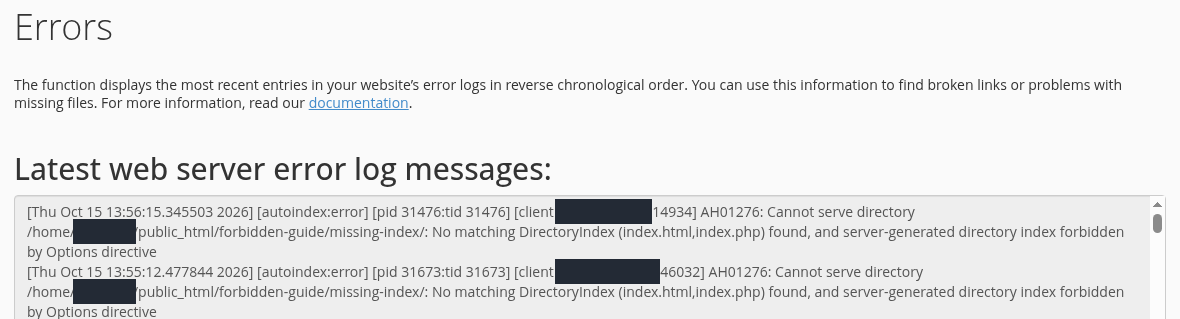
AH01276: Cannot serve directory /home/[account]/public_html/forbidden-guide/missing-index/: No matching DirectoryIndex (index.html,index.php) found, and server-generated directory index forbidden by Options directive
The entry says the server looked for index.html or index.php, found neither and was not allowed to list the directory instead.
Match the entry in Errors to the time and directory of the failing request.
Step 1: Find the No matching DirectoryIndex message
- Find the No matching DirectoryIndex message
No matching DirectoryIndex (index.html,index.php) reports that the server could not find the expected start files in this directory. Use the filenames listed in your own log entry.
- Check that directory listing remains disabled
The entry continues with server-generated directory index forbidden by Options directive. In this example, restore the correct start file rather than adding Options +Indexes to expose a listing of the directory contents.
The account name and client IP addresses are masked. A log entry alone does not show the browser’s current HTTP response.
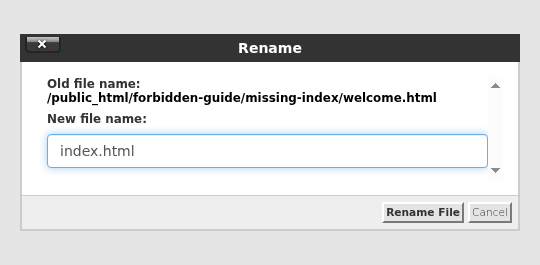
Here, welcome.html was the known working homepage with a changed filename. In File Manager, the file was selected and Rename opened. Its name was changed back to index.html and saved with Rename File. No other files were moved.
Select the correct file and open Rename.
Step 1: Enter the expected name in New file name
- Enter the expected name in New file name
This example uses index.html for its static HTML start page. On your own site, first confirm that the file is the actual start page and that the destination does not already contain a file with that name.
- Apply the name with Rename File
Click Rename File, then verify the new name in the file list and reopen the same failing URL. The image shows the screen before confirming the rename.
This action is for the correct start file with an incorrect name. Restore a missing index.php for WordPress or another application from a trusted application backup.
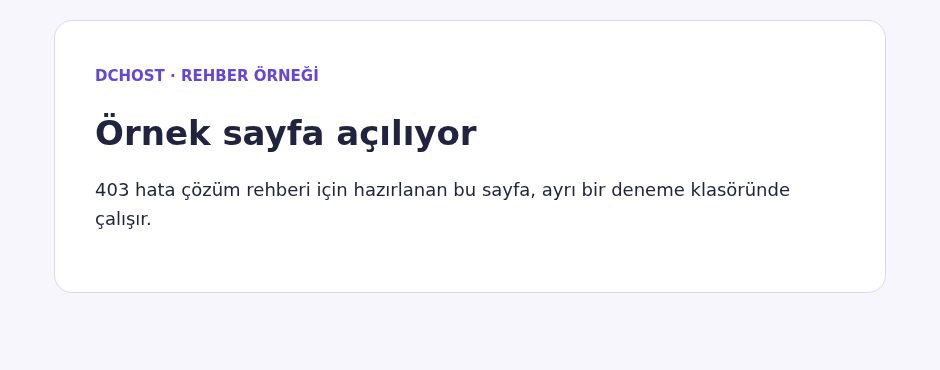
Reopening the same directory URL returned HTTP 200 and displayed “Örnek sayfa açılıyor” (“The example page opens”). Directory listing remained disabled; restoring the entry file made the page available again.
The example page content is visible after correcting the start file.
Step 1: Verify that the page shows the correct content
- Verify that the page shows the correct content
The URL that previously displayed Forbidden now shows the heading Örnek sayfa açılıyor and its description. On your own site, verify the intended page, links and relevant actions.
This image shows page content, with no numeric HTTP status displayed. Check the response status separately in the browser Network panel.
Should I enable directory listing?
Advanced → Indexes → No Indexing prevents a directory's contents from being listed when no index file is available. An Options -Indexes directive in .htaccess can also disable directory listing. You do not need to enable directory listing; retain the existing protection.
Showing visitors a file listing is not the same as restoring your website. No Indexing also does not stop access to a known file URL; private files should be stored outside the web root.
5. Check file and directory permissions
If the file exists but the server cannot read it, start with the specific file or directory identified in the log. Open File Manager → select the item → Permissions.
| Field | Meaning |
|---|---|
| User | The file owner |
| Group | The group associated with the file |
| World | Other users |
| Read / Write / Execute | Read / write / execute; for directories, Execute allows traversal to reach files inside. |
- Record the existing permission value.
- Restore only the accidentally changed item to its known correct permissions for your hosting service.
- Click Change Permissions. Check the Permissions column in the file list.
- Reopen the same URL and check for a new error entry.
Example: restore the previous permissions on an unreadable file
When index.html in the separate test directory was set to 0000, requesting the same file returned HTTP 403. The file was present, but the Read permission was off for User, Group and World. Metrics → Errors identified the file in this entry:
AH00132: file permissions deny server access: /home/[account]/public_html/forbidden-guide/file-permissions/index.html
Inspect the AH00132 entry created at the time of the failing request.
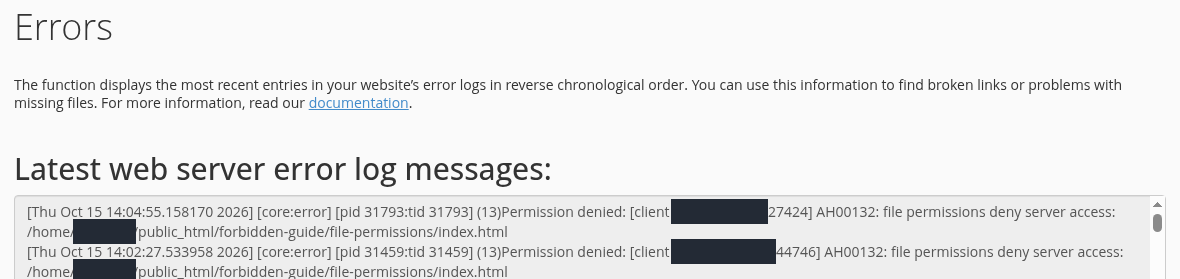
Step 1: Find the file permissions deny server access message
- Find the file permissions deny server access message
AH00132: file permissions deny server access reports that permissions prevent the server from accessing the file. Distinguish this entry from a missing start file error.
- Check which file the entry identifies
Here the path ends in file-permissions/index.html. Locate that file in File Manager rather than changing permissions across unrelated files.
The account name and IP addresses are masked. Incorrect ownership or parent-directory permissions can produce different log entries; read the full message.
Only this file was selected in File Manager and Permissions opened. Its previous working permissions were 0644. The following boxes were selected:
- User: Read and Write.
- Group: Read only.
- World: Read only.
- Execute: off in all three columns.
With 6 / 4 / 4 displayed below the columns, Change Permissions saved the change. The file list showed 0644 again.
Select the correct file in File Manager and open Permissions.
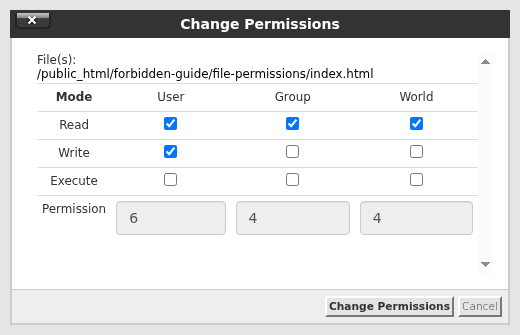
Step 1: Check the 6 / 4 / 4 values
- Check the 6 / 4 / 4 values
For this static HTML example, User has Read and Write, while Group and World have Read only. All Execute boxes remain cleared, giving the values 6 / 4 / 4 below.
- Apply with Change Permissions
Click Change Permissions, then revisit the same URL to check the content and HTTP response. The image shows the selected permissions before confirmation.
0644 applies to this example static file, not automatically to every file. Private configuration files may require different permissions. Do not set 0777.
Reopening the file's web address returned HTTP 200. Restoring its previous working permissions made the page accessible again.
Example: a parent directory prevents access to the file
In the second permissions example, the file was left unchanged, but its folder-permissions directory was set to 0644. This removed the directory's Execute permission needed for traversal, and the same URL returned HTTP 403. The log showed:
AH00529: /home/[account]/public_html/forbidden-guide/folder-permissions/.htaccess pcfg_openfile: unable to check htaccess file, ensure it is readable and that '/home/[account]/public_html/forbidden-guide/folder-permissions/' is executable
The AH00529 entry describes both the .htaccess check and directory access.
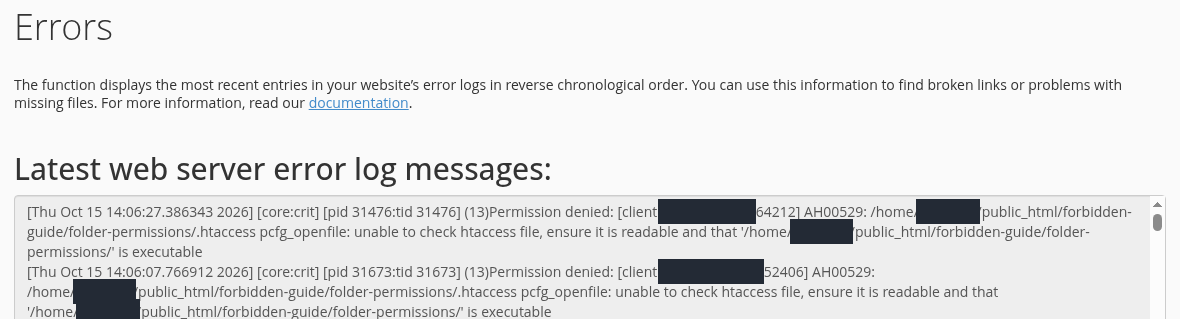
Step 1: Find the unable to check htaccess file phrase
- Find the unable to check htaccess file phrase
The entry reports that the server could not check .htaccess. First locate the path named in the entry rather than making arbitrary changes to .htaccess rules.
- Recognize that is executable refers to the directory
Here, is executable asks you to check the directory’s traversal permission. Execute on a directory allows access through its path; it does not mean making the HTML file executable.
Account names and IP addresses are masked. This example concerns a parent-directory permission; in other environments the same error may also involve file read permissions or ownership.
A log mentioning .htaccess does not necessarily mean that the file's contents are wrong. Here, the server could not complete the check because it could not traverse the directory.
- In File Manager, the parent directory,
/public_html/forbidden-guide, was opened instead of trying to enter the affected directory. - folder-permissions was selected and Permissions opened.
- Its previous working permissions were 0755, so Execute was selected for User, Group and World. The other boxes stayed unchanged; the values became 7 / 5 / 5.
- Change Permissions saved the change. The directory list showed 0755, and the same URL returned HTTP 200 again.
In Permissions, check that the correct directory is selected, rather than a file.
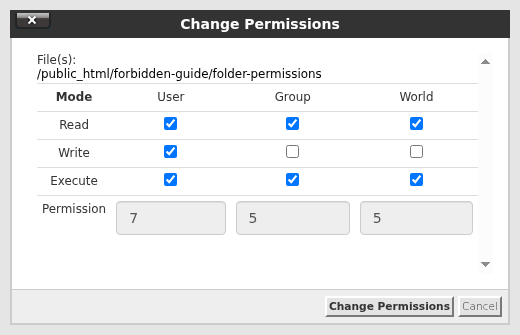
Step 1: Check the 7 / 5 / 5 values
- Check the 7 / 5 / 5 values
In this example, User has Read, Write and Execute, while Group and World have Read and Execute. The values below are 7 / 5 / 5. Group and World do not have Write selected.
- Apply the change with Change Permissions
Click Change Permissions, then reopen the same failing URL. This screen shows the prepared selections before confirmation.
0755 was verified for this example public website directory. Do not apply it indiscriminately to private directories or the entire account.
A directory's Execute permission does not mean running every file inside it as a program. It permits traversal to reach a file. This is why a normal file's 644 permissions are not the same as a directory's requirements.
644 is common for public web files and 755 for directories; 750 or more restrictive values may be correct in some configurations. These are not blanket settings for the entire account. Private configuration files may need different permissions.
Permissions and ownership are different. A file showing 644 may still be inaccessible because of its owner/group or a parent directory that cannot be traversed. If File Manager cannot change it, or the problem persists with the expected permissions, send the file path to support. Do not change the whole hosting account or all parent directories together.
Do not use 777. Giving everyone write access does not fix a missing index, incorrect ownership or a security rule, and can weaken protection of private files.
6. Inspect .htaccess access rules
If the error started after adding a rule, inspect .htaccess in the affected directory. If the file is hidden, use File Manager → Settings → Show Hidden Files (dotfiles) → Save.
In Apache 2.4, this directive refuses access to every request within its applicable scope:
Require all denied
It is a valid access rule, not automatically a syntax error. It may be necessary to protect a private directory. If it was added to a public website directory by mistake, it can cause an unwanted 403.
- Compare the log's path with the location of the
.htaccessfile you have opened. Rules in parent directories can also affect children. - Save a copy before editing.
- Open Edit and compare the latest change with the working version.
- Revert only the rule confirmed to be incorrect or applied in the wrong location. Click Save Changes.
- Check the same page's response and new log entries.
Example: remove a denial added to a public directory
For this example, Require all denied was added only to .htaccess in the forbidden-guide/access-rule test directory. The next request returned HTTP 403, and Metrics → Errors showed:
AH01630: client denied by server configuration: /home/[account]/public_html/forbidden-guide/access-rule/
Read the AH01630 entry together with the request time and relevant directory.
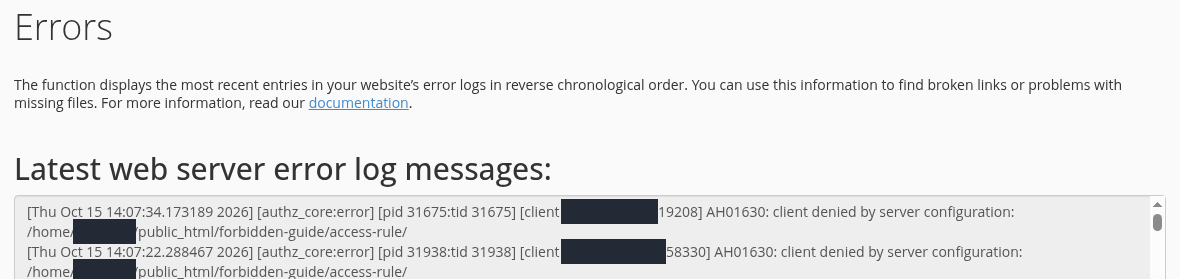
Step 1: Find the client denied by server configuration message
- Find the client denied by server configuration message
This message reports that a server configuration rule denied access. It does not identify the exact rule by itself; inspect the relevant .htaccess file and recent changes.
The account name and IP addresses are masked. Confirm the purpose of an intentional protective restriction before removing it.
File Manager → Copy was used for the pre-edit copy, with /forbidden-guide-private/htaccess-before.txt as the destination. This is in the account's home directory, outside public_html. The copy was checked against the pre-edit contents; it includes the added denial rule. Choose a suitable destination that is not web-accessible in your own account; do not assume this example directory already exists there.
Select the correct .htaccess file in File Manager and open Copy.
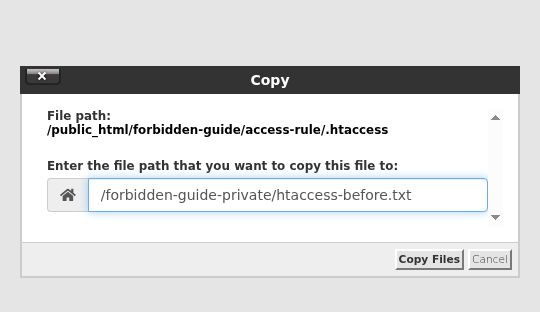
Step 1: Keep the backup outside the web root
- Keep the backup outside the web root
The example destination is a private directory created outside public_html. The Copy path is relative to the account home directory; do not place the backup where it can be downloaded from the website.
- Create the copy with Copy Files
Click Copy Files, then verify that the copy exists in the destination directory. The image shows the screen before copy confirmation.
This copy backs up the current file, which may differ from the last working version. Preserve any known working backup separately.
The Edit screen showed a comment, Options -Indexes and the newly added Require all denied line. Only the accidentally added denial was removed; the rule disabling directory listing was retained.
In this controlled example, line 3 blocks access to a public page.
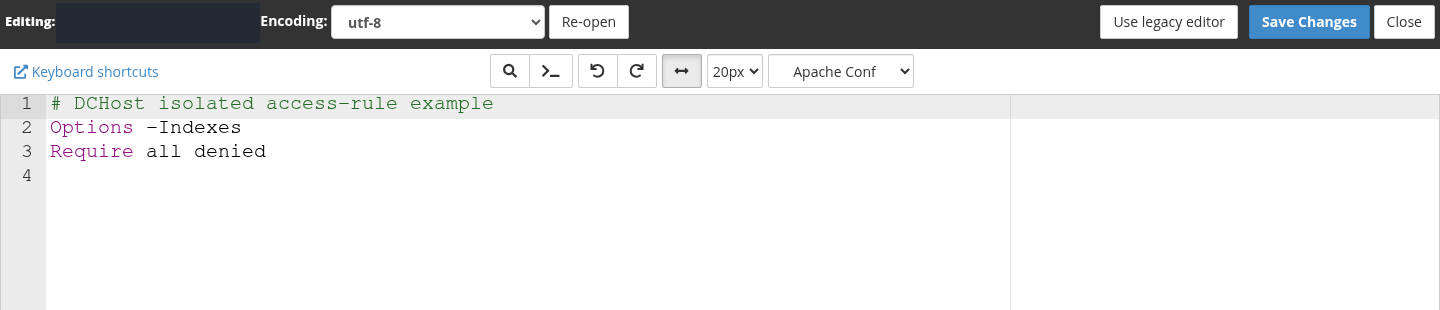
Step 1: Inspect the Require all denied line
- Inspect the Require all denied line
Require all denied is a valid access rule that denies everyone in its scope. This example is intended to serve a public page, so the rule will be removed; do not do the same to a rule protecting a private directory.
This is not a syntax error. Edit only after taking a backup and confirming that the page should be publicly accessible.
Save Changes displayed Success!. Reopening the previously blocked page returned HTTP 200.
The example removes Require all denied while preserving the rule that disables directory listing.
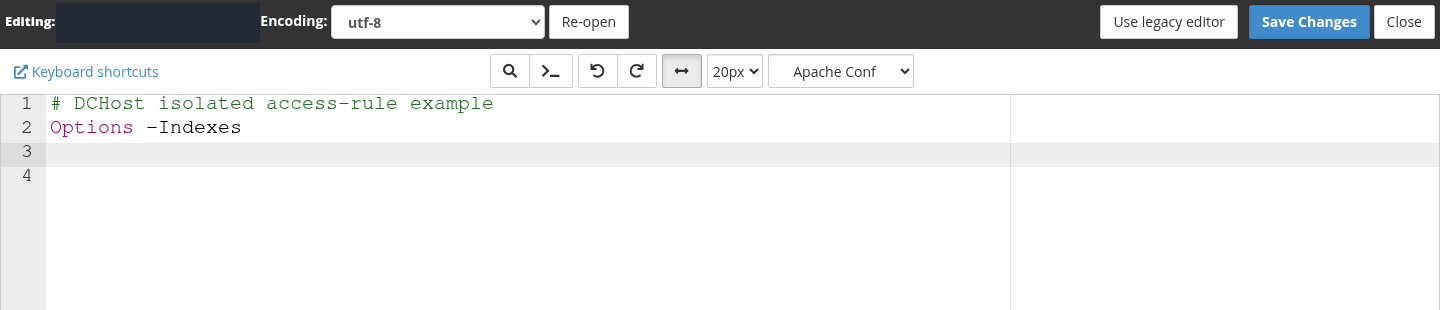
Step 1: Check that required protections remain
- Check that required protections remain
Options -Indexes remains in place. Preserve your redirect, application and security rules; change only the rule confirmed to cause the issue.
- Save with Save Changes
Click Save Changes and reopen the same URL. Check the expected page, response status and whether the latest request creates another error log entry.
This image shows the corrected editor content; it does not display a save-completion notification or an HTTP response status.
Deleting the entire file or adding Require all granted everywhere may break password protection, private-file restrictions and application rules. If older Order, Allow or Deny directives are present, do not add new Require directives beside them by guesswork. Ask support if you cannot identify the rule's scope.
7. Check IP blocks when only your connection is affected
If the same page works from another connection but returns 403 on yours, investigate IP-based or request-specific rules. The difference alone does not prove an IP block; the session or request may also have changed.
- In cPanel, open Security → IP Blocker.
- Inspect individual addresses and ranges under Currently-Blocked IP Addresses. A range may include your current public IP address.
- Remove only a record you added and confirmed was incorrect: select Delete → Remove IP on that row.
- Retest the same URL from the same connection.
This demo account displayed “No IPs are being blocked”. The screen was inspected only; no IP address was added or unblocked.
In Security, open IP Blocker and inspect Currently-Blocked IP Addresses.

Step 1: Interpret No IPs are being blocked correctly
- Interpret No IPs are being blocked correctly
The demo account shows No IPs are being blocked, so this tool has no configured block. If your account has entries, compare them with the affected connection’s IP address and the relevant range.
The list covers cPanel IP Blocker entries only. An empty list does not prove that a CDN, WAF, application or server firewall has no restriction. No block was added or removed during this inspection.
IP Blocker controls access to the website. Webmail, the server firewall, a CDN and the application's own block lists are separate controls. An empty list does not mean there is no block elsewhere. Do not remove a range covering multiple addresses without understanding its purpose.
8. Ask for security logs when a form or admin action is blocked
If the homepage works but saving content, uploading a file or a particular administration action is blocked, ModSecurity, another WAF or the application's own authorization may be involved. The error page alone cannot identify which one.
- If available in your account, inspect the domain's status under Security → ModSecurity. On does not prove that ModSecurity blocked this request.
- Record the exact URL, time and action. Include a Rule ID or CDN request identifier if shown.
- In a support request, ask for the request to be matched against security logs. A confirmed false positive should be corrected at the appropriate rule and scope.
If the ModSecurity menu is missing, the feature may not be available to your account. This does not prove that the website has no security checks or that ModSecurity caused the 403. Support can inspect the matching request record.
Disabling ModSecurity for every domain or removing the firewall is not a fix. A CDN block may not respond to a cPanel permission change. If only WordPress wp-admin or a plugin action is affected, also review the latest security/plugin change and the user's permissions; do not delete all plugins together.
9. Verify that the fix works
A Save Changes or Change Permissions confirmation does not by itself show that the web request has recovered.
- Reopen the same URL that failed. Keep the same conditions if the issue involved a particular session or connection.
- Check the new response under Network → Status Code. For an ordinary public page, look for both the expected content and a
200response. - Make sure the result is not an old cached response. If needed, use Disable cache while developer tools are open; check the affected URL separately if a CDN cache is involved.
- Check whether the same error is logged at the new time. There is no need to delete old entries.
- If the issue remains, restore the previous file/permissions and base your next change on new evidence.
An application with redirects or sign-in may not return 200 at every step; verify the expected final page and function. Do not repeatedly submit payments or orders as a test. Also confirm that private directories that should remain inaccessible are still protected.
What should you include in a support request?
When opening a support request in the DCHost customer portal, include:
- The affected service, full URL, error time and time zone.
- Whether the problem affects everyone, only one connection or one specific action.
- The last change and the fix you tried.
- The matching error line, plus a Rule ID or request identifier if available.
- Your current public IP address when investigating an IP block; share it only in the private support request.
Do not paste passwords, session cookies, API keys or an entire account backup into the message. Support can inspect ownership or security rules that are not visible in the customer account.
Frequently asked questions
Is 403 Forbidden the same as a 500 error?
No. A 403 means access was refused; a 500 means an unexpected condition prevented the server from completing the request. A valid access-denial rule in .htaccess may produce 403, while an unrecognised directive can produce 500. Use the response code and matching log entry.
Why does the homepage return 403 after I upload the files?
Compare Document Root, the upload location and the application's entry file. A missing index combined with disabled directory listing can produce 403. Check the publishing structure rather than enabling file listing.
Permissions are 644 and 755, but the problem remains. What next?
Those numbers alone are not enough. Ownership, parent-directory traversal, .htaccess rules and security layers also matter. Read the log for the same path instead of increasing permissions at random.
cPanel opens but my site returns 403. Is hosting unavailable?
Signing in to cPanel and requesting your website are separate operations. A working panel does not prove that site files, the application and web access rules are correct. Check the affected website URL and its corresponding log entry.
Where should I start if WordPress administration returns 403?
Identify whether the login page itself or a specific action after signing in is blocked. Check user permissions, security plugins, .htaccess and WAF records alongside the latest change. Find why that request was rejected before considering any security change.
Official sources
Sources checked on 15 October 2026. Menu appearance may vary with the version and your hosting account's permissions.