WordPress: How to fix “Error establishing a database connection”
If WordPress displays “Error establishing a database connection”, it cannot connect to the database that stores your content. Incorrect connection settings, database user permissions or an unreachable database server can cause this error. The message alone does not prove that the password is wrong.
This guide explains how to compare an existing WordPress site's connection settings with cPanel and restore access. If the problem began after a migration or password change, identify what changed before attempting a fix. Do not reinstall WordPress over your existing site.
Before you start
- Make sure you can open the correct hosting service's cPanel through the DCHost customer portal. You can check files and databases there even if WordPress administration does not open.
- Record when the error began, including the time zone, and the most recent change: migration, password change, file edit or restore.
- Check that you have a usable file and database backup for the correct website and date. If the database is unavailable, do not proceed to deletion or repair.
- If the hosting account contains several sites, identify the WordPress installation belonging to the affected site. This guide concerns an existing website, not a new installation with an empty database.
Screenshots come from a real WordPress demonstration installation. Account-specific names, connection details and passwords are concealed. Use the full values from your own account; concealed fields are not example credentials to copy.
1. Check the affected website and administration address
- Open your homepage in a browser window that is not signed in to WordPress.
- Try an existing internal page that previously worked.
- Open
/wp-admin/for the same installation. If WordPress is installed in a subdirectory, retain that directory in the address. - Record the exact message and address. A general connection error, “Cannot select database”, and the WordPress installation screen describe different situations.
Check the error message shown in place of the website content.

Step 1: Record the error message
- Record the error message
Error establishing a database connection means WordPress could not connect to its database. This message alone does not distinguish an incorrect password from missing privileges or a database server access problem.
In this controlled test, an incorrect DB_PASSWORD value produced this error. The image does not show HTTP response headers; check the visible message and actual response status separately.
For this real demonstration, the wp-config.php file of a separate WordPress installation was downloaded first. Only DB_PASSWORD was then temporarily replaced with an incorrect value. In a browser that was not signed in, the site returned HTTP 500 and displayed “Error establishing a database connection”. The database account's actual password was not changed.
| What you see | What to check first |
|---|---|
| Database connection error | Connection settings, database user and server access. |
| “Cannot select database” | The full database name and the user's access to that database. |
| WordPress installation screen instead of an existing site | Wrong or empty database and table prefix. Do not continue with installation. |
| “There has been a critical error” or a white screen | WordPress recovery mode and plugin checks; these symptoms are not specific to the database. |
A general 500 page | PHP logs and the 500 error guide. |
A cached homepage does not prove that the database connection works. We will check an internal page and WordPress administration as well.
2. Back up the correct wp-config.php file
wp-config.php tells WordPress which settings to use for its database connection. It contains a password and security keys.
- In cPanel, use Domains → Domains → Document Root to identify the domain's website directory.
- Open Files → File Manager and go to that directory. If WordPress is in a subdirectory such as
/blog/, open it too. - Look for
wp-config.phpin the installation containingwp-admin,wp-contentandwp-includes. Some installations keep it one directory above; do not edit another site's configuration if you cannot find this one. - Select the file and click Download to save it to your computer. Confirm the download exists and note the server path and current permissions.
- Keep the backup in a location only you can access. A server-side backup must be outside the document roots of every domain and subdomain.
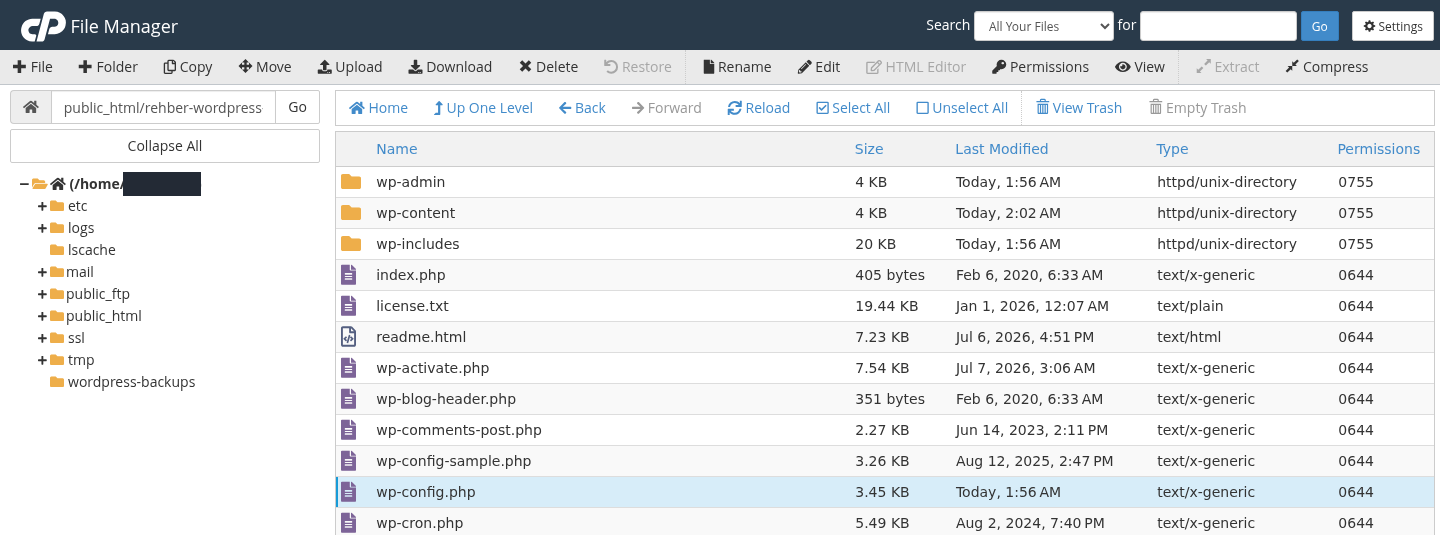
In cPanel File Manager, open the directory containing this WordPress installation.
Step 1: Select the correct wp-config.php
- Select the correct wp-config.php
Check the directory containing wp-admin, wp-content and wp-includes. Select wp-config.php; do not edit the wp-config-sample.php example file.
- Use Download to keep a private backup
Click Download. Confirm that the file downloaded to your computer and retain a dated copy. This file contains a password; never place the backup in any web-accessible website directory.
The account name is covered with an opaque mask. The image shows the file selection and Download button. A copy of this file is not a database or full-site backup.
wp-config-sample.php is a sample file, not your running site's configuration. Do not leave wp-config.php.bak, wp-config.txt or a ZIP backup inside a website directory: these copies could expose passwords to visitors. See the cPanel File Manager guide for file operations and backup verification for checking a complete backup.
3. Compare the four database connection settings
Open File Manager → wp-config.php → Edit. First inspect these fields without saving any changes:
| Setting | Meaning | What to compare it with |
|---|---|---|
DB_NAME | The database used by this WordPress site. | The database's full name in cPanel. |
DB_USER | The account WordPress uses to connect to the database. | The full username assigned to that database. |
DB_PASSWORD | That database user's password. | Your secure record or a verified previous configuration. |
DB_HOST | The database server's connection address. | The address provided for this hosting service, including a port or socket where required. |
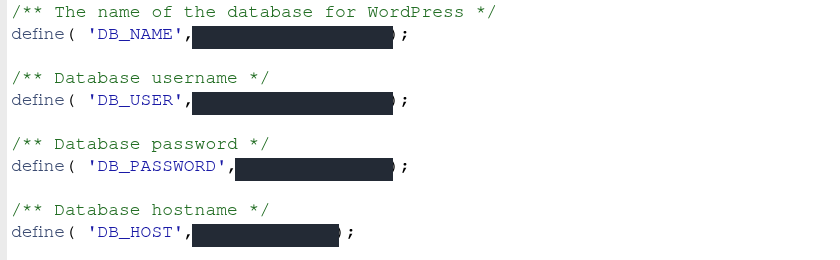
Look only at the database settings section in wp-config.php.
Step 1: Check DB_NAME and DB_USER
- Check DB_NAME and DB_USER
DB_NAME identifies the database; DB_USER identifies the user that connects to it. Compare both with the complete names in cPanel, including any account prefix. Matching names alone do not prove that the user has access.
- Verify DB_PASSWORD and DB_HOST
DB_PASSWORD must match the password of the correct database user. For DB_HOST, use the database server address specified for your service; do not change it by guessing.
All database values are covered with opaque masks. Do not copy values from the image. DB_PASSWORD is the database user password, not the WordPress administrator password.
A cPanel prefix is part of the name. If the panel shows account_site, entering only site does not identify the same database. The username may also include a prefix; the database name and username do not have to match each other.
This field requires the password of the database account specified by DB_USER. Do not substitute your WordPress administrator, email or DCHost customer portal password. Being able to sign in to cPanel does not validate the application's database password either; cPanel does not display an existing database user's current password in plain text. A value in wp-config.php is not proof that it is correct either; the file may have been edited incorrectly.
Do not guess that DB_HOST should be localhost. That value can be correct for a local database, while a service using a separate database server needs a different address. After migration, the previous provider's address may still be present. Verify the correct endpoint in your service information or with support.
Keep $table_prefix, DB_CHARSET, DB_COLLATE, site addresses and security keys unchanged during this check. If values come from another configuration source instead of appearing directly in this file, involve the person responsible for that configuration.
4. Check the cPanel database user and permissions
- Open Databases → Manage My Databases in cPanel. Older versions may call it MySQL Databases.
- Under Current Databases, find the database matching
DB_NAME. - In the same row, check that Privileged Users includes the account matching
DB_USER. - Click the username. On the permissions screen, check both the user and database again.
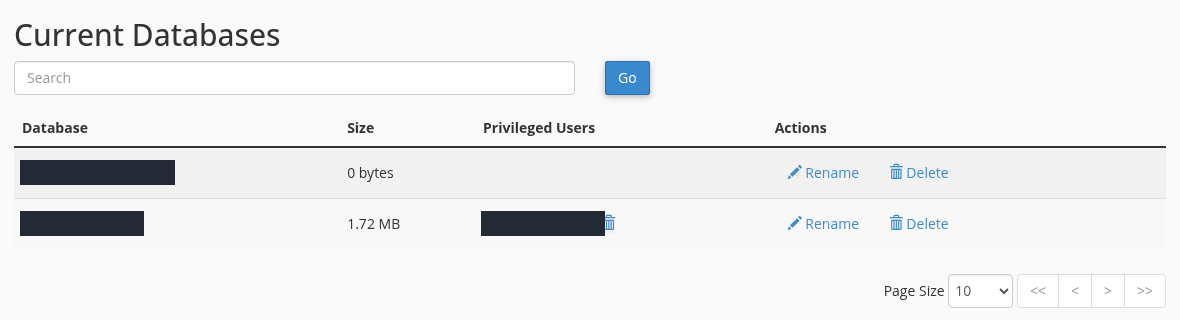
In cPanel Manage My Databases, find Current Databases.
Step 1: Find the database matching DB_NAME
- Find the database matching DB_NAME
In the Database column, find the exact name set in DB_NAME in wp-config.php. If several databases are listed, leave the entries for other sites unchanged.
- Open the relevant user’s privileges
Check the Privileged Users column in the same row. Click the username matching DB_USER to inspect its permissions on this database. If the user is absent, the association must be set up separately.
Database and user names are covered with opaque masks. The WordPress database is in the second row in this example. On your site, use the complete name in wp-config.php, not the row order or displayed size.
An account appearing under Current Users does not prove that it is assigned to the correct database. If the association is missing, select the existing correct user and existing correct database under Add User To Database, then click Add to open the permissions screen. Do not delete or rename a database containing your site's data, or create an empty database to resolve this error.
What should you check on the permissions screen?
WordPress needs data access to read and save content, and additional permissions to create or alter tables during installation and some updates. For a standard WordPress installation, cPanel's ALL PRIVILEGES option can be used for this site's own database only. Do not grant server-wide administrative privileges or access to other sites' databases.
If permissions were deliberately restricted, do not broaden them without understanding why. Check the permission required by the actual operation with whoever manages the application. Where a change is needed, confirm the correct user–database pair and save with Make Changes.
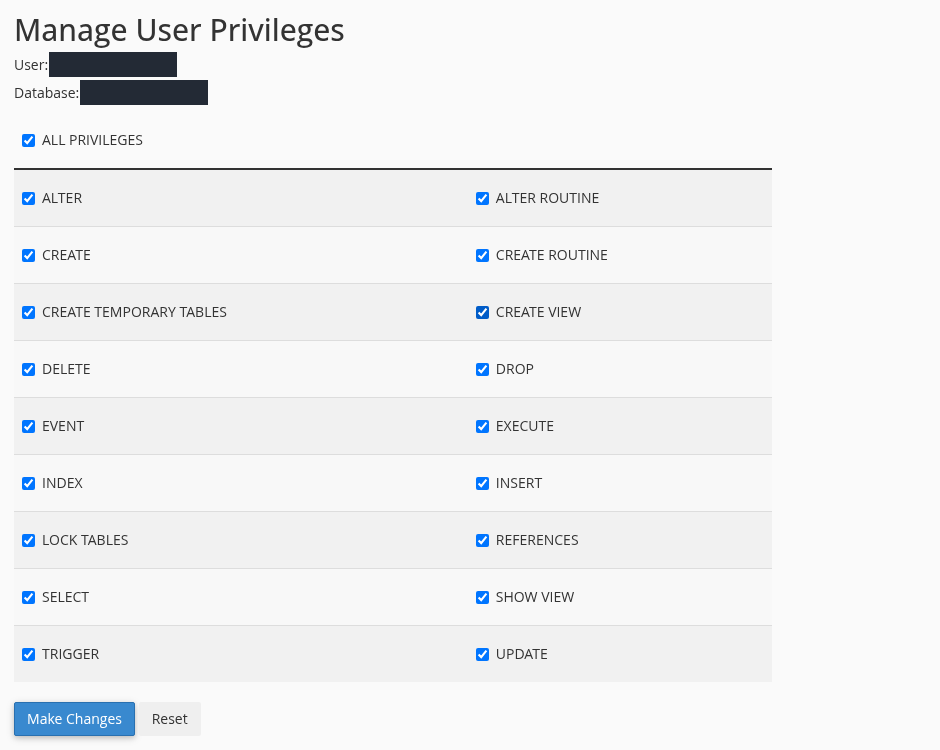
Manage User Privileges shows the permissions for the selected user and database.
Step 1: Match User and Database to your settings
- Match User and Database to your settings
Confirm that User at the top matches DB_USER and Database matches DB_NAME. These privileges apply to the specific user–database association shown on this screen.
- Inspect the checked privileges
In this example, ALL PRIVILEGES and all the boxes below it are checked. No missing privileges were found for this user, so nothing was changed; continue checking the other possible causes.
The privileges were already assigned in this actual demo screen. No checkbox was changed and Make Changes was not clicked. User and database names are covered with opaque masks.
In this example, ALL PRIVILEGES and every listed permission were already checked for the correct user–database pair. No checkbox was changed and Make Changes was not clicked. Reassigning privileges was not necessary to restore the connection.
5. Correct only the incorrect connection value and save
Once you have identified the wrong value, return to the same wp-config.php file you backed up:
- Replace only the incorrect connection value with its verified correct value.
- Preserve the line's quotes, parentheses and semicolon. Do not define the same setting twice or replace the entire file with an example found online.
- Click Save Changes and read the result.
- Reopen the same website address that failed initially, then complete the final checks.
A password containing a single quote or backslash must be represented correctly in PHP. Preserve the existing representation when restoring from a verified previous file. If you are unsure about the syntax, ask support for help. If a new 500 error appears, restore the backup.
In this test, DB_PASSWORD in wp-config.php was restored to its verified original value.
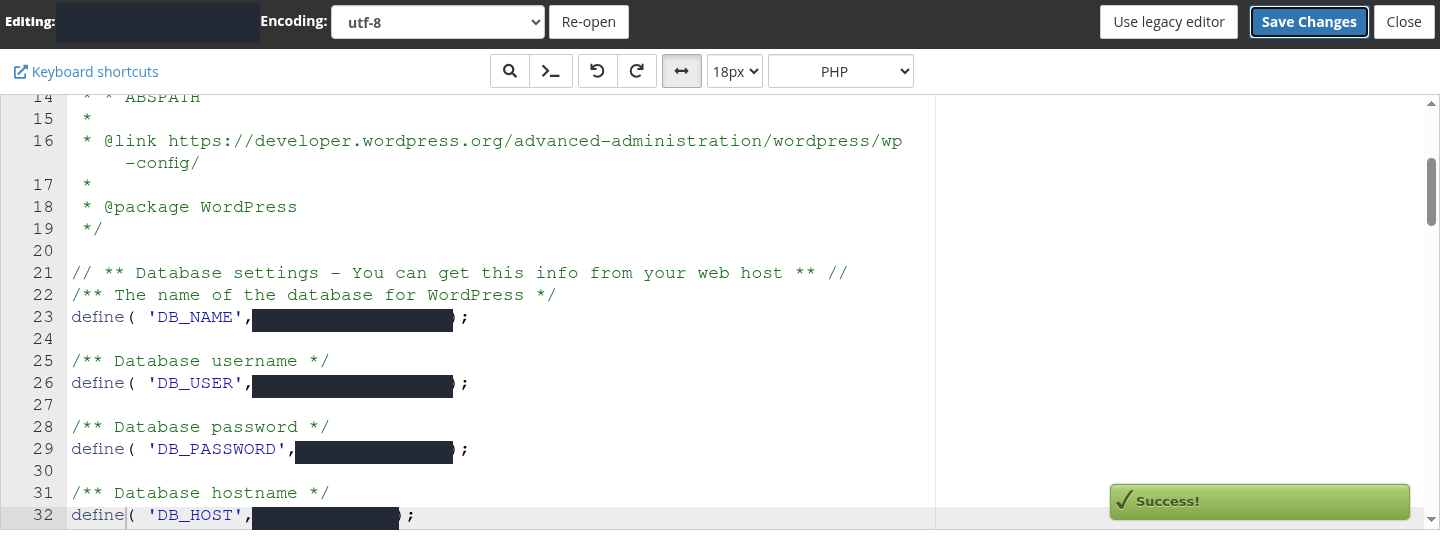
Step 1: Use Save Changes to save the file
- Use Save Changes to save the file
After entering the verified value in the relevant setting, click Save Changes. Leave the other correct connection settings and the rest of the file unchanged.
- Check the Success! notification
The green Success! notification confirms that the file was saved. Saving alone does not prove the website has recovered; reopen the same website URL and WordPress administration.
The file path and database values are covered with opaque masks. This test did not change the database user’s password or privileges; only the incorrect value in wp-config.php was corrected.
In this demonstration, the temporarily incorrect DB_PASSWORD value was restored from the original downloaded file, and cPanel displayed “Success!”. The file was downloaded again and compared with the first backup; its contents matched byte for byte. The database user's actual password was not reset. The database name, username and server address stayed unchanged while the website connection was restored.
If you do not know the database password
First establish whether another website or application uses the same account. Check the other associations under Current Databases together with the application configurations.
In cPanel, Current Users → Change Password changes the database user's actual password. Typing a new value only into wp-config.php does not change the password on the database server. If a password change is necessary, update every application using that account as part of the same change. Resetting a shared account without checking can interrupt other websites.
If the correct database is known but there is no secure password record, discuss a separate user dedicated to this application with support. Do not remove the old user before the new account can access the data and the WordPress connection has been verified.
6. Distinguish connection failure from missing tables
You can open the relevant database through Databases → phpMyAdmin in cPanel and inspect the table list. At this stage, only inspect the list: do not drop or empty tables, or run SQL.
Open phpMyAdmin from cPanel, select the correct database and look at the Structure tab.
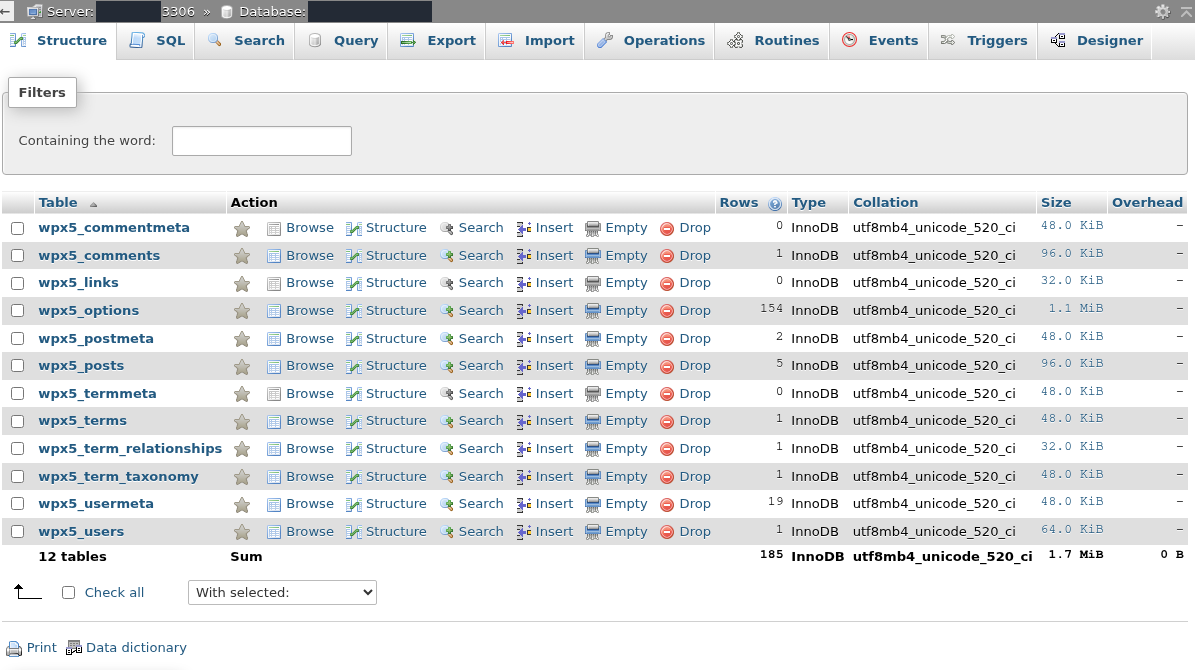
Step 1: Locate the options and posts tables
- Locate the options and posts tables
WordPress settings are stored in the table ending in options, and posts and pages in the table ending in posts. Here the names start with wpx5_. Use your installation’s prefix; do not change it to match this example.
- Check the users table and list summary
The table ending in users is also listed; the summary reads 12 tables in this example. Plugins can add tables, so the count is not identical on every site. Table presence does not prove that the entire database is healthy.
This check only shows that the table list opens through cPanel; it does not prove WordPress can connect using DB_PASSWORD. No records were opened and no tables or data were changed. Server and database names are covered with opaque masks.
In this example, the Structure tab for the database matching DB_NAME showed 12 tables. The installation's own table prefix was preserved. No table records were opened, and no data or tables were changed. Plugins can create additional tables, so your site does not need to have the same count.
Opening phpMyAdmin through cPanel does not prove that WordPress's DB_USER and DB_PASSWORD values are correct. The panel's sign-in session and the application's connection are different. Here, phpMyAdmin helps you check the database and whether its expected tables exist.
| Situation | What to do |
|---|---|
| The database is empty after migration, or expected tables are missing. | Confirm the correct database and import result. Work from the existing site's backup; do not run the installation wizard. |
Tables exist but their names do not match $table_prefix. | Compare the configuration with the correct site's table group. Do not rename all tables simply because the prefix differs. |
| A specific error identifies a corrupted table. | Send the evidence to support with a current backup available. A connection error alone is not a reason to repair every table. |
WP_ALLOW_REPAIR does not fix an incorrect username or password. When enabled, WordPress's repair screen can be used without signing in. Do not enable it for this guide. If it was enabled earlier, remove it when diagnosis is complete; an actual table repair requires evidence and a recovery plan.
7. If the settings match, check server access and error logs
If the problem persists, check Metrics → Errors in cPanel and the PHP logs available for your service. Match the record to the affected address and test time; not every database error appears in this list.
| Possible log message | What it helps you investigate |
|---|---|
Access denied / 1045 | Username, password and the connection source permitted for that account on the selected server. It does not prove that the password alone is wrong. |
Access denied ... to database / 1044 | The user's access to the selected database. |
Unknown database / 1049 | Database name, cPanel prefix and whether the database exists on that server. |
Can't connect, Connection refused or a timeout | DB_HOST, the connection path and database service availability. |
Too many connections or a user resource limit | Connection count, account limits and application activity at the same time; investigate with support. |
using password: YES means a password was supplied; it does not mean that the password was correct.
On shared hosting, do not attempt to restart the database service or change server connection limits. Do not open database access to everyone to fix a connection problem. Remote Database Access and DB_HOST are different settings.
Do not upload a public test.php to test credentials through a browser: it could expose passwords or technical details. Review the necessary logs securely with support instead of displaying detailed errors to visitors.
8. Verify existing content and WordPress administration
| Check | Expected result |
|---|---|
| The homepage that initially failed | Your existing site's expected content opens without the database connection error. |
| A previously published internal page | The correct content opens at the same address, not an empty installation or another website. |
| WordPress administration | Your existing account opens the dashboard, and existing posts and pages remain listed. |
| Configuration file | The correct file is active in its original location; unrelated settings and permissions are preserved. |
| Backups and temporary files | Backups stay outside web roots; no public passwords or test files remain, and unnecessary repair access is disabled. |
After saving the correct connection setting, open the homepage as a visitor.
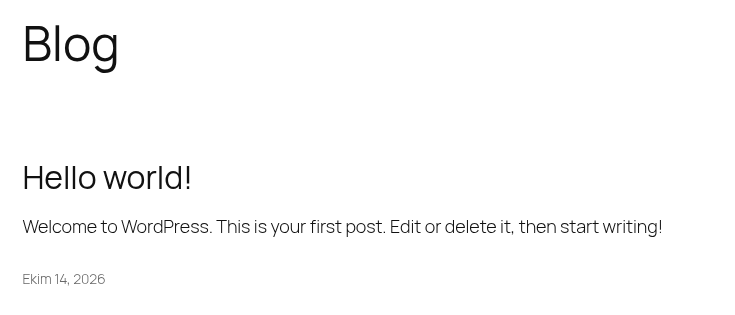
Step 1: Confirm that the expected posts and pages open
- Confirm that the expected posts and pages open
The homepage displays Hello world! again in this example. On your site, open the homepage, a post and a page, and confirm that the expected content appears.
This image shows website content, not HTTP response headers. Separately verify the final URL and its 200 response; do not rely only on the error message disappearing.
Reopen the Dashboard in WordPress administration.
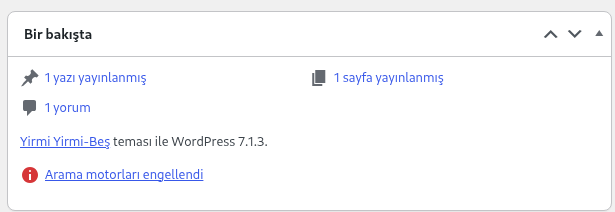
Step 1: Check that the content summary loads
- Check that the content summary loads
The Bir bakışta (At a Glance) widget shows one published post and one published page. Check the content list on your own site as well, and verify administration access separately from visitor access.
Search engines discouraged is an existing preference of this demo installation; it is not a recommended setting for fixing a database error. This screen checks administration access; the preceding image checks visitor access.
The final checks returned HTTP 200 with the expected content for the homepage, existing Sample Page and dated Hello world! post. WordPress administration, the posts list and the pages list also returned HTTP 200, with the existing content present in the lists. The restored wp-config.php matched the first downloaded copy byte for byte, and its existing 0644 permissions were preserved.
The search-engine visibility warning on the dashboard belongs to this demo site's existing configuration. That setting was preserved during the repair.
If you use caching, clear the affected page's cache and try again. A private browser window does not clear server or CDN caches. For shops and membership sites, also complete the relevant operational checks for your own application; opening the example page does not verify every transaction or feature.
If a change introduces a new error
- If editing
wp-config.phpcauses a new PHP/500error, restore the downloaded backup to the same location. Check that its name remainswp-config.phpand that its previous permissions are preserved. - If you changed the database user's actual password, restoring only the previous file may not be sufficient. The current database password and every application using that account must match.
- If you changed permissions, review the recorded previous state for the correct user and database. Do not remove access needed by another application.
- After each rollback, reopen the same website and administration addresses. Do not delete the database or overwrite existing data with an unverified backup.
What to include in a support request
When opening a support request in the DCHost customer portal, provide the affected service, full website address, error time and time zone. Also include:
- Whether the homepage, internal pages and WordPress administration are affected.
- The exact error message and the last change before it began.
- Whether
DB_NAMEand the user–database association were checked, and the result. - What setting changed, what backup was taken and whether rollback was attempted.
- The relevant log line from the same time, with account-specific details concealed.
Do not include a password, the complete wp-config.php file, security keys or a database backup in the message.
Frequently asked questions
Do I need to reinstall WordPress to fix a database connection error?
First check the existing connection settings, database user and server access. A new installation does not recover your existing content. If the installation screen replaces your old website, verify the correct database and table group before proceeding.
I changed my cPanel password. Does DB_PASSWORD need to change too?
DB_PASSWORD belongs to the database account specified by DB_USER. Do not assume it automatically matches your cPanel sign-in password. Check which account the application uses and whether that account's password actually changed before editing the value.
Why does phpMyAdmin open while WordPress still reports a connection error?
cPanel's access to phpMyAdmin does not test the username, password and database selection configured in WordPress. The application password can still be incorrect, or the user may not be assigned to the right database.
Why did the error begin after moving the site?
The new hosting service may use different database names or account prefixes, while an old password or DB_HOST value remains in the configuration. Check the completed database import, full new names and user permissions together.
Related guides
- Migrate a WordPress website
- cPanel databases, phpMyAdmin and cron jobs
- cPanel File Manager and backups
- Verify that a backup is usable
- cPanel 500 Internal Server Error
- WordPress 404 errors
Official sources
Sources checked on 15 October 2026. Menu names may vary with the cPanel and WordPress versions and interface language.