How to fix a cPanel 500 Internal Server Error
500 Internal Server Error means the server could not complete that request. The short message in the browser does not identify the cause. Compare the most recent change with the error recorded at the same time to find the relevant file or setting.
This guide is for customers using a cPanel hosting account. It separates .htaccess errors, PHP code errors and PHP memory-limit problems. Start by opening cPanel through the DCHost customer portal.
1. Confirm that the response really is 500
Record the exact page address, time and most recent change. The homepage may work while a form or another page fails. Test the address where the problem occurs.
- Open your browser's developer tools. In Chrome and Edge, you can use F12 → Network.
- Open the affected page once more. Do not repeatedly submit a payment or order form.
- Select the relevant page request in the list and read Status Code.
- Distinguish a page displaying “500” from a response whose actual status code is
500. A custom error page can return a different code.
The examples shown here were prepared in a test folder separate from the working website files. In the first example, an invalid .htaccess directive caused the request to return HTTP 500. After correcting it, we will check the same URL again.
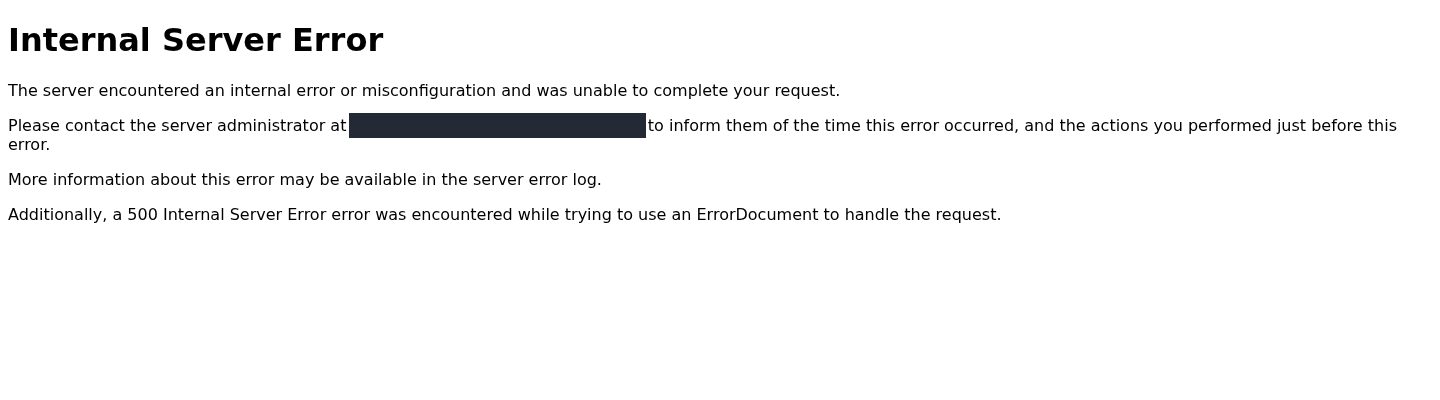
The example page reports that the server could not complete the request.
Step 1: Use the error message as a starting point
- Use the error message as a starting point
The Internal Server Error heading alone does not identify the faulty file. Confirm the response status for the same request in Network, note the time and inspect the relevant error log.
This is the initial error state in the .htaccess example. Page text is not a substitute for the HTTP response header.
| Code | Meaning | First place to investigate |
|---|---|---|
| 500 Internal Server Error | An unexpected condition prevented the server from completing the request. | The matching web/PHP error and most recent change |
| 502 Bad Gateway | A gateway or proxy received an invalid response from a backend server. | The connection between any CDN/proxy and the application or PHP service |
| 503 Service Unavailable | The service cannot currently handle the request, for example because of temporary overload or maintenance. | Service status, maintenance and resource usage |
| 504 Gateway Timeout | A gateway or proxy did not receive a timely response from a backend server. | The delayed application request, service and timeout logs |
Do not apply the same .htaccess edit to all four codes. Certificate warnings and failed domain resolution are separate problems; use the HTTPS troubleshooting guide when relevant. Access to cPanel does not establish that the website application in the account works.
If the actual response is 403 Forbidden, use the 403 error guide to check the document root, directory index, permissions and access rules.
2. Find the correct website folder and prepare a rollback copy
Find the domain's Document Root under Domains → Domains, then open that folder in Files → File Manager. Do not assume every website uses the root of public_html.
Before editing:
- Download the current file to your computer or copy it to a private folder outside the web root.
- If you have a known working version, keep it separately from the current faulty copy. Backing up a broken file does not give you a working version.
- Record the file path, intended edit and time.
- Investigate one cause at a time. Do not change PHP versions,
.htaccessand application code together.
Do not leave .bak, .old or ZIP files containing passwords or private settings in the web root. If the project uses Git or another deployment system, include the correction in that workflow; a later deployment can overwrite direct panel edits. See the cPanel File Manager guide for the detailed controls.
The copy made before editing in this example
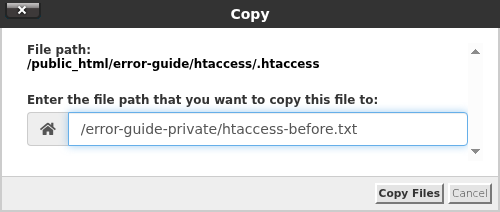
In this walkthrough, File Manager → Copy copied .htaccess to htaccess-before.txt inside error-guide-private, a folder in the account home outside the web root. The Copy dialog destination was /error-guide-private/htaccess-before.txt. This is the pre-edit file, so it still includes the faulty directive.
Choose a suitable destination that cannot be reached from the web in your own account. Do not assume the example folder already exists in every hosting account.
Select .htaccess and open the Copy dialog.
Step 1: Choose a private destination
- Choose a private destination
The Copy path is relative to your account home directory. Use a previously created private directory outside public_html so the backup is not available for download from the website.
- Create the copy with Copy Files
Click Copy Files, then check that the file exists in the destination directory. The image shows the screen before confirmation.
Keep the current faulty file separately from the last working version; they are not the same backup.
3. Find the error log and read the relevant entry
Start with Metrics → Errors
cPanel → Metrics → Errors displays up to 300 of the latest web-server error entries, with the newest first. Find the entry matching the time and file of the failure. An old entry remaining in the list does not mean your latest correction failed.
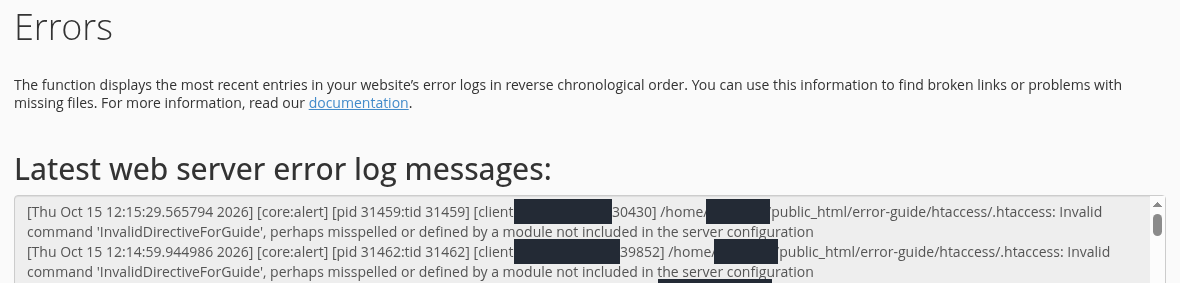
This screen shows the example’s .htaccess error. Look at the part identifying the unrecognized directive:
Invalid command 'InvalidDirectiveForGuide'
Read the error message, file path and request time together.
Step 1: Inspect the Invalid command entry
- Inspect the Invalid command entry
Here, Invalid command 'InvalidDirectiveForGuide' points to the .htaccess file. Match its timestamp to the failed request; an older entry does not describe the latest attempt.
The source IP and account name are masked. This log screen does not itself show the HTTP response status.
Read these details together:
| Detail | How to use it |
|---|---|
| Date and time | Match the browser failure; the server and your computer may use different timezones. |
| Error message | Find the part identifying the cause, such as Invalid command, Parse error or Allowed memory size. |
| File path | Identify the affected website and file. |
| Line number | Start inspecting the code there; the actual mistake can be on the preceding line. |
If Errors is empty, check the PHP log too
PHP-FPM and your application can write to separate log files. Errors is not a combined view of every PHP and application log.
Identify the domain’s effective PHP error log first. Its filename and location depend on configuration. Open the accessible file using File Manager → View; ask support to confirm the effective location if you cannot find it.
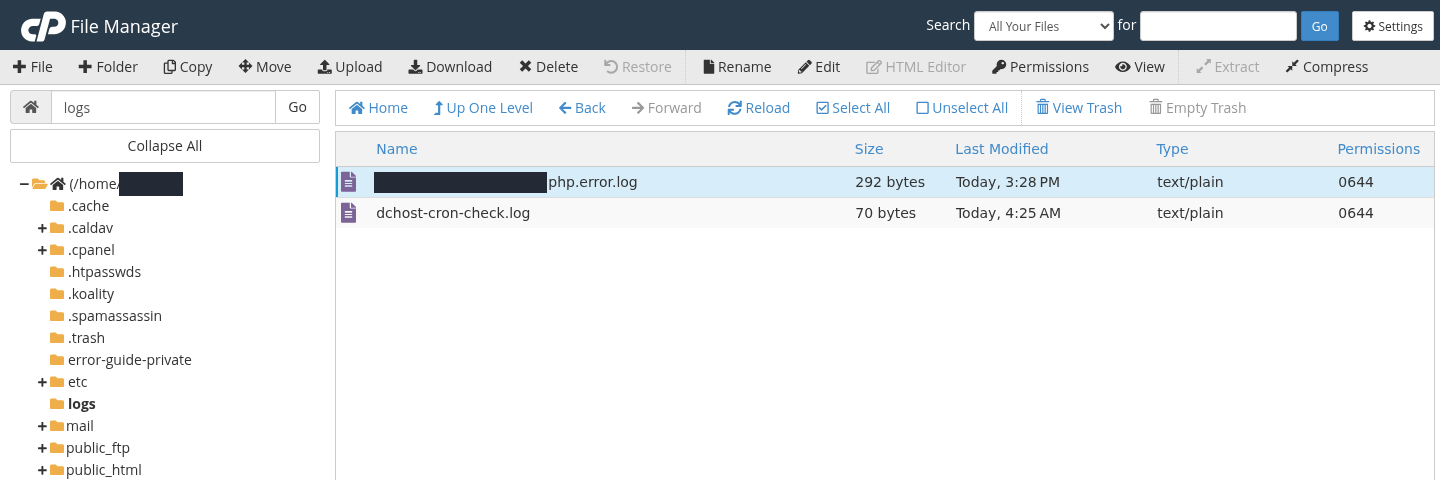
In this example, the entry was under File Manager → account Home → logs, in the file for the domain whose name ends in .php.error.log. A runtime ini_set('error_log', ...) attempt did not override PHP-FPM’s administrator log setting. An empty file at a different destination therefore did not mean the PHP error was unrecorded; it appeared in the effective log.
On this account, PHP-FPM writes errors to the logs directory under Home.
Step 1: Find the logs directory under Home
- Find the logs directory under Home
Return to Home in File Manager and open logs. This location is outside public_html; do not move error logs into a publicly accessible directory.
- View the relevant .php.error.log file
Select the domain-specific .php.error.log file and click View in the top toolbar. The private part of the filename is masked. Locations may differ on other accounts; verify that the current request is actually written to this file.
Changing error_log within an application does not always override a PHP-FPM enforced setting. Use the effective log location.
The PHP code example below explains the entry in that file. Do not treat this logs location or filename as a fixed rule for every cPanel account.
| Example log text | Possible cause | Relevant section |
|---|---|---|
Invalid command / not allowed here | A directive in .htaccess is unknown or cannot be used in that context. | .htaccess checks |
PHP Parse error / syntax error | A PHP file contains a syntax error. | Check the PHP code |
PHP Fatal error / Uncaught Error | An error stopped PHP execution. | Check the PHP code |
Allowed memory size … exhausted | That PHP execution reached its permitted memory limit. | Investigate the memory limit |
Permission denied | Ownership or access permissions may be blocking the operation. | File permissions |
These phrases help you recognize common error types. Use the full message, file and timestamp from your own log. A PHP warning or notice does not automatically produce a 500 response; do not assume an old or unrelated warning caused the current failure.
4. Fix a 500 error that began after an .htaccess change
.htaccess can contain web-server rules for its directory and subdirectories. Redirects, access restrictions and application rules may share the file. A faulty directive can stop a request before it reaches the application.
If the page ends with Additionally … ErrorDocument …, the server also failed while trying to display its error page. The same .htaccess problem can trigger that extra message; do not automatically treat it as a second, independent fault. Find the original error in the log first.
- Open the folder named in the error log using File Manager.
- If the file is hidden, use Settings → Show Hidden Files (dotfiles) → Save.
- Select
.htaccessand download its current copy or copy it outside the web root as shown in the private backup step, then open Edit. - Compare the logged directive with the most recent change. Restore the faulty line to its known working form without changing unrelated rules.
- Click Save Changes. Reopen the same page and check whether a new matching error appears.
Open Preferences using Settings in File Manager.
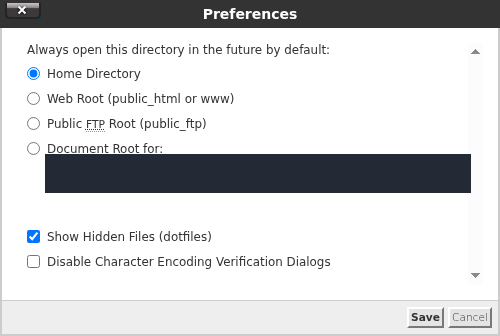
- Enable Show Hidden Files
Select Show Hidden Files (dotfiles) to display files such as .htaccess whose names begin with a dot.
- Save the display setting
Click Save, then locate .htaccess in the directory named by the error log.
This setting makes the file visible; it does not change an incorrect rule inside it.
Example: remove only the newly added faulty line
An invalid directive named InvalidDirectiveForGuide had been added to the isolated folder’s .htaccess to demonstrate the scenario. The name in the Apache log was matched to the newly added line in the editor.
In Edit, inspect the specific file identified by the error log.
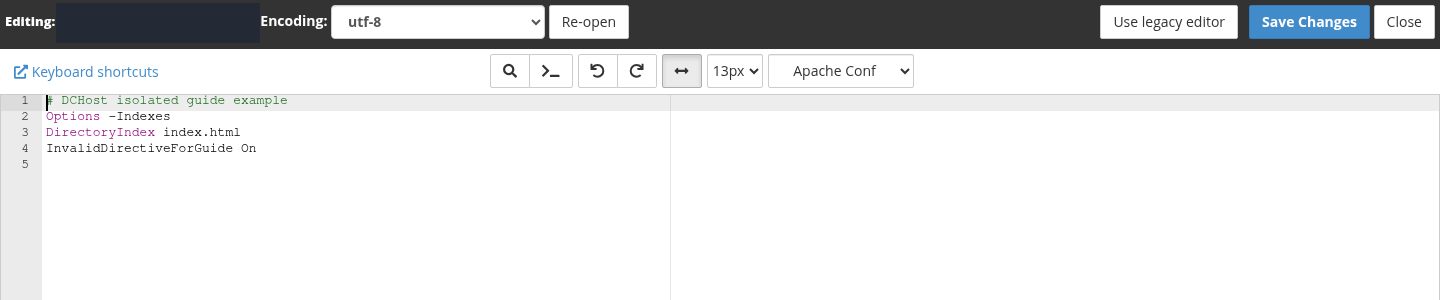
Step 1: Match the faulty line to the log
- Match the faulty line to the log
InvalidDirectiveForGuide On on line 4 matches the Invalid command entry in Errors. This deliberately invalid line belongs to the guide example; do not add it to your site.
This is the file before correction. The faulty directive and line number in your own file may differ.
After the pre-edit copy was made, only that added line was removed in Edit. The other rules were preserved. Clicking Save Changes displayed Success!.
Reopening the same URL returned 200 instead of 500, and the expected page appeared. After saving your own correction, check the page separately too.
After the correction, the expected example page content is displayed.
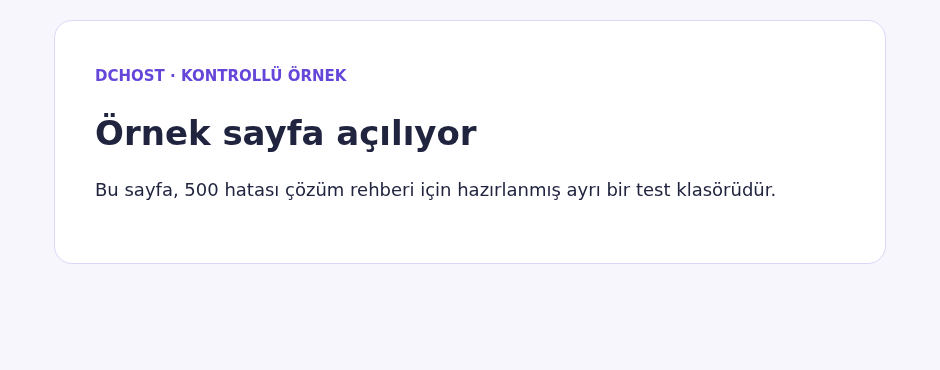
Step 1: Verify the expected content
- Verify the expected content
Reopen the URL that previously failed. Here, the heading Örnek sayfa açılıyor and the page text are visible. On your own site, verify the intended page and its functions.
This image shows page content, with no numeric HTTP status displayed. Check the response status separately in the browser Network panel.
Do not delete or arbitrarily rename the entire file. Doing so can disable password protection, access restrictions, HTTPS redirects and application routing. If the new faulty line is known, revert that line. If you do not know which rules are required, send the relevant log to support.
not allowed here is not always a spelling mistake. The directive may be forbidden in that context, or the provider may not permit it for the account. Do not attempt to change server-wide Apache permissions from a customer cPanel account.
Why can php_value in .htaccess fail with PHP-FPM?
php_value and php_flag lines copied from other guides are not valid for every PHP handler. PHP-FPM does not use those .htaccess lines as a general way to set PHP options. If Apache does not recognize the directive, an error such as Invalid command 'php_value' can accompany a 500 response.
Use your account's Software → MultiPHP INI Editor and the configuration method supported by the service. Do not remove cPanel-generated PHP handler or LSAPI blocks in bulk; they have a purpose with some other handlers. MultiPHP Manager shows the PHP version and handler status; a 500 response does not generally require disabling PHP-FPM.
5. Correct a PHP syntax or fatal error
PHP Parse error or syntax error means PHP could not parse the code. Possible causes include a missing semicolon, unclosed quote or bracket, or unsupported syntax. PHP Fatal error is a broader category: an undefined function or an uncaught error, for example, can stop PHP execution.
- Record the file path and line number from the log.
- Open the correct file using File Manager → Edit. Inspect the reported line and the preceding code.
- Compare it with the last working version. If the failure began after an edit, revert that specific change or upload a corrected version.
- Save and retry the same request. Older log entries can remain; check whether the same error appears at the new attempt's time.
Example: the log can point to the following line
In this isolated test, the variable assignment on line 2 was missing its terminating semicolon. The browser request returned HTTP 500. The domain’s effective PHP log recorded the following entry; the account name is masked here:
PHP Parse error: syntax error, unexpected token "echo" in /home/[account]/public_html/error-guide/php/app.php on line 3
The log identifies an unexpected echo token and line 3 of app.php.

Step 1: Read the message with its file and line
- Read the message with its file and line
The PHP Parse error: syntax error, unexpected token "echo" entry ends with app.php on line 3. Inspect line 3 and the preceding code; in this example, the missing semicolon is on line 2.
Match the log timestamp to the latest request. Older lines remaining in the file do not mean the correction failed.
The message names echo on line 3. Inspection showed that the preceding assignment did not end with ;. Read the preceding line as well as the line named in the error.
This file was also backed up through File Manager → Copy before editing. In Edit, the missing ; was added to the assignment at the end of line 2, without changing PHP settings. Save Changes displayed Success!.
The example adds a semicolon only at the end of line 2.
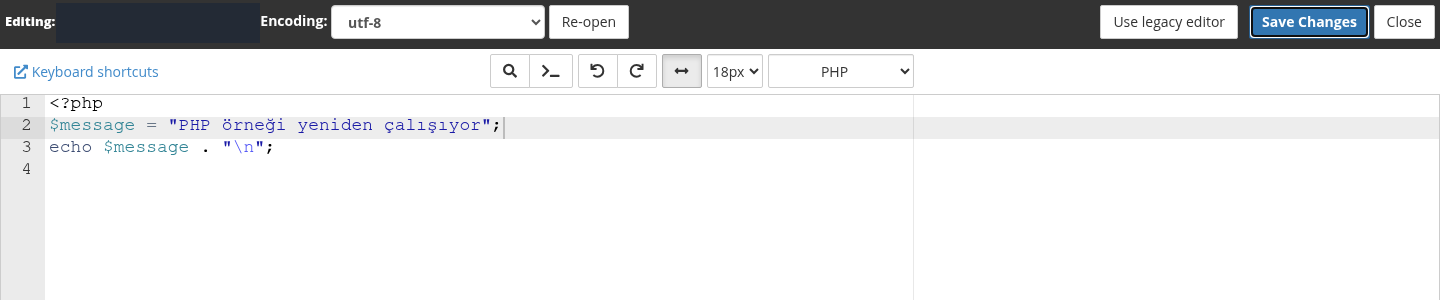
Step 1: Check that the assignment ends correctly
- Check that the assignment ends correctly
Line 2 now ends with a semicolon, while the echo statement on line 3 remains. This change addresses the specific syntax error confirmed by the log.
- Save with Save Changes
Click Save Changes and reopen the same PHP URL. Check the expected output, the response status and whether the new request creates another error log entry.
Adding a semicolon does not fix every PHP error; the correction must follow the actual error message.
Reopening the same URL returned HTTP 200 and displayed “PHP örneği yeniden çalışıyor” (“The PHP example is working again”).
If characters appear corrupted in the editor, leave without saving and check the encoding. For generated or deployed files, use the project's current working version instead of making arbitrary changes.
If the failure followed a PHP version change, check only the relevant domain under Software → MultiPHP Manager. Use the application's supported version and extensions. An undefined function can result from a typo or a missing extension; installing every extension or reverting to the oldest PHP version is not a general fix. The PHP settings guide explains these checks in more detail.
If WordPress displays “There has been a critical error” or a white screen, follow the WordPress critical error guide for recovery mode and plugin checks. If administration is also unavailable, use the steps to disable the failing plugin through cPanel. Follow the affected component's correction or rollback process; replacing every WordPress file or resetting the database is not required.
6. Log detailed errors without showing them to visitors
On a live website, record diagnostic details in an appropriate log instead of displaying them to visitors:
| Setting | Live-site target | Purpose |
|---|---|---|
display_errors | Off | Prevents PHP error details from being displayed to visitors. |
log_errors | On | Enables recording errors in the configured PHP log. |
error_log | A writable location used by the service and inaccessible from the web | Determines the destination; permissions and administrator-level FPM settings still apply. |
Under Software → MultiPHP INI Editor → Basic Mode, select the relevant domain. Do not choose Home Directory and affect all account websites while investigating one site. Review the available settings; if a change is needed, record the earlier values and click Apply.
In the screen below, the selected domain shows display_errors as Disabled and log_errors as Enabled. If the values are already suitable, leave them unchanged. This example only inspected the settings; Apply was not used.
Select the correct domain in MultiPHP INI Editor and inspect the current settings.
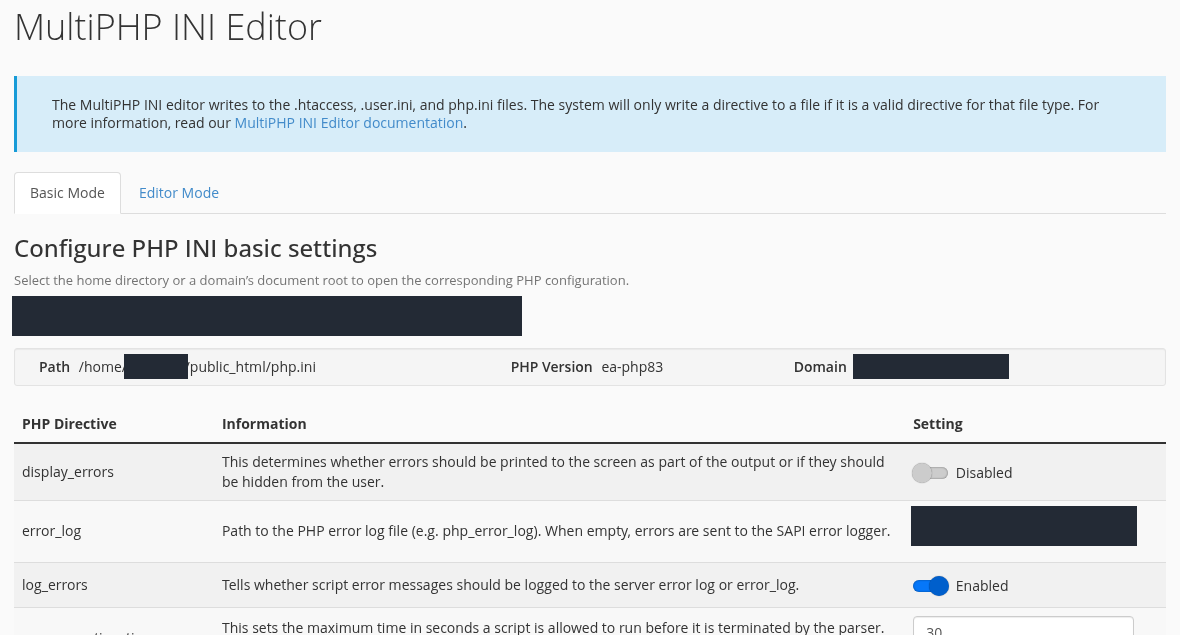
Step 1: Confirm display_errors is Disabled
- Confirm display_errors is Disabled
The display_errors row shows Disabled. Keeping detailed PHP errors out of public pages prevents file paths and application details from being exposed.
- Confirm log_errors is Enabled
The log_errors row shows Enabled. Use the effective error log to investigate failures; PHP-FPM settings may enforce a location different from the error_log field on this screen.
This screen was used only to inspect existing values; no change was applied with Apply. The domain, account path and form inputs are masked.
Contact support if a setting is missing or the saved value does not take effect in the web application. PHP-FPM pool administrator settings can restrict some values. Configurations using .user.ini may not reread changes immediately. A saved-settings message alone does not establish that the web request uses the new value.
Adding ini_set() at the top of a file does not necessarily reveal a syntax error in that file: if PHP cannot start executing it, that line does not run either. Check logging at the appropriate configuration layer. Do not leave a public phpinfo() page or detailed error output available.
7. Investigate Allowed memory size exhausted
Allowed memory size … bytes exhausted means that PHP execution reached its permitted memory limit. This is different from the hosting plan's total RAM. Increasing memory_limit does not add physical server memory.
First establish:
- Which action failed: processing a large file, generating a report, importing data or opening an ordinary page?
- Could a recent change load too much data at once or repeatedly perform the same operation?
- What limit does this PHP request actually use? Was a previously working setting accidentally reduced?
- What does the application document as its requirement, and what does the hosting service permit?
Example: remove the large allocation without raising the limit
For this walkthrough’s separate PHP request, memory_limit was set to 16M, and an operation attempted to allocate 32 MiB at once. The request returned HTTP 500. The limit applied only to this test request; the domain’s PHP-FPM and global INI settings were unchanged.
The effective PHP log recorded this error for line 3 of app.php:
Allowed memory size of 16777216 bytes exhausted (tried to allocate 33554464 bytes)
The latest entries identify the PHP memory limit being exceeded on line 3 of app.php.

Step 1: Find the permitted 16 MiB limit
- Find the permitted 16 MiB limit
Allowed memory size of 16777216 identifies the permitted 16 MiB limit. The exhausted text on the same line reports that the limit was exceeded; use the entry for the relevant request time.
- Compare the allocation request with the limit
tried to allocate 33554464 bytes reports an attempted allocation of approximately 32 MiB. Compare it with the 16 MiB limit and investigate which code is trying to allocate the large data.
This error alone does not show that the physical server has run out of memory. Investigate both the PHP limit and application memory use.
16777216 bytes is the 16 MiB limit. PHP’s allocation overhead made the attempted allocation 33554464 bytes, slightly more than the 33554432 bytes of payload in 32 MiB.
The file was backed up using File Manager → Copy. In Edit, the large allocation was removed: the code now creates one 256 KiB (256 × 1024 byte) string and adds its length to a counter 128 times. The same small string stays in memory. memory_limit remained 16M; PHP-FPM and global INI settings were unchanged. The file was saved with Save Changes.
The example retains the 16M memory limit and uses a small chunk instead of one large allocation.
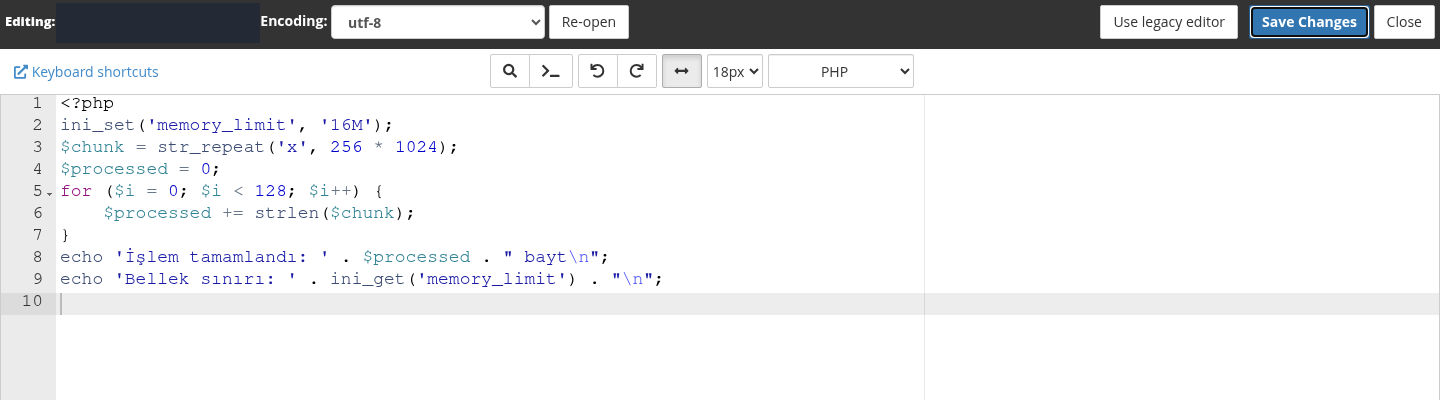
Step 1: Check the 256 KiB string allocation
- Check the 256 KiB string allocation
Line 3 creates a 256 KiB string. The loop adds the strlen result for that same string 128 times to calculate a counter of 33554432; it does not demonstrate processing or importing 32 MiB of distinct data.
- Save the change with Save Changes
Click Save Changes. Reopen the same URL to check the expected result and whether another error is logged; also verify the data produced by the real operation.
This controlled example demonstrates reducing memory use. The same code will not fix every application, and raising the memory limit is not an automatic solution.
Reopening the same URL in a normal browser returned HTTP 200 and displayed:
İşlem tamamlandı: 33554432 bayt
Bellek sınırı: 16M
The example output shows both the counter calculated by the loop and the 16M limit effective for the process.
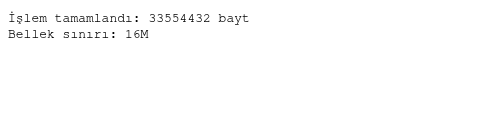
Step 1: Check the meaning of both output lines
- Check the meaning of both output lines
The displayed İşlem tamamlandı: 33554432 bayt line is a counter calculated by repeatedly adding the length of the same string. Bellek sınırı: 16M shows the unchanged limit. This example does not prove that 32 MiB of distinct data was processed.
No numeric HTTP status is visible in this image. Check the response in Network and verify that no new error was logged after the latest request.
The output means “Operation completed: 33554432 bytes; Memory limit: 16M”. 33554432 is a counter obtained by adding the same string’s length 128 times; it does not represent 32 MiB of distinct external data being processed. This small example shows that removing the large allocation allowed the request to finish under the same 16M limit. It is not a file-import, WordPress-performance or store-capacity measurement. Check that your application supports chunked processing and still produces the correct result.
Correct unnecessary memory use or an accidentally reduced setting first. If a higher requirement is established, use MultiPHP INI Editor to select an appropriate permitted memory_limit for that domain only, keeping a record of the earlier value. Retry the same action and inspect the new log entries.
Removing the limit with memory_limit = -1 or trying an arbitrary large number is not a general fix. Concurrent PHP requests each consume memory. A higher limit does not remove the resource needs of other websites or the database. Use the resource-checking guide and support to evaluate actual requirements.
8. Verify the correction on the same request
Expected result: The page that previously failed now produces the correct content, Network shows an appropriate success code, and the same error does not recur in a new log entry. A normal page usually returns 200. If the application intentionally redirects, check the final destination too.
- Reopen the original affected address; a working homepage alone is insufficient.
- Check that the browser is not showing an old cached error. If a CDN is involved, also check the affected page's cache state.
- Verify the content and required application action. Returning the error text with a
200status is not a fix. - Read the log again using the latest attempt's time. Do not delete old entries merely to clear the screen.
- Remove temporary diagnostic files and settings added for the test, keeping private backups securely.
Results of the three isolated tests
| Isolated test | Before | Relevant error | Actual correction | Result at the same URL |
|---|---|---|---|---|
.htaccess directive | HTTP 500 | Invalid command 'InvalidDirectiveForGuide' | Removed only the added invalid line; Save Changes displayed “Success!” | HTTP 200; the expected page appeared. |
| PHP syntax | HTTP 500 | unexpected token "echo" — line 3 | Added ; to the assignment on line 2; Save Changes displayed “Success!” | HTTP 200; the page displayed “PHP örneği yeniden çalışıyor”. |
| PHP memory use | HTTP 500 | 16777216 bytes exhausted | Added the same 256 KiB string’s length to a counter 128 times, keeping the 16M limit. | HTTP 200; counter 33554432, memory limit 16M. |
If a correction introduces another problem, restore the recorded earlier state and contact support. Reverting one file does not roll back database changes made at the same time. Use the backup verification guide for a broader recovery process.
When should you contact support?
Open a support request if several websites fail simultaneously, you cannot access the relevant log, ownership appears to be wrong, or the necessary setting is restricted at server level.
Include:
- The service, affected URL and failure time, including the timezone if possible.
- The actual HTTP code and action that produces it.
- The recent change and any specific step you reverted.
- A few relevant log entries, with private details masked while keeping the file/error information understandable.
Do not include passwords, session links, database configuration files or a complete backup archive. Remove access keys or user data from log excerpts before sharing them.
Frequently asked questions
Does a 500 error mean my hosting plan is too small?
Not by itself. An .htaccess typo or PHP syntax error can produce 500 even on an otherwise idle server. Identify the logged cause before upgrading. If a resource limit is genuinely reached, evaluate application usage together with service capacity.
Will deleting .htaccess fix the error?
It might remove the faulty rule, but it can also remove working redirects and access protection. Back up the file, then correct the logged directive or recent change. Deleting the entire file should not be your first step.
Why is cPanel Errors empty while the website returns 500?
PHP-FPM or the application may use another log. Check the correct domain, timestamp and active PHP error-log destination. An empty Errors screen does not establish that the application is healthy.
I increased the PHP memory limit but the error remains. What next?
Check whether the current message is still Allowed memory size or a different error. Verify the selected domain and effective setting for the request. FPM restrictions or configuration reread timing can matter. More memory does not fix .htaccess or PHP syntax errors.
Related guides
- Hosting management and cPanel access
- cPanel file management and backups
- PHP versions, PHP-FPM and performance settings
- Database connections and cron logs
- SSL and HTTPS troubleshooting
- Preparing a support request
Official sources
Sources were checked on 15 October 2026. Menu appearance and available settings depend on the version and service scope.