How to fix a WordPress critical error or white screen
“There has been a critical error on this website” means WordPress could not finish processing a request. Sometimes a similar failure appears as a blank white page. The screen alone does not tell you whether a plugin, theme or PHP compatibility issue caused it.
This guide helps you match the failure to its error log, then disable the affected plugin through cPanel when the WordPress dashboard will not open. The screenshots show a controlled plugin failure in a separate demo WordPress installation. You do not need to create this error on your own site.
Start by opening cPanel from the DCHost customer portal. cPanel and the WordPress dashboard are separate interfaces; you can use cPanel to access site files while WordPress is failing.
1. Identify which pages are failing
Record the full page address, time of the error and most recent change. A plugin update, theme edit or PHP version change can provide a useful starting point.
- Open the site in a browser window where you are not logged in.
- Check an existing inner page that previously worked.
- Open
/wp-admin/for the same WordPress installation. If WordPress is in a subdirectory, keep that directory in the address. - Compare the results. A working login page does not prove that the dashboard will load.
Read the message replacing the website content and note when the problem started.
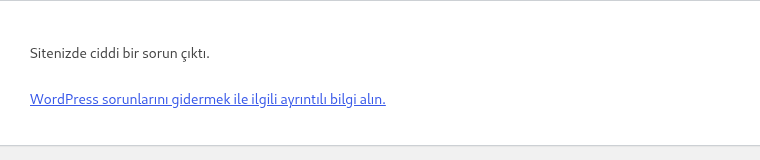
Step 1: Record the message
- Record the message
Sitenizde ciddi bir sorun çıktı. means that WordPress encountered a critical error. Inspect the log entry from the same time to identify its cause.
The visitor request returned HTTP 500 during this controlled demo error. The response status is not shown in the image. This message alone does not identify a plugin, theme or PHP setting as the cause.
Open the WordPress administration URL separately from the visitor page.
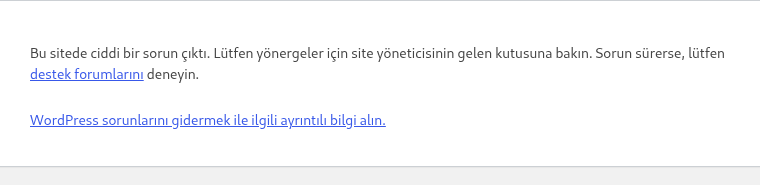
Step 1: Check administration access separately
- Check administration access separately
The Turkish critical-error message also appears at the administration URL. If your inbox contains a valid WordPress recovery email, follow its instructions; otherwise continue through cPanel to inspect the error log.
The administration request also returned HTTP 500 in this controlled demo; no recovery email was sent. The inbox instruction does not prove that an email was sent or delivered.
In this test, an unauthenticated browser request to the same homepage returned HTTP 500. The demo uses the Turkish WordPress interface: the page displayed “Sitenizde ciddi bir sorun çıktı.”, with the troubleshooting link “WordPress sorunlarını gidermek ile ilgili ayrıntılı bilgi alın.” This is the localized critical error screen.
Opening /wp-admin/ with the existing administrator session also returned HTTP 500. Its message was:
Bu sitede ciddi bir sorun çıktı. Lütfen yönergeler için site yöneticisinin gelen kutusuna bakın. Sorun sürerse, lütfen destek forumlarını deneyin.
That message tells the administrator to check their inbox and, if the issue continues, the support forums. The test showed the critical error screen, not a white screen. The inbox instruction does not establish that an email was delivered; the steps below recover access without requiring one.
| What you see | Where to start |
|---|---|
| “There has been a critical error on this website” | The error log and plugin checks below. |
| A completely white page | Check the PHP log for the same request and its actual HTTP status. A white screen alone does not establish a memory problem. |
| “Error establishing a database connection” | WordPress database connection troubleshooting. |
| A general “500 Internal Server Error” page | cPanel 500 troubleshooting to distinguish PHP and .htaccess issues. |
| The homepage works, but posts or pages return 404 | WordPress 404 and permalink checks. |
Your browser's F12 → Network panel shows the actual status code for the page request. Treat the visible message and the HTTP status as separate observations. Do not repeatedly resubmit a payment or order because its response displayed an error.
2. Prepare a way to undo your changes
In cPanel, find the site's publishing directory under Domains → Domains → Document Root. Open it through Files → File Manager. The wp-admin, wp-content and wp-includes directories help you identify the correct WordPress installation.
- Check the date of your file and database backups. Keep a known working backup from before the failure separate from a copy of the current broken state.
- Record the exact name and location of any plugin directory you plan to rename. Match it to the path in the error log.
- Before editing a file, use Download to save a copy and record its current permissions.
- Keep backups on your computer or in a private location outside every site's publishing directory. Do not leave
.bak,.txtor ZIP copies containing credentials in a web directory.
In cPanel File Manager, open the WordPress folder for the website you are troubleshooting.
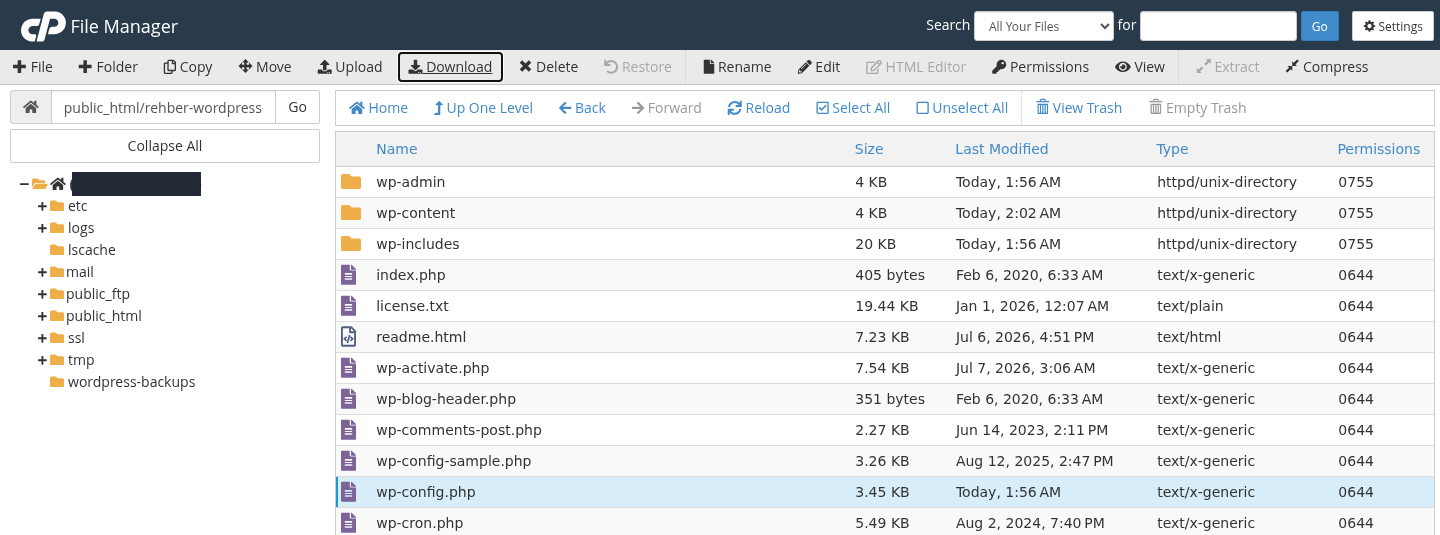
Step 1: Select the correct wp-config.php file
- Select the correct wp-config.php file
Select wp-config.php beside the wp-admin and wp-content folders. If you have several WordPress installations, make sure you are in the folder of the affected website.
- Use Download to save the file locally
Click Download in the top toolbar. After the download finishes, confirm that the file is on your computer and keep this copy before making changes.
This backs up wp-config.php only, not the complete website or database. The downloaded file contains passwords and secret keys. Store it securely and never upload it to a publicly accessible folder.
Change one thing at a time. Switching PHP versions, themes and all plugins together makes the result harder to interpret. See cPanel File Manager for file operations and backup verification to check whether your backup is usable.
3. If a WordPress recovery email arrived
For some fatal errors caused by a plugin or theme, WordPress can send error details and a special recovery link to the site administrator's email address. This is not necessarily the address you use for the DCHost customer portal.
- Check that administrator mailbox and its spam/junk folder. Confirm that the message refers to your own site.
- Open the recovery mode link and sign in with your own WordPress administrator account. The link does not replace your password.
- Read the dashboard notice identifying the affected plugin or theme.
- For a plugin issue, open Plugins → Installed Plugins and use Deactivate for the affected plugin. For a theme or custom-code issue, follow the theme section.
- Once you have addressed the cause, select Exit Recovery Mode and complete the normal visitor checks.
Pausing a component in recovery mode applies only to that recovery session. Reaching your dashboard does not prove the public site is working. After fixing or deactivating the component, check the site outside recovery mode.
What if the recovery email does not arrive?
Not every critical error produces a recovery email. The stage at which the error occurs, the WordPress configuration, recent notifications and email delivery can affect the result. An error screen telling you to check your inbox does not prove that a message was delivered.
Do not keep triggering the failure while waiting for a message. If you have cPanel access, continue with the log and file steps below. Never share the recovery link in a support message, screenshot or public page; it contains private access information.
The illustrated steps below show recovery through cPanel, without requiring a recovery email.
4. Find the affected plugin or file in the error log
Check cPanel → Metrics → Errors and the PHP error log provided by your hosting service. Errors does not combine every application log. The domain's active PHP log may be a separate file; ask support for its location if it is not visible. The 500 guide's log section explains how to find it.
If a separate WordPress log is configured, WP_DEBUG_LOG in wp-config.php identifies its destination. The screenshot below shows these definitions. If the existing log is sufficient, no new setting is needed; use the private logging steps when additional logging is required.
When enabling logging in wp-config.php, keep diagnostic details hidden from visitors.

Step 1: Enable debugging without displaying errors
- Enable debugging without displaying errors
WP_DEBUG is set to true and WP_DEBUG_DISPLAY to false. This enables WordPress debugging while asking WordPress not to display diagnostic details to visitors.
- Keep the log outside the web roots
WP_DEBUG_LOG uses the full path to a writable file outside public_html and any other web roots. The private directory was verified separately in this demo. Its path is masked in the screenshot.
This is a temporary diagnostic setting. Edit existing constants rather than defining them a second time. Restore the original settings after the investigation. The masked path belongs to this demo account; use a verified private path for your own account.
Open the log with File Manager → View. Match the latest relevant entry to the request you just made. The log may use a different time zone from your computer.
Open the private error log and read the entry from the time of the failure.

Step 1: Locate the Fatal error entry
- Locate the Fatal error entry
PHP Fatal error indicates an error that stopped execution. This entry is timestamped 20:10:05 UTC; compare the error time while accounting for the log’s time zone.
- Note the relevant plugin directory
The thrown in line shows wp-content/plugins/dchost-critical-error-demo and on line 16. Here the directory to investigate is dchost-critical-error-demo; start with this verified source rather than changing every plugin.
This entry comes from a controlled demo plugin; use the current entry from your own website. A plugin path in a log does not always establish the root cause by itself. The cause was verified separately in this demo.
For this example, wp-config.php was downloaded before editing. WP_DEBUG was enabled, WP_DEBUG_DISPLAY was disabled, and WP_DEBUG_LOG pointed to a private file outside every publishing directory. The resulting log was downloaded through cPanel and inspected with View, so the result was checked beyond the configuration save confirmation.
The log recorded the following error at October 15, 2026, 20:10:05 UTC. The account-specific path is hidden; the plugin directory and line number are preserved:
PHP Fatal error: Uncaught Error: DCHost demo: kontrollu eklenti hatasi. in [hidden path]/wp-content/plugins/dchost-critical-error-demo/dchost-critical-error-demo.php:16
The record points to line 16 of the file in dchost-critical-error-demo. This plugin was created only for the controlled demonstration; do not look for the same name on your site. Use the component identified in your own error log.
| Information in the log | What to check |
|---|---|
wp-content/plugins/plugin-name/ | Identify the plugin in that directory. Start with that plugin. |
wp-content/themes/theme-name/ | Compare the active theme/child theme and recent changes. See theme checks. |
Uncaught Error / Uncaught TypeError | Read the rest of the message, the file path and the call sequence. “Fatal error” alone does not identify the cause. |
Call to undefined function | Check the function name, component loading, PHP version and any required extension. |
Allowed memory size ... exhausted | Investigate memory use and the effective PHP limit. |
Parse error / syntax error | A recently edited file may contain a syntax mistake or syntax unsupported by the active PHP version. |
A wp-includes path in the stack trace does not by itself mean WordPress core files are damaged. Read the original error and the plugin or theme code that triggered it. Not every Warning or Notice is fatal; do not confuse an old entry with the current failure.
5. WordPress wp-admin not working: disable the plugin in cPanel
If the log or recovery email identifies one plugin, begin with that directory rather than disabling every plugin.
- In File Manager, open
wp-content → pluginsin the correct WordPress installation. - Locate the plugin directory named in the error log. Its directory name may differ from the plugin's display name in WordPress.
- Select the directory and click Rename.
- Add
.disabledto its current name, for exampleexample-plugin→example-plugin.disabled. Change only the directory name; do not delete it or move it into another site. - Confirm with Rename File. WordPress can no longer load the plugin from its previous file path.
In File Manager, open wp-content/plugins for the affected WordPress installation.
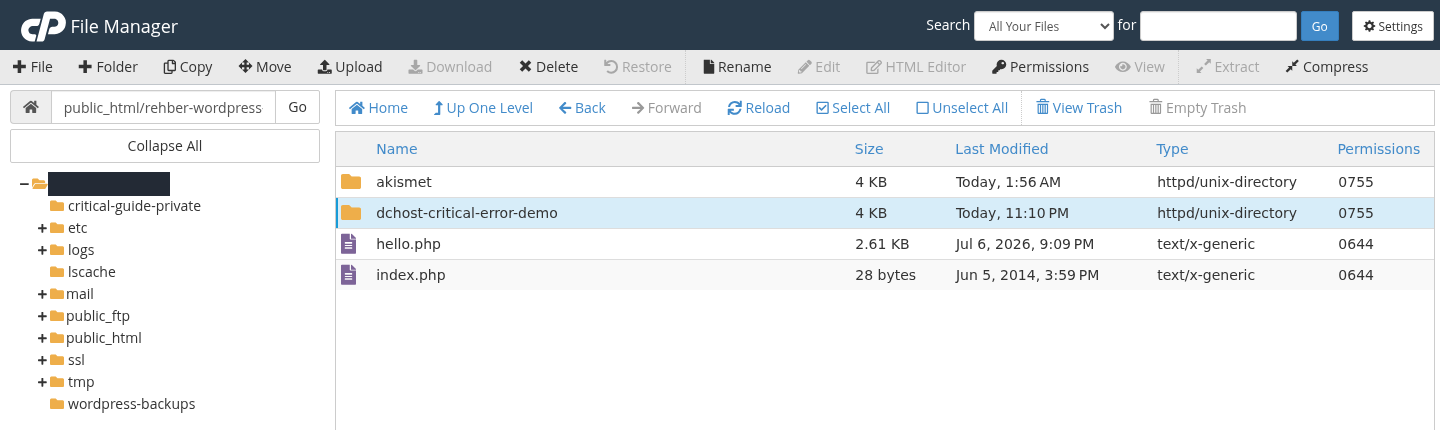
Step 1: Select the directory identified in the log
- Select the directory identified in the log
The selected directory here is dchost-critical-error-demo. Match the folder name to the error log; do not select the entire wp-content or plugins directory.
- Open the Rename dialog
Click Rename in the top toolbar. On the next screen, change only the selected plugin directory’s name.
Only the demo plugin verified as the source of the controlled error was selected. Other plugins and WordPress files were left unchanged. On your site, use the directory identified in your own log.
In the Rename dialog, add .disabled to the end of the directory name.
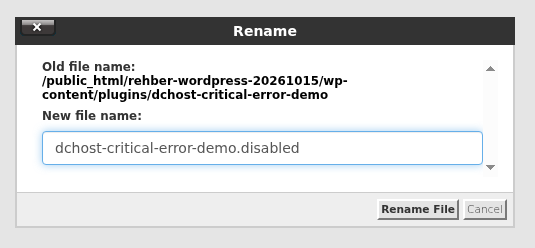
Step 1: Enter the new directory name
- Enter the new directory name
Here dchost-critical-error-demo becomes dchost-critical-error-demo.disabled. Check that Old file name above identifies the correct plugin.
- Apply the change with Rename File
Click Rename File. First open the Plugins page (wp-admin/plugins.php) for the same WordPress installation and confirm that the affected plugin is inactive. Then check the visitor page.
Renaming the directory prevents WordPress from loading the plugin at its previous location. It does not fix the faulty code or delete the files. Keep a note of the original directory name.
Next, open /wp-admin/plugins.php for the same installation, which is the Plugins screen. WordPress can validate the missing active plugin file and deactivate its old entry. A “Plugin file does not exist” notice may be the expected result of the rename, rather than a new fault.
After renaming the directory, open Plugins in WordPress administration.
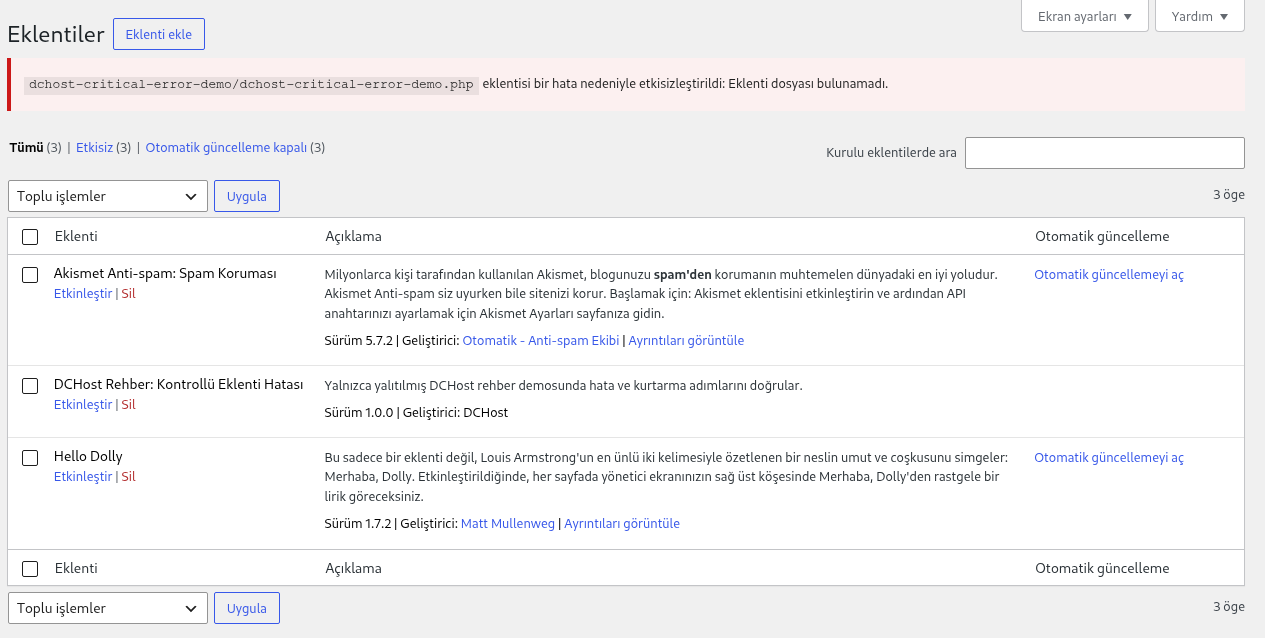
Step 1: Read the notice about the former plugin path
- Read the notice about the former plugin path
Eklenti dosyası bulunamadı. means that WordPress could not find the plugin file at its old location. In this demo, the notice follows the directory rename we performed.
- Check the inactive plugin status
Etkisiz (3), meaning Inactive (3), shows that all three plugins are inactive, including the demo plugin. Do not click Etkinleştir (Activate) for the affected plugin. Check visitor pages separately as well.
This is the first recovery stage. The notice refers to the plugin’s former path; its files were not deleted. Renaming the directory does not fix the plugin code. Keep the affected plugin inactive until its problem is resolved.
In the actual example, only dchost-critical-error-demo was renamed to dchost-critical-error-demo.disabled through cPanel's rename dialog. Next, /wp-admin/plugins.php returned HTTP 200. WordPress displayed a notice that the plugin had been deactivated because of an error, with “Eklenti dosyası bulunamadı.” (“Plugin file does not exist”). All three listed plugins were inactive.
After that state was confirmed, the directory's original dchost-critical-error-demo name was restored. The Plugins screen again returned HTTP 200, and the demo plugin remained inactive. The faulty plugin was not reactivated.
Do not immediately restore the old directory name. If WordPress has not removed the old active reference, the faulty plugin may load again. Visit the Plugins screen and check its state first. Then follow the fix and reactivation steps.
If the site now loads, stopping that plugin may have removed the error. Its forms, payments, memberships or other features may also be unavailable. This is a recovery step, not a permanent repair of the faulty code.
If you do not know which plugin is responsible
Use the log and recent changes to narrow the search first. If necessary, disable plugins individually in a staging copy. A broad test on the live site affects functions such as payments, memberships, security and caching.
If you need to stop all normal plugins temporarily, rename wp-content/plugins to plugins-disabled. Then visit /wp-admin/plugins.php, confirm that the missing plugins have been deactivated, and rename the directory back to plugins. Do not reactivate everything together; work through dependencies and required features one plugin at a time.
This method does not cover mu-plugins or special components such as object-cache.php and advanced-cache.php. Network-active plugins in WordPress Multisite also require separate consideration. Do not rename these files at random; involve the person managing the configuration. The illustrated example did not disable all plugins.
6. Resolve the conflict before reactivating the plugin
Once the dashboard is available, record the affected plugin's version, most recent update and WordPress/PHP requirements. A plugin may work on its own but fail alongside another plugin; the first visible file path is not always the only cause.
- Check the developer's fix and compatibility information. Obtain replacement files from the plugin's official source.
- Test an update or file replacement in a staging copy first. Returning to an older version does not automatically reverse database migrations. Do not undo security fixes when downgrading or leave the site running a version with known vulnerabilities or no remaining support.
- After the fault has been addressed and the plugin is confirmed inactive, restore its correct directory name.
- Activate only that plugin from Plugins. Check the page that failed and the plugin's actual function.
- If the error returns, disable the same plugin and send the new log entry and version details to its developer or support.
Do not use Delete for temporary troubleshooting. Some plugins remove their settings or data during uninstall. Deactivation and deletion are different operations.
7. If the cause is a theme, PHP or memory
If the log points to the active theme or child theme, review the last change first. When functions.php was recently edited, preserve a copy of the current file and return only the faulty change to its known working state. Do not empty the entire file.
If recovery mode or the normal dashboard is available, use Appearance → Themes to test a previously installed default theme that supports your WordPress version. Test on a staging copy first: the site's appearance, menu locations and theme features can change. Record the active theme and child theme before switching.
If the dashboard is unavailable, do not randomly rename the active theme directory. A suitable fallback theme may not exist, and removing a child theme's required parent can cause another error. Revert the last identified file edit or plan a safe theme switch with support.
How do you distinguish PHP compatibility and memory issues?
| Symptom | Check | Appropriate next step |
|---|---|---|
| The failure began immediately after changing PHP versions. | The affected domain's version under Software → MultiPHP Manager, plus supported versions for WordPress, its theme and plugins. | Test a current compatible version. Permanently using unsupported PHP is not a fix. |
The log says Allowed memory size ... exhausted. | The failed operation, the effective PHP memory_limit for that request and the latest change. | Identify unnecessary memory use; consider both the application's requirements and the service's permitted limit. |
| A function is missing or a value has an unexpected type. | The full message, component versions, load order and any required PHP extension. | Address the component identified by the evidence; enabling every extension or increasing memory is not a general fix. |
WP_MEMORY_LIMIT and WP_MAX_MEMORY_LIMIT affect the memory values WordPress attempts to use for particular requests. They do not add RAM to your hosting account or guarantee that server restrictions can be exceeded. Do not enter an arbitrary 512M or unlimited value. See PHP and performance settings and the memory troubleshooting example.
8. If needed, record WordPress errors in a private location
Use the hosting service's existing PHP log first. If additional WordPress debugging is required, prefer a staging copy. For a short diagnostic period on a live site, agree on a private log location and restoration steps with support.
- Download
wp-config.phpbefore changing it. See how to locate and back up this file. - Choose a writable log location belonging to your account and outside every domain's publishing directory.
- Select
wp-config.phpin File Manager and click Edit. If an encoding dialog opens, click Edit there to continue. Find existing definitions ofWP_DEBUG,WP_DEBUG_LOGandWP_DEBUG_DISPLAY. Do not define the same constant twice. Changes must take effect before WordPress loads, above the “That's all, stop editing!” line. - Set
WP_DEBUGto true,WP_DEBUG_DISPLAYto false, andWP_DEBUG_LOGto the absolute path of the private log file. Do not put quotation marks aroundtrueorfalse. Click Save Changes and check the successful save notification. A verification screen or error is not confirmation that the changes were saved. - Open the failing page once and inspect the log through cPanel. If no entry appears, check the path, write access and the service's effective PHP logging settings.
- When the investigation is complete, remove the temporary diagnostic settings and restore the previous file state. Keep the log securely or remove it if no longer needed.
WP_DEBUG_LOG=true can write to wp-content/debug.log by default. Do not assume that file is inaccessible from the web. A custom path also does not necessarily override higher-level PHP-FPM settings. Do not leave public error output, phpinfo() pages or test files containing credentials.
These settings collect diagnostic information; they do not repair a plugin. Setting WP_DEBUG=false also does not remove the cause of a critical error.
9. Verify the site and WordPress dashboard
| Check | Expected result |
|---|---|
| The same address that originally failed | The expected content loads without the critical error or a white screen. |
| An existing inner page and post | The correct content and links work. |
| WordPress administration | The normal session opens the dashboard, post/page lists and Plugins screen. |
| The affected plugin's function | The impact on forms, memberships or other features is understood and, where appropriate, tested again after the fix. |
| Error log | The same action does not produce the previous fatal error at the new test time. Old entries can remain in the file. |
| Temporary changes | Diagnostic settings have been restored; backups are outside the web root; existing permissions and site settings are preserved. |
After disabling the affected plugin, check the website as a visitor.
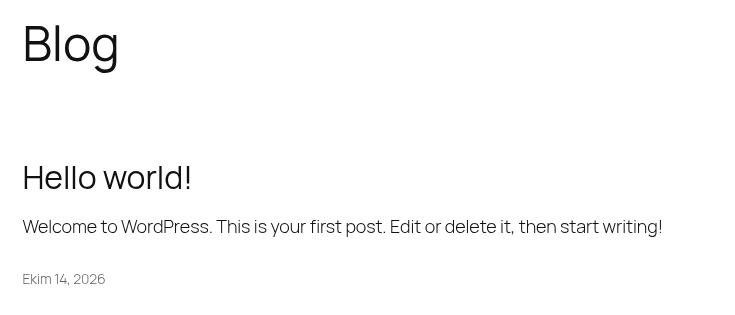
Step 1: Confirm that the expected content loads
- Confirm that the expected content loads
Hello world! is visible again in this example. Open your homepage, a post and a page. Check that the expected content appears, not just that the error message has disappeared.
This page returned HTTP 200 in the final check; response headers are not shown in the image. The homepage, sample post and sample page were opened separately. On your own site, also check the functions you use, such as forms, checkout or member access.
Open the Dashboard and review the existing content summary for your site.
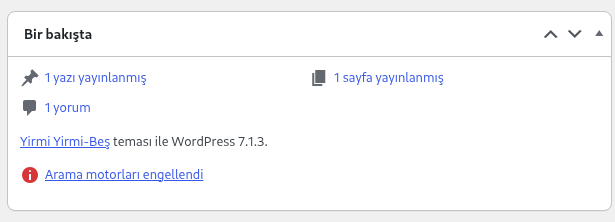
Step 1: Check that the administration summary loads
- Check that the administration summary loads
Bir bakışta (At a Glance) shows one published post, one published page and one comment. Open your own Posts and Pages lists as well to check administration access.
Search engines discouraged is an existing preference of this demo site, not a setting recommended to fix a critical error. Verify administration access and visitor access separately.
The final checks returned HTTP 200 with the expected content for the homepage, existing Sample Page and dated Hello world! post. The dashboard, post list, page list and Plugins screen also opened with HTTP 200 in the normal administrator session.
After wp-config.php was restored, it was downloaded from the server again. Its contents were identical to the original backup, and its existing 0644 permissions were preserved. The temporary debugging settings had therefore been removed.
After recovery was verified, the plugin created solely for this demonstration was removed through WordPress administration. The two original plugins remained inactive, matching their previous state. The private log was archived in a secure work directory, and only the remote log directory created for the test was removed. Deleting a real plugin used by your site is not a required recovery step.
The “Arama motorları engellendi” notice in the screenshots refers to the demo site's existing search-engine visibility setting. Its noindex, nofollow setting was preserved throughout troubleshooting.
If you used recovery mode, exit it before testing. A private browser window does not clear server or CDN caches; check the relevant cache too. If a plugin must remain disabled, assess the effect on the features your customers use.
How to undo an unsuccessful change
Undo the change you made rather than immediately restoring the entire site or database. On sites accepting new orders or registrations, a full database rollback can discard recent data.
- If you targeted the wrong plugin directory, compare its name and path with your notes. Also check the state of any plugin WordPress deactivated.
- If reactivating the faulty plugin brings the error back, keep it inactive until a fix or compatible alternative is available.
- If an edit to
wp-config.phpor another file creates a new failure, return the downloaded copy to the same location with its previous permissions. - If you changed a theme or PHP setting, consult your recorded previous values. Ask for help when a rollback must account for current content or compatibility.
What to include in a support request
When opening a support request in the DCHost customer portal, identify the service, full affected address, error time and time zone. Describe the homepage and dashboard results separately. Include the last change, affected plugin/theme and PHP versions, steps already tried and the relevant log entry from that time.
Remove account names, private file paths, email addresses and keys before sharing a log excerpt. Do not send passwords, the complete wp-config.php, database backups or recovery links.
Frequently asked questions
Is a WordPress white screen always caused by insufficient memory?
No. A plugin or theme failure, stopped PHP execution or another application issue can also produce a blank page. Before changing memory settings, look for evidence such as Allowed memory size ... exhausted for the same request.
How can I disable a plugin when wp-admin is not working?
Open the correct site's wp-content/plugins directory in cPanel File Manager. Temporarily rename the plugin directory identified in the log, then visit the same site's /wp-admin/plugins.php screen and check its state. Follow the order in the illustrated steps above.
Does disabling a plugin delete my content?
Deactivation is different from uninstalling. Renaming the directory does not delete plugin files, but the appearance and functions supplied by that plugin may stop working. Some plugins remove data during deletion or uninstall, so do not use those actions for temporary diagnosis.
Why do visitors still see an error while recovery mode works for me?
Pausing a faulty component in recovery mode is limited to your session. Fix the issue or deactivate the affected plugin, then exit recovery mode and check the site as a normal visitor.
Do I need to reinstall WordPress?
A critical error message alone is not a reason to reinstall. Find the cause in the log first. Reinstalling WordPress may leave the same faulty plugin, theme or configuration in place; overwriting existing files or data can introduce additional problems.
Related guides
- cPanel 500 Internal Server Error
- WordPress database connection error
- WordPress 404 error
- cPanel File Manager and backups
- cPanel PHP and performance settings
- Verify that a backup is usable
Official sources
Sources checked on October 15, 2026. Menu names can vary with the installed version and interface language.