WordPress 404 error: The homepage works but other pages do not
If your WordPress homepage opens but a post or page displays 404 Not Found, first check that the content is still published. If it is, the web server's rewrite rules, which pass the URL to WordPress, may be missing or incorrect. This can happen after a migration or an .htaccess change.
This guide helps you restore existing WordPress pages at their current URLs. Pages that have actually been deleted or moved need a different decision.
Before you start
- Have your WordPress administrator account ready, along with cPanel access through the DCHost customer portal if needed.
- Record the full failing URL, time of the error and latest change. Was the site migrated, a plugin updated or a URL changed?
- Check that you have a usable backup of the website files and database. If
.htaccessexists, keep a separate copy before opening the Permalinks screen. - Identify whether WordPress runs at the domain root or in a subdirectory such as
/blog/. A Multisite network or an Nginx installation uses different file or server rules.
1. Confirm the 404 at the affected URL
- Open the homepage and failing inner page in separate tabs.
- On the failing page, use F12 → Network in Chrome or Edge.
- Reload once. Select the document request matching the affected page; do not select an image or icon request.
- Check Status Code and the final URL if a redirect occurred.
For this example, the separate demo installation's .htaccess file was backed up, then only its WordPress rewrite block was temporarily removed. Signed-out checks showed the homepage returning HTTP 200, while the published Sample Page returned HTTP 404 at its existing /rehber-wordpress-20261015/sample-page/ URL.
Here, an error page appears at the URL of the existing, published Sample Page.
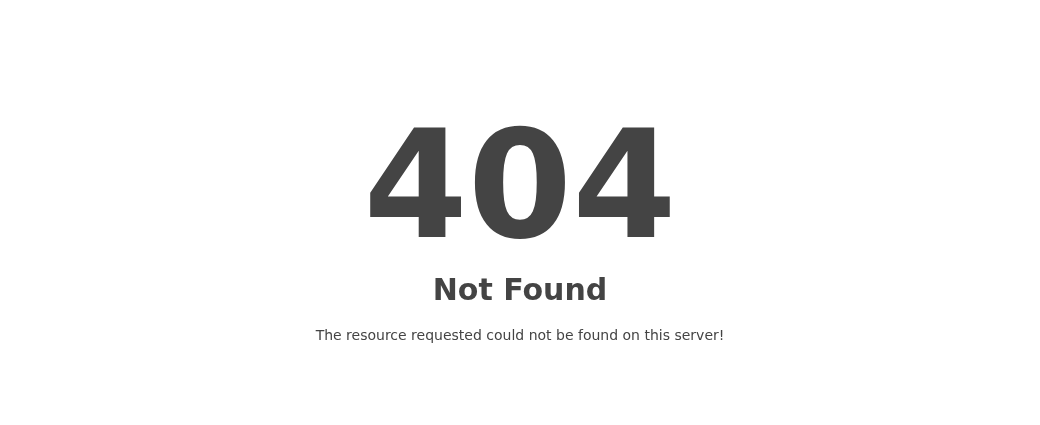
Step 1: Note the 404 Not Found message
- Note the 404 Not Found message
The 404 and Not Found text reports that the requested resource could not be found. Record the exact URL and test time, and verify the actual HTTP response status separately in the browser Network panel.
The error text alone does not display the HTTP response headers. Reopen the same URL when checking whether the issue is resolved.
| What you see | Next check |
|---|---|
The homepage works, but many existing posts and pages return 404. | Check the content, then refresh permalink rules. |
Only one old URL returns 404. | Check publication status, the slug and whether the content moved. |
The page says “not found” but returns 200. | This is not a proper 404 response; see soft 404 errors. |
The response is 403 or 500. | Follow the 403 Forbidden or 500 Internal Server Error guide. |
A working homepage does not by itself prove that .htaccess is responsible. A cached homepage can also remain visible.
2. Check that the content is published and the URL is correct
- In the WordPress dashboard, open Pages → All Pages or Posts → All Posts.
- Find the affected content. Check that it is Published (Yayınlanmış in the Turkish screen); it might be a draft, in the trash or private.
- Move the pointer over the relevant content row and open its View link in another tab. When checking visitor access, also use a signed-out window if needed; the editor's Preview does not confirm public access.
- Compare this URL with the failing link. Is the domain, installation directory, parent page or slug different? The slug is the content-specific part of a URL, such as
about-us.
The example's Sample Page row shows Yayınlanmış (Published), confirming that the content record is still present.
In WordPress administration, open Pages → All Pages.
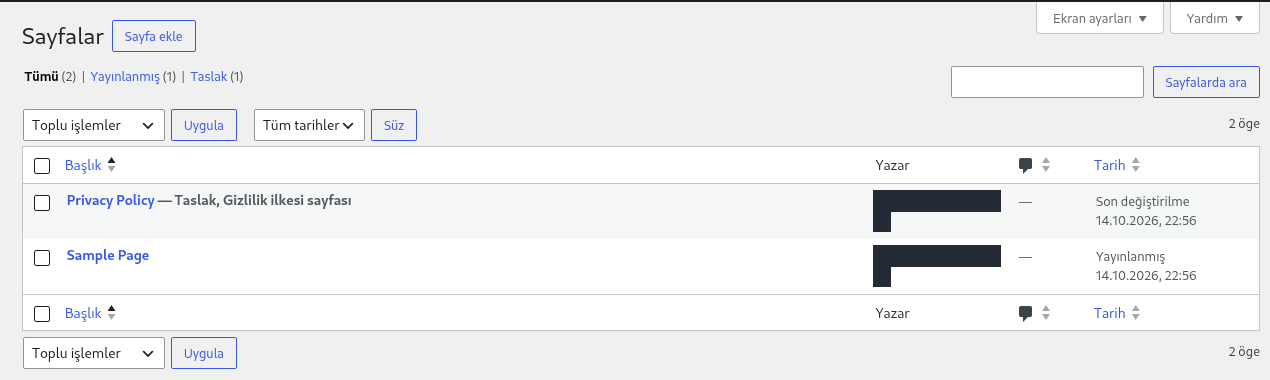
Step 1: Find the affected page in the list
- Find the affected page in the list
Sample Page appears in this example list. Find the page that returns 404 on your site; if it was renamed, saved as a draft or moved to Trash, first confirm the correct content and its current address.
- Confirm the Published status
The Date column for Sample Page shows Yayınlanmış (Published). Being listed does not by itself prove that the page URL works; open that same URL separately.
Author account details are covered with opaque masks. This screen does not show a page being deleted, edited or published.
If only a menu link is wrong, update that link to the actual content URL. Avoid changing the slug, parent page or site-wide URL structure just to remove a 404. If the content really was removed, go to deleted or moved pages.
3. Back up the current settings and .htaccess file
A permalink is the permanent web address of a post or page. Keep the existing URL structure; do not switch date-based URLs to a post-name structure.
On Apache or a compatible server, .htaccess is a hidden file containing web rules for its directory. WordPress may update it, so keep a copy first:
- In cPanel, use Domains → Domains → Document Root to find the correct domain's publishing directory.
- Open it with Files → File Manager. If WordPress is in a subdirectory, check that installation's path too; do not assume every site runs directly in
public_html. - Enable Settings → Show Hidden Files (dotfiles) → Save.
- Select the relevant
.htaccessfile and use Download to save it to your computer. Check that the downloaded file exists, and record its server path and current permissions. - If the file is absent, note that. Do not replace it with another website's
.htaccessfile.
Enable Show Hidden Files (dotfiles) and click Save to display files beginning with a dot, including .htaccess.
In cPanel File Manager, use Settings to open Preferences.
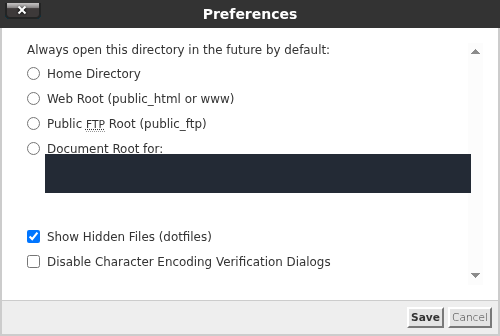
- Select Show Hidden Files
Select Show Hidden Files (dotfiles). A dot-prefixed file such as .htaccess may be absent from the list while this option is off.
- Save the display preference
Click Save, then recheck the list in the correct WordPress directory. The image shows the checkbox selected before the Save button is pressed.
The account-specific field value is covered with an opaque mask. This preference only changes which files appear in the list; it does not create or repair .htaccess.
In this example, WordPress is installed in /public_html/rehber-wordpress-20261015. Its .htaccess file was selected and downloaded with Download, then kept outside the web root. The file's existing permissions were 0644 and were left unchanged.
In File Manager, open the directory containing this WordPress installation.
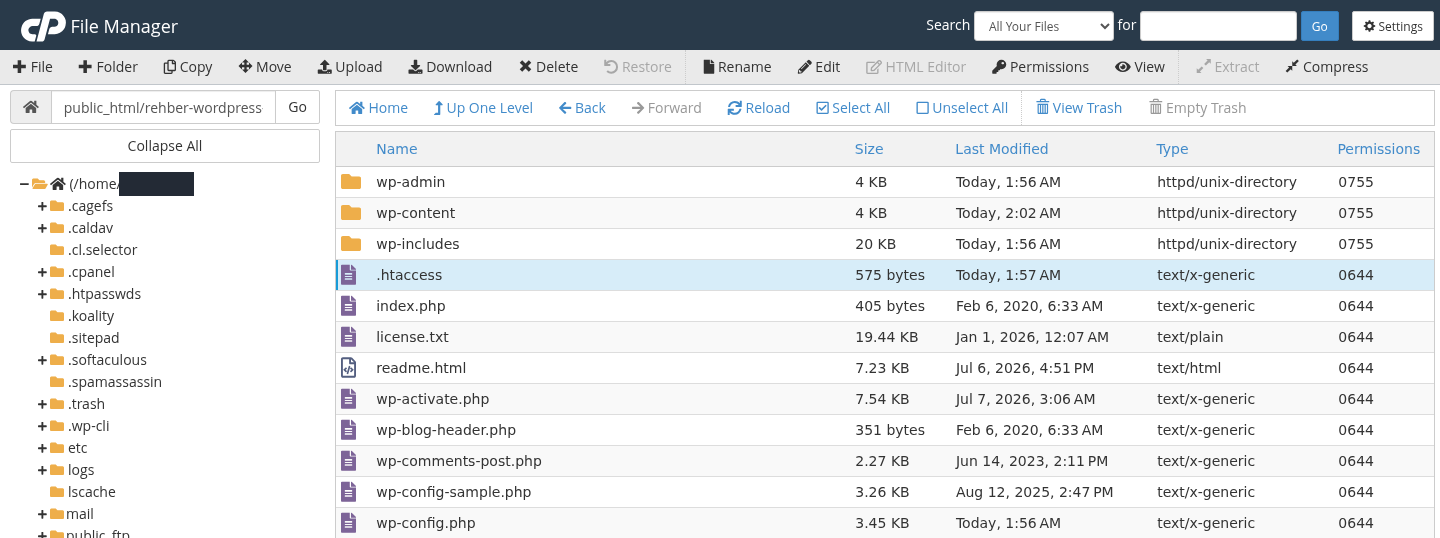
Step 1: Select the correct .htaccess file
- Select the correct .htaccess file
Here, .htaccess is alongside wp-admin, wp-content and wp-includes. Confirm the correct website directory for your installation and click the .htaccess row.
- Download a private copy
Click Download. Confirm that the file downloaded to your computer and retain a dated backup. Keep the backup in a private location outside every website document root.
The account name is covered with an opaque mask. The image shows the selected file and Download button; it is not proof of a completed download. A backup of the current file may differ from the last working version.
Do not leave a backup .txt, .bak or ZIP file in a publicly accessible website directory. See backup verification for file and database backups, and cPanel File Manager for file operations.
If WordPress files live in one directory while the website is configured to open at the main domain address, the rules file may be elsewhere. If you cannot identify which file handles the site request, give support the installation path.
4. Refresh permalinks without changing the URL structure
- In the WordPress dashboard, open Settings → Permalinks.
- Record the selected structure and any Custom Structure value. Preserve Category base and Tag base too.
- Leave every option unchanged and click Save Changes once.
- Read the result at the top. Did saving succeed, or does WordPress request a manual
.htaccessupdate? - Reopen the same inner-page URL that failed at the start.
The example used Gün ve ad (Day and name): /%year%/%monthnum%/%day%/%postname%/. Category base (Kategori temeli) and Tag base (Kod imi temeli) were blank. All of these values were preserved.
In WordPress, open Settings → Permalinks and inspect the current selection without changing it.
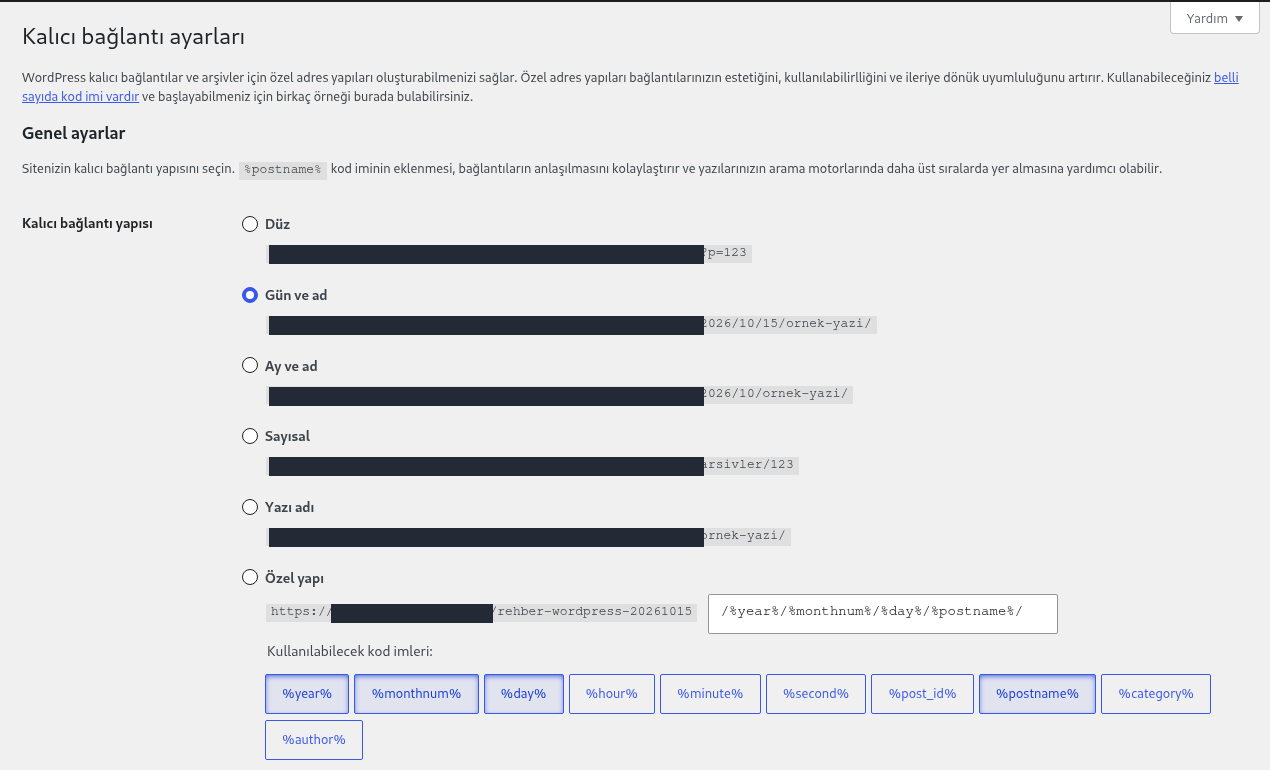
Step 1: Identify the selected Day and name option
- Identify the selected Day and name option
This installation has Gün ve ad (Day and name) selected. Keep the existing selection on your site; do not switch to Post name or another structure to fix a 404. Changing the structure can change existing URLs.
- Leave the current pattern unchanged
The field in the Custom Structure row also displays the current /%year%/%monthnum%/%day%/%postname%/ pattern. Leave this value unchanged, and do not copy this example pattern to another site.
The domain in example URLs is covered with opaque masks. Opening this screen also flushes rewrite rules. In this test, the page recovered before the save button was pressed.
As WordPress's official documentation explains, visiting this screen also flushes rewrite rules. In this demo, the same Sample Page URL returned HTTP 200 before Save was clicked; saving was unnecessary solely to refresh the rules.
Then Değişiklikleri kaydet (Save Changes) was clicked with every option unchanged.
Scroll to the bottom of the same Permalink Settings screen.
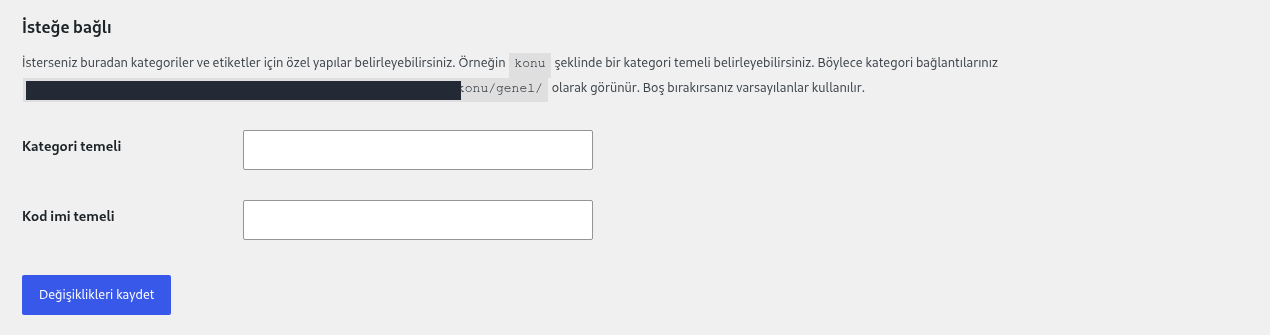
Step 1: Use Save Changes
- Use Save Changes
Click Değişiklikleri kaydet (Save Changes) without changing the current permalink selection or optional category and tag bases. Then reopen the same affected URL.
This image shows the stage before saving. In this test, the rules had already been refreshed when the screen opened; the button alone is not proof of a repair or a successful HTTP response.
Saving produced the notice “Kalıcı bağlantı yapısı güncellendi.” (Permalink structure updated) at the top.
After saving, check the top of the Permalink Settings screen.

Step 1: Check the permalink-structure update message
- Check the permalink-structure update message
The green notice reads Kalıcı bağlantı yapısı güncellendi. (Permalink structure updated.) This confirms the settings save. Separately check the content and HTTP status at the same affected URL.
In this test, the page had already recovered when Permalinks was opened. The save notice alone does not establish when the issue was resolved or that the page returns 200.
Do not experiment by changing the URL structure. Switching to “Plain” and back is unnecessary for this step. Changing from date-based URLs to post names, or changing the category base, can change existing links and needs a separate redirect plan.
If the page opens at its existing URL, complete the final checks. Otherwise, continue with the file check below.
5. If WordPress cannot write .htaccess
If the Permalinks screen reports that .htaccess is not writable or needs a manual update, WordPress may show the rules required for that installation in a text box.
- Confirm that you have backed up the correct installation's
.htaccessfile. - Compare the displayed rules with the existing file. For a normal single-site installation, the WordPress-managed section is usually between
# BEGIN WordPressand# END WordPress. - Use File Manager → Edit to repair only the missing or damaged WordPress section, following the rules displayed by this installation. If the file is absent, create it only after confirming the required location and content.
- Preserve HTTPS redirects, password protection, security, cache and other application rules. Do not repeatedly add duplicate WordPress blocks.
- Click Save Changes, then retest the same page.
Root-directory examples containing RewriteBase / and /index.php do not fit every installation. WordPress running in a subdirectory such as /blog/ may require different paths. Multisite rules also differ from single-site rules; do not paste an arbitrary generic block.
If the file cannot be written, ask support to check the permissions and ownership required by your service. Do not use 777 permissions. Editing the file alone will not help if the server does not read its rules or rewriting is unavailable.
For Nginx: Standalone Nginx does not use .htaccess; rules that pass URLs to WordPress belong in the server configuration. Ask support to check them against the actual installation path. An “Nginx” response header alone is inconclusive because Nginx can also sit in front of Apache.
6. If the problem remains, separate caching from recent plugin changes
- If you use a WordPress cache plugin or CDN, clear the affected page's cache. A private browser window does not clear server or CDN caches.
- Retest the same URL in a signed-out window. A page that works only for an administrator has not passed the visitor check.
- If the problem started immediately after a plugin change, inspect redirect, permalink, multilingual and custom-content plugins in particular.
- In a backed-up test copy, temporarily deactivate only the suspected plugin. Check the result and restore its previous state; avoid disabling all plugins together on a live store or membership site.
If only products, events or another content type is affected, check the plugin that provides it and its URL settings. Deactivating that plugin can itself make those content URLs unavailable; it is not evidence of a repair.
If the error continues, ask for new cPanel → Metrics → Errors entries to be checked against the exact URL and time. Not every WordPress-generated 404 appears here; an empty list does not prove that the page works.
7. Test existing pages and a URL that does not exist
| Check | Expected result |
|---|---|
| Homepage | The expected content opens. |
| The same published page that originally failed | The URL is preserved, the correct content appears and the final response is 200. |
| Several older posts, pages and any category/product URLs you use | Each opens its own content; they do not all lead to the homepage. |
| A distinct test URL you have confirmed does not exist | A real 404 response and an understandable “page not found” screen. |
| WordPress dashboard | Sign-in and the required administration screens work. |
After saving, Sample Page was opened again at the same URL. Its own content appeared and the HTTP 200 response was verified.
The Sample Page URL that previously failed now displays the expected page content.
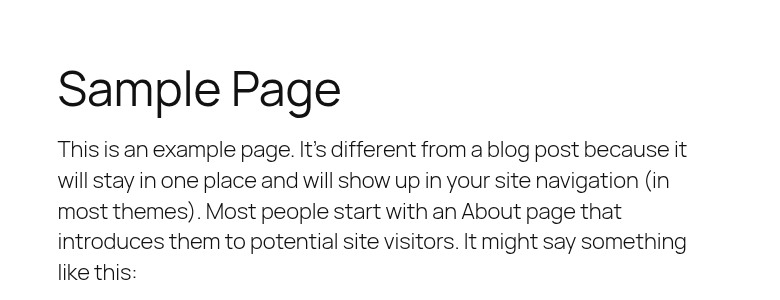
Step 1: Check the expected page title and content
- Check the expected page title and content
The Sample Page heading and the opening text of the example page are visible. On your site, reopen the same URL and verify the correct content, then check its links and related pages.
This image shows page content, with no HTTP response headers visible. Separately verify the 200 response for the expected final URL in the Network panel.
A different URL that had never been created in this installation was also tested. The WordPress theme displayed “Sayfa bulunamadı” (Page not found) with a real HTTP 404 response. The URL did not redirect to the homepage.
Open a separate test URL that you have confirmed does not exist on the site.
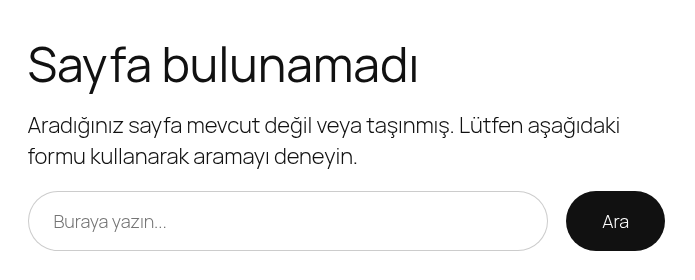
Step 1: Interpret the Page not found result correctly
- Interpret the Page not found result correctly
This theme displays Sayfa bulunamadı (Page not found) and a search field. Separately verify that the nonexistent URL still returns an actual HTTP 404; do not redirect every error to the homepage or turn it into a 200 response.
This can be the expected result for deleted content or a URL that never existed. The visible message alone does not prove the HTTP status; this test is separate from checking the existing page.
Check response codes using the Network panel. If an existing HTTPS or trailing-slash redirect is involved, examine the expected final URL and response. A save confirmation or a working homepage alone does not prove that the inner page has recovered.
If the page was really deleted or moved
Refreshing permalinks does not restore deleted content. The correct action depends on where that content should now be:
| Content state | Action |
|---|---|
| Accidentally trashed; it should keep its URL. | Restore the correct content and verify publication status and the original URL. |
| Permanently moved to another URL or has a clear replacement. | Create a 301 redirect to the relevant new URL and verify that the target opens with the correct content. |
| Permanently deleted with no replacement. | Preserve a 404, or an appropriate 410 Gone, response and fix broken internal links. |
Content exists but an error message returns 200. | Repair content loading and the actual HTTP response. Google may treat this as a soft 404. |
Do not redirect every 404 to the homepage. Google may treat many old URLs redirected to one irrelevant destination as soft 404 errors. If the replacement is known, redirect the matching old URL to that target and check for redirect loops.
A useful 404 page can include search, navigation or a link to the homepage. It is normal for the response to remain 404 while visitors choose those links themselves.
Roll back a change that makes things worse
- If a new error starts after editing
.htaccess, restore your saved copy to the same location and check its path and permissions. - If you accidentally changed the permalink structure, restore the recorded structure and category/tag bases.
- Restore the previous state of any plugin disabled for testing.
- After each rollback, reopen the homepage, the same inner page and the dashboard. For a new
500response, follow the 500 error guide's log checks.
What to include in a support request
When opening a support request in the DCHost customer portal, include the affected service, full failing URL, error time and time zone. Also explain:
- Whether the homepage and dashboard work, and whether all inner pages or only one content type are affected.
- Whether the content is published in the dashboard and which permalink structure is selected.
- Whether the site runs at the root, in a subdirectory or as Multisite.
- The latest change, available backup, steps tried and their results.
- Any matching error entry or warning from the Permalinks screen.
Do not include passwords, session cookies or database credentials from wp-config.php.
Frequently asked questions
Does saving permalinks change page URLs?
Leaving the current structure and category/tag bases unchanged does not select a new URL scheme. Selecting a different structure, slug or parent page can change URLs. Record the existing values first.
Why does the homepage work while other pages return 404?
The homepage may open directly while inner URLs depend on rewrite rules to reach WordPress. Missing .htaccess rules, server configuration or a plugin problem can interrupt that path. First verify that the page is published and you are using its correct URL.
Do I need to reinstall WordPress?
This symptom does not establish a need to reinstall. Check the content, URL, permalinks and server rules first. Installing over an existing website can affect its files and data.
Is a real 404 always bad for search engines?
No. A 404 is correct for content that no longer exists and has no replacement. The problem is existing content incorrectly returning 404, or an error page being served with a successful 200 response.
Related guides
- Move a WordPress website
- Install WordPress with cPanel
- cPanel File Manager and backups
- Verify that a backup is usable
- cPanel 403 Forbidden error
- cPanel 500 Internal Server Error
Official sources
Sources checked on 15 October 2026. Menu names may vary with the WordPress language and version.